
This post is a collaboration between Docker and Arm, demonstrating how Docker MCP Toolkit and the Arm MCP Server work together to scan Hugging Face Spaces for Arm64 Readiness.
In our previous post, we walked through migrating a legacy C++ application with AVX2 intrinsics to Arm64 using Docker MCP Toolkit and the Arm MCP Server – code conversion, SIMD intrinsic rewrites, compiler flag changes, the full stack. This post is about a different and far more common failure mode.
When we tried to run ACE-Step v1.5, a 3.5B parameter music generation model from Hugging Face, on an Arm64 MacBook, the installation failed not with a cryptic kernel error but with a pip error. The flash-attn wheel in requirements.txt was hardcoded to a linux_x86_64 URL, no Arm64 wheel existed at that address, and the container would not build. It’s a deceptively simple problem that turns out to affect roughly 80% of Hugging Face Docker Spaces: not the code, not the Dockerfile, but a single hardcoded dependency URL that nobody noticed because nobody had tested on Arm.
To diagnose this systematically, we built a 7-tool MCP chain that can analyse any Hugging Face Space for Arm64 readiness in about 15 minutes. By the end of this guide you’ll understand exactly why ACE-Step v1.5 fails on Arm64, what the two specific blockers are, and how the chain surfaces them automatically.
Why Hugging Face Spaces Matter for Arm
Hugging Face hosts over one million Spaces, a significant portion of which use the Docker SDK meaning developers write a Dockerfile and HuggingFace builds and serves the container directly. The problem is that nearly all of those containers were built and tested exclusively on linux/amd64, which creates a deployment wall for three fast-growing Arm64 targets that are increasingly relevant for AI workloads.
|
ターゲット |
ハードウェア |
なぜ重要なのか |
|---|---|---|
|
クラウド |
AWS Graviton, Azure Cobalt, Google Axion |
20-40% cost reduction vs. x86 |
|
Edge/Robotics |
NVIDIA Jetson Thor, DGX Spark |
GR00T, LeRobot, Isaac all target Arm64 |
|
Local dev |
Apple Silicon M1-M4 |
Most popular developer machine, zero cloud cost |
The failure mode isn’t always obvious, and it tends to show up in one of two distinct patterns. The first is a missing container manifest – the image has no arm64 layer and Docker refuses to pull it, which is at least straightforward to diagnose. The second is harder to catch: the Dockerfile and base image are perfectly fine, but a dependency in requirements.txt points to a platform-specific wheel URL. The build starts, reaches pip install, and fails with a platform mismatch error that gives no clear indication of where to look. ACE-Step v1.5 is a textbook example of the second pattern, and the MCP chain catches both in minutes.
The 7-Tool MCP Chain
Docker MCP Toolkit orchestrates the analysis through a secure MCP Gateway. Each tool runs in an isolated Docker container. The seven tools in the chain are:
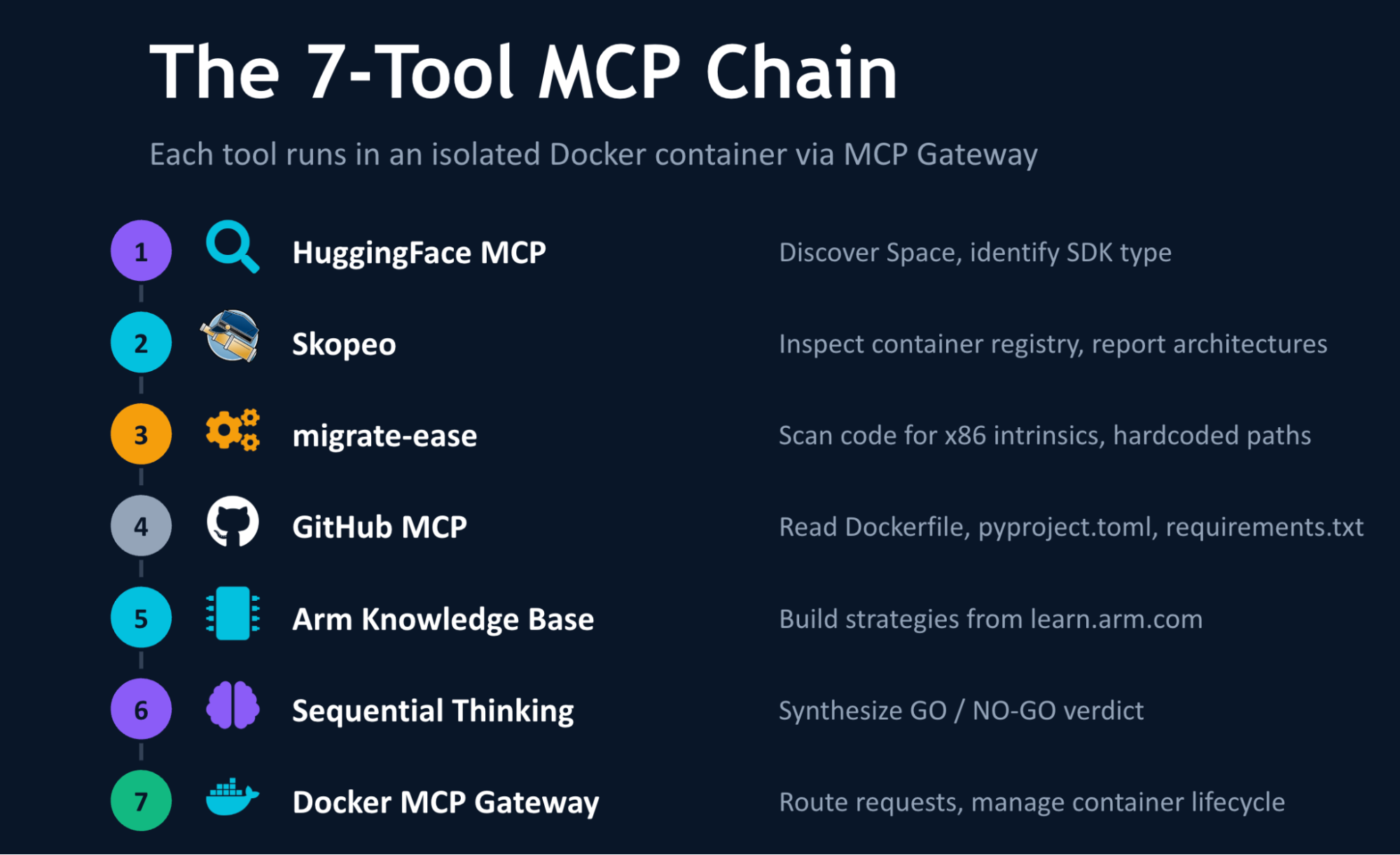
Caption: The 7-tool MCP chain architecture diagram
The tools:
- Hugging Face MCP – Discovers the Space, identifies SDK type (Docker vs. Gradio)
- Skopeo (via Arm MCP Server) – Inspects the container registry, reports supported architectures
- migrate-ease (via Arm MCP Server) – Scans source code for x86-specific intrinsics, hardcoded paths, arch-locked libraries
- GitHub MCP – Reads
Dockerfile,pyproject.toml,requirements.txtfrom the repository - Arm Knowledge Base (via Arm MCP Server) – Searches learn.arm.com for build strategies and optimization guides
- Sequential Thinking – Combines findings into a structured migration verdict
- Docker MCP Gateway – Routes requests, manages container lifecycle
The natural question at this point is whether you could simply rebuild your Docker image for Arm64 and be done with it and for many applications, you could. But knowing in advance whether the rebuild will actually succeed is a different problem. Your Dockerfile might depend on a base image that doesn’t publish Arm64 builds. Your Python dependencies might not have aarch64 wheels. Your code might use x86-specific system calls. The MCP chain checks all of this automatically before you invest time in a build that may not work.
Docker MCP ToolkitでVisual Studio Codeを設定する
前提 条件
開始する前に、次のものがあることを確認してください。
- 最低 8 GBのRAM(推奨16GB)のマシン
- 最新のDocker Desktopリリース
- GitHub Copilot拡張機能を使ったVS Code
- 個人アクセストークン付きのGitHubアカウント
ステップ 1。Docker MCP Toolkitを有効にする
Dockerデスクトップを開き、設定からMCP Toolkitを有効にしてください。
以下を可能にする方法:
- Docker Desktop を開く
- Go to Settings > Beta Features
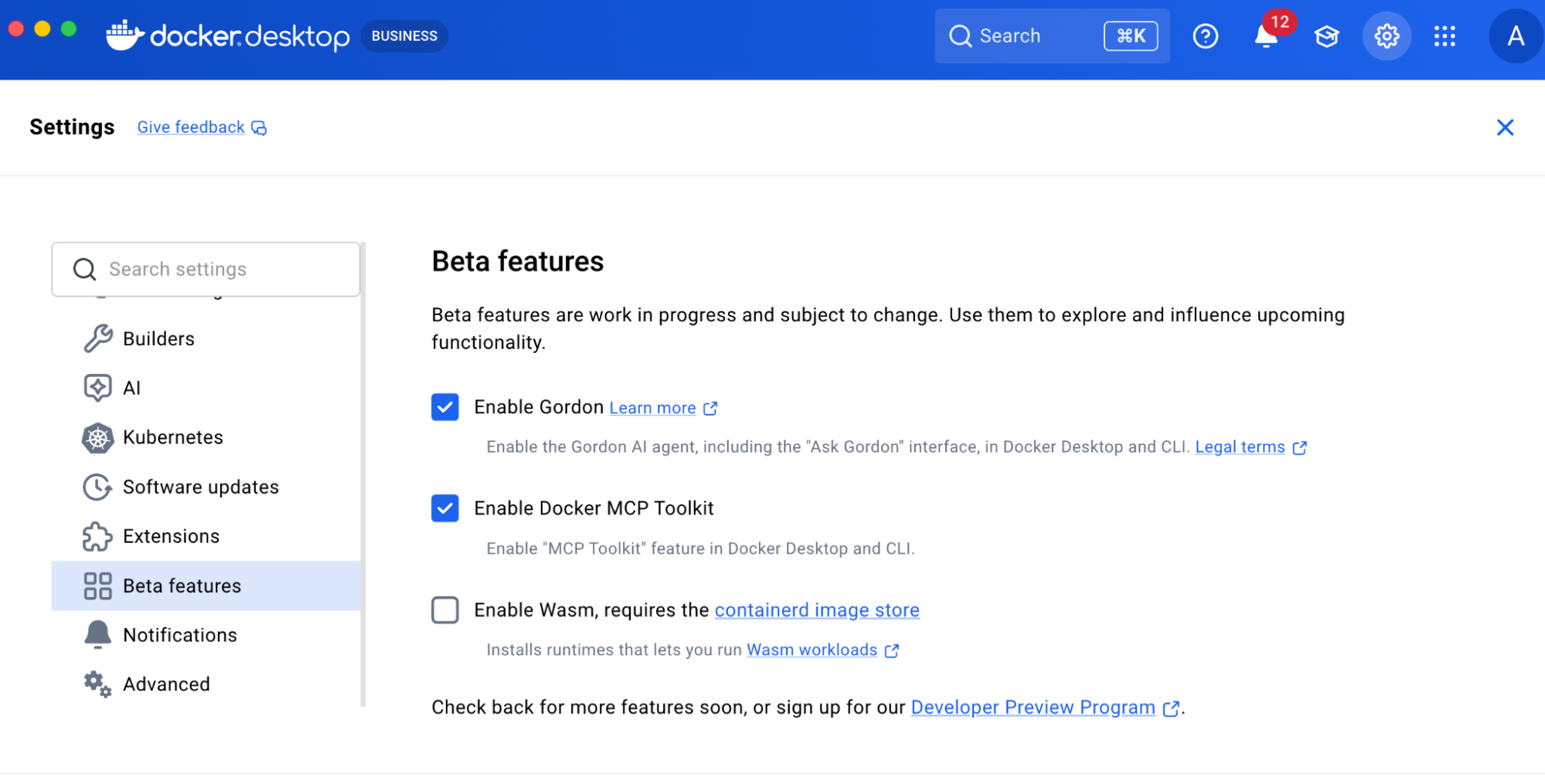
キャプション:Docker Desktop 下のDocker MCP Toolkitを有効にする
- Toggle Docker MCP Toolkit ON
- 「応募」をクリックします
Step 2. Add Required MCP Servers from Catalog
Add the following four MCP Servers from the Catalog. You can find them by selecting “Catalog” in the Docker Desktop MCP Toolkit, or by following these links:
- Arm MCP Server – Architecture analysis,
migrate-easescanning,skopeoinspection, and Arm knowledge base - GitHub MCP Server – Repository analysis, code reading, and pull request creation
- シーケンシャルシンキングMCPサーバー – 複雑な問題の分解と計画
- Hugging Face MCP Server – Space discovery and metadata retrieval
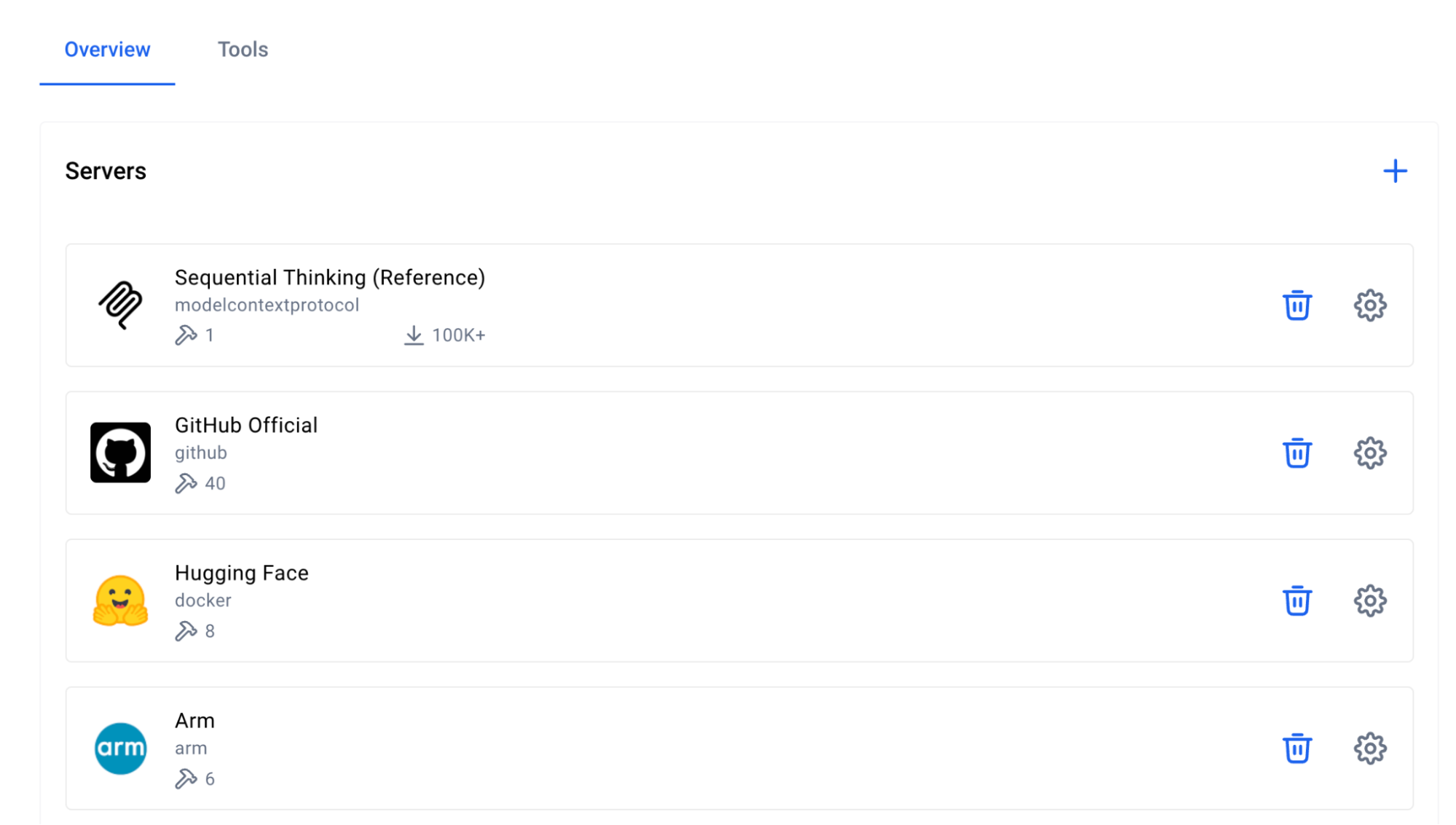
キャプション:Docker MCPカタログでArm MCPサーバーを検索
ステップ 3。サーバーの設定
- Arm MCPサーバーの設定
移行イージースキャンおよびMCAツールでローカルコードにアクセスするには、Arm MCPサーバーがローカルコードを指すディレクトリを設定する必要があります。
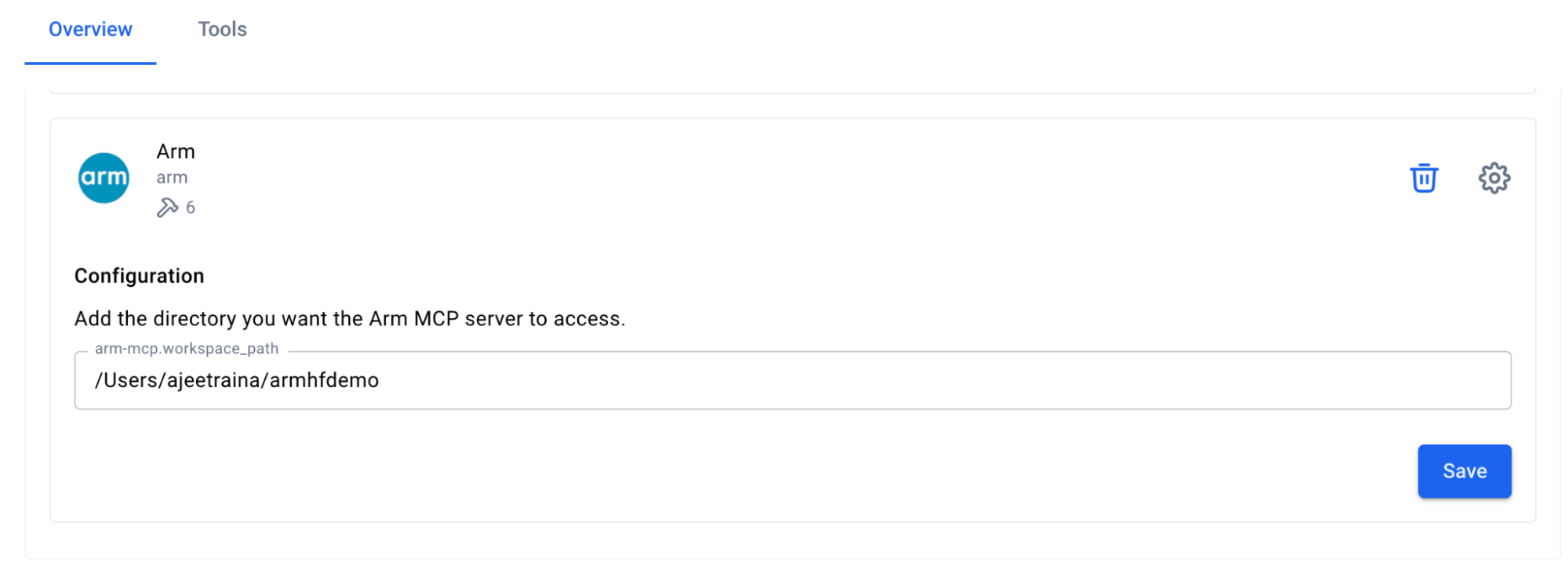
キャプション:Arm MCPサーバーの設定
「保存」をクリックすると、Arm MCPサーバーがコードの探し場所を把握してくれます。将来的に別のディレクトリへのアクセスを許可したい場合は、このパスを変更する必要があります。
利用可能なアーム移行ツール
Click Tools to view all six MCP tools available under Arm MCP Server:
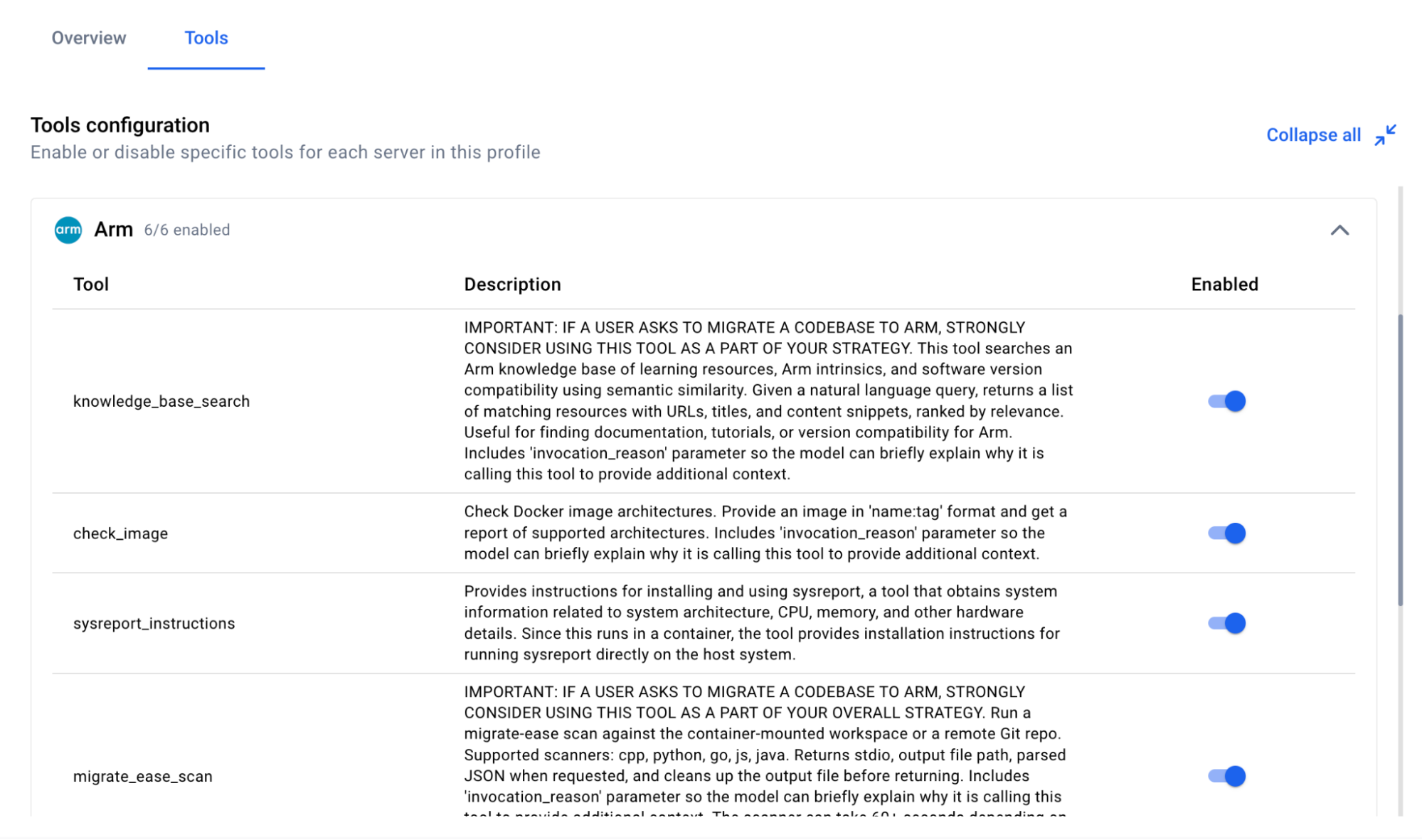
キャプション:Arm MCPサーバーが提供するMCPツール一覧
knowledge_base_search– Arm学習リソース、内在文書、ソフトウェア互換性の意味検索migrate_ease_scan– C++、Python、Go、JavaScript、Javaに対応したコードスキャナー(Arm互換性解析)check_image– Dockerイメージアーキテクチャ検証(イメージがArm64をサポートしているか確認)skopeo– ダウンロード不要の遠隔コンテナ画像検査mca– アセンブリ性能分析およびIPC予測のためのマシンコードアナライザsysreport_instructions– システムアーキテクチャ情報収集
- Configure the GitHub MCP Server
The GitHub MCP Server lets GitHub Copilot read repositories, create pull requests, manage issues, and commit changes.
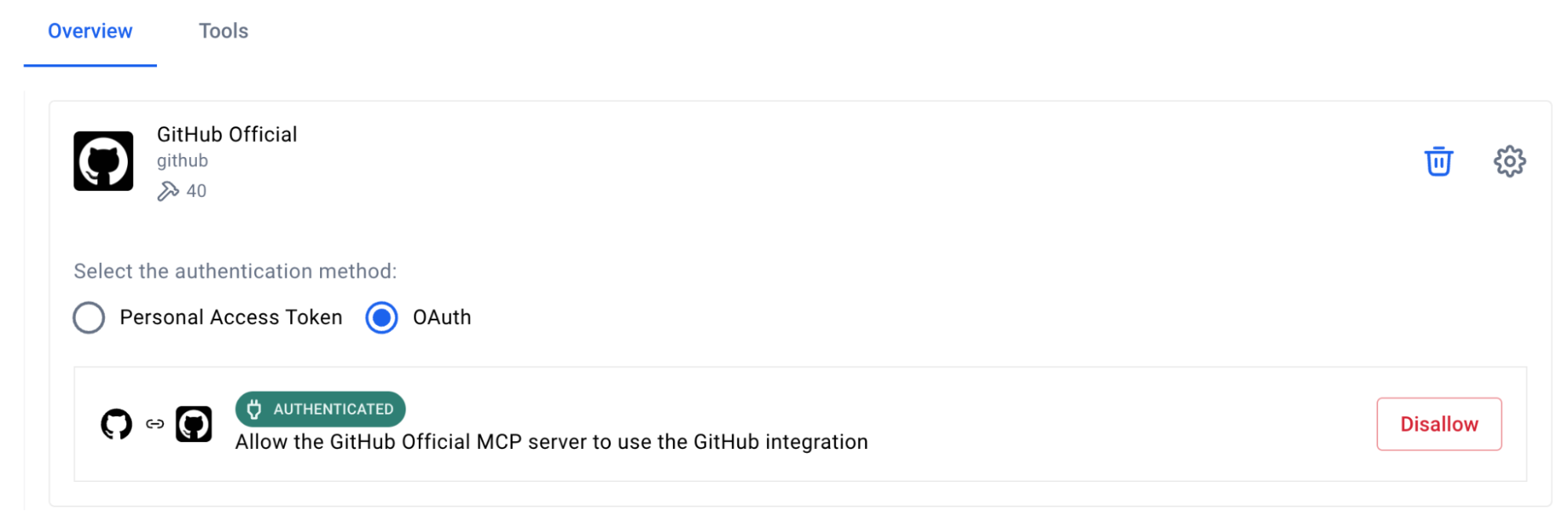
キャプション:GitHub公式MCPサーバーの設定手順
認証の設定:
- GitHub officialを選択してください
- 希望する認証方法を選びましょう
- For Personal Access Token, get the token from GitHub > Settings > Developer Settings
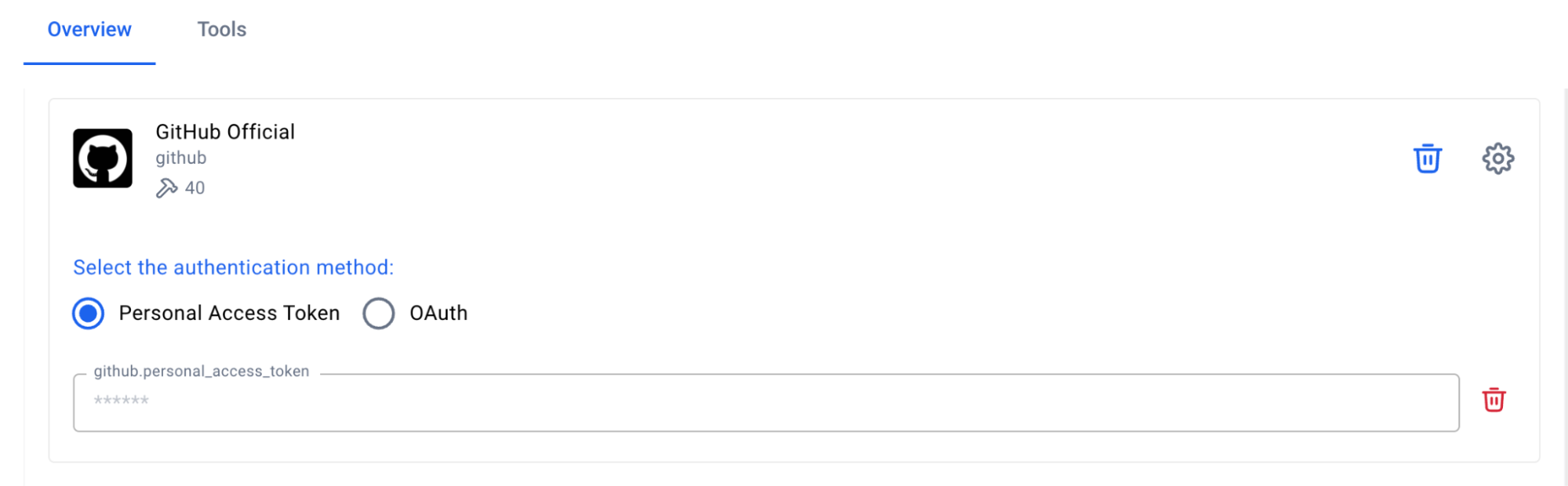
キャプション:GitHub MCPサーバーでのパーソナルアクセストークンの設定
- Configure the Sequential Thinking MCP Server
- 「シーケンシャルシンキング」をクリックしてください
- 設定は不要です
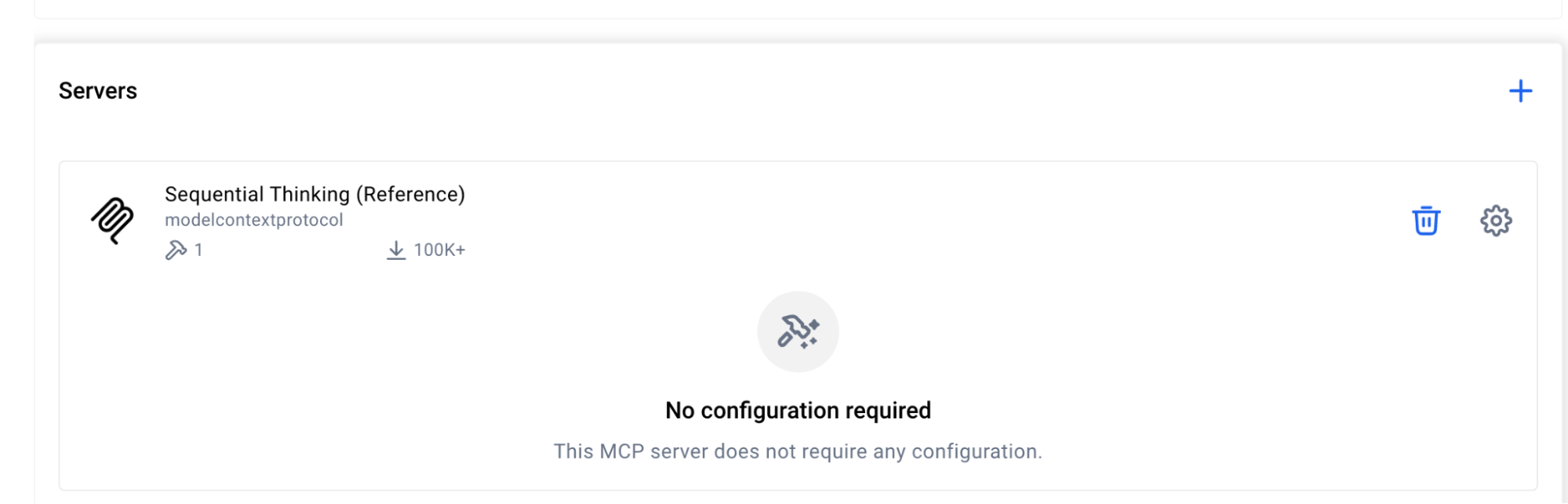
キャプション:シーケンシャルMCPサーバーは設定不要
This server helps GitHub Copilot break down complex migration decisions into logical steps.
- Configure the Hugging Face MCP Server
The Hugging Face MCP Server provides access to Space metadata, model information, and repository contents directly from the Hugging Face Hub.
- Click “Hugging Face”
- No additional configuration needed for public Spaces
- For private Spaces, add your HuggingFace API token
ステップ 4。VSコードにサーバーを追加する
Docker MCP Toolkitを使えば、VS Codeのようなクライアント向けにMCPサーバーを非常に簡単に設定できます。
設定するには、「クライアント」をクリックして下にスクロールしてVisual Studio Codeへ行ってください。「接続」ボタンをクリックしてください:
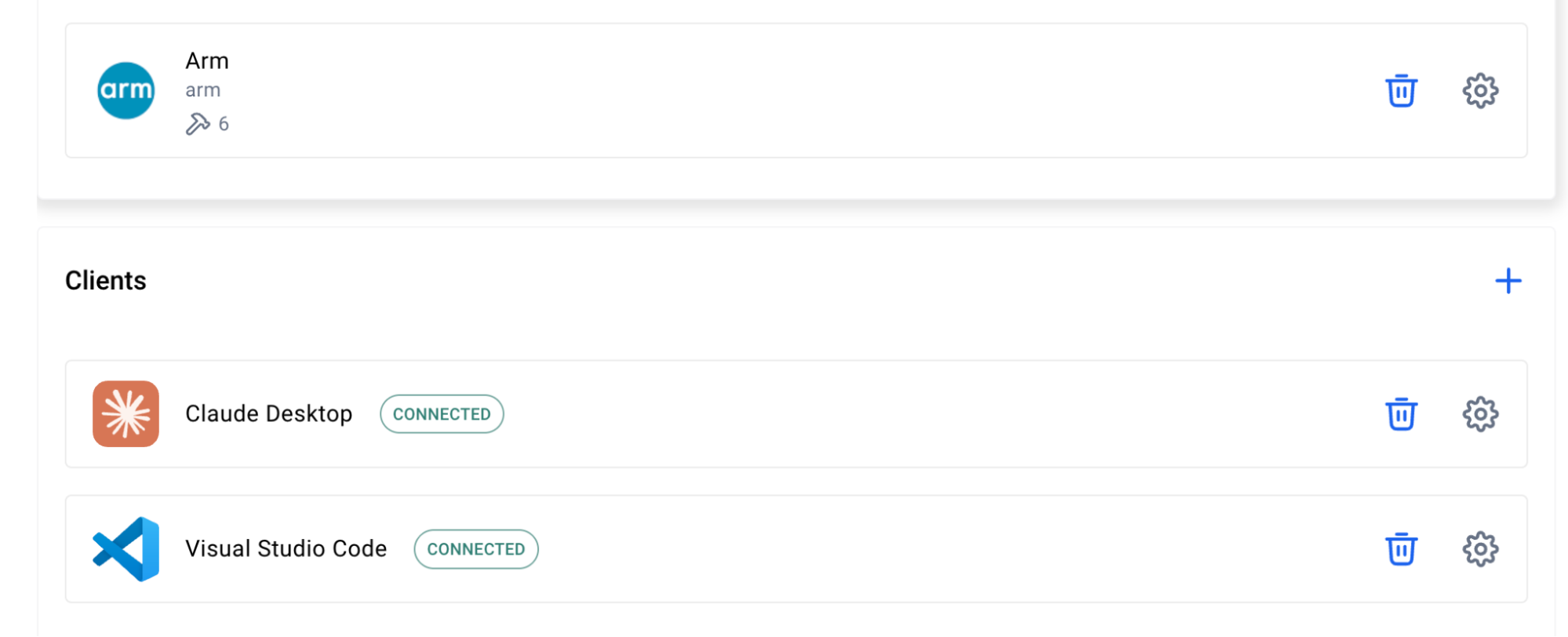
キャプション:Visual Studio CodeをMCPクライアントとして設定する
次にVS Codeを開き、左のツールバーにある「拡張機能」アイコンをクリックしてください:
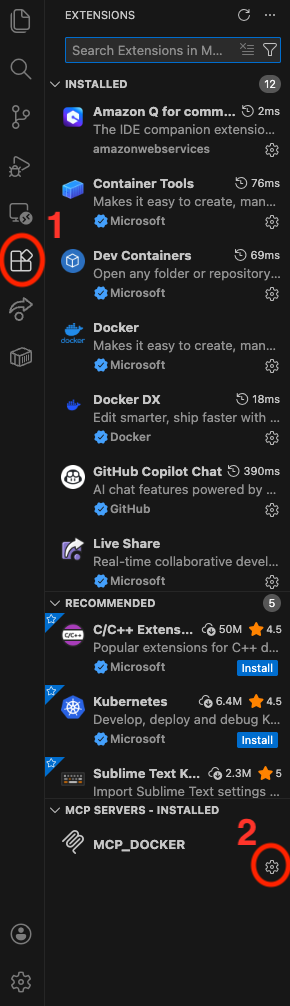
キャプション:VS Code拡張機能でのMCP_DOCKER設定
MCP_DOCKERのギアをクリックし、「サーバー開始」をクリックしてください:
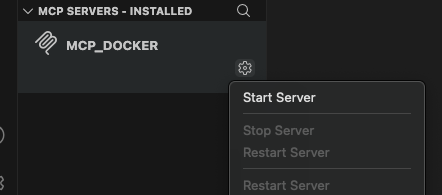
キャプション:VS CodeでMCPサーバーを起動
ステップ 5。接続確認
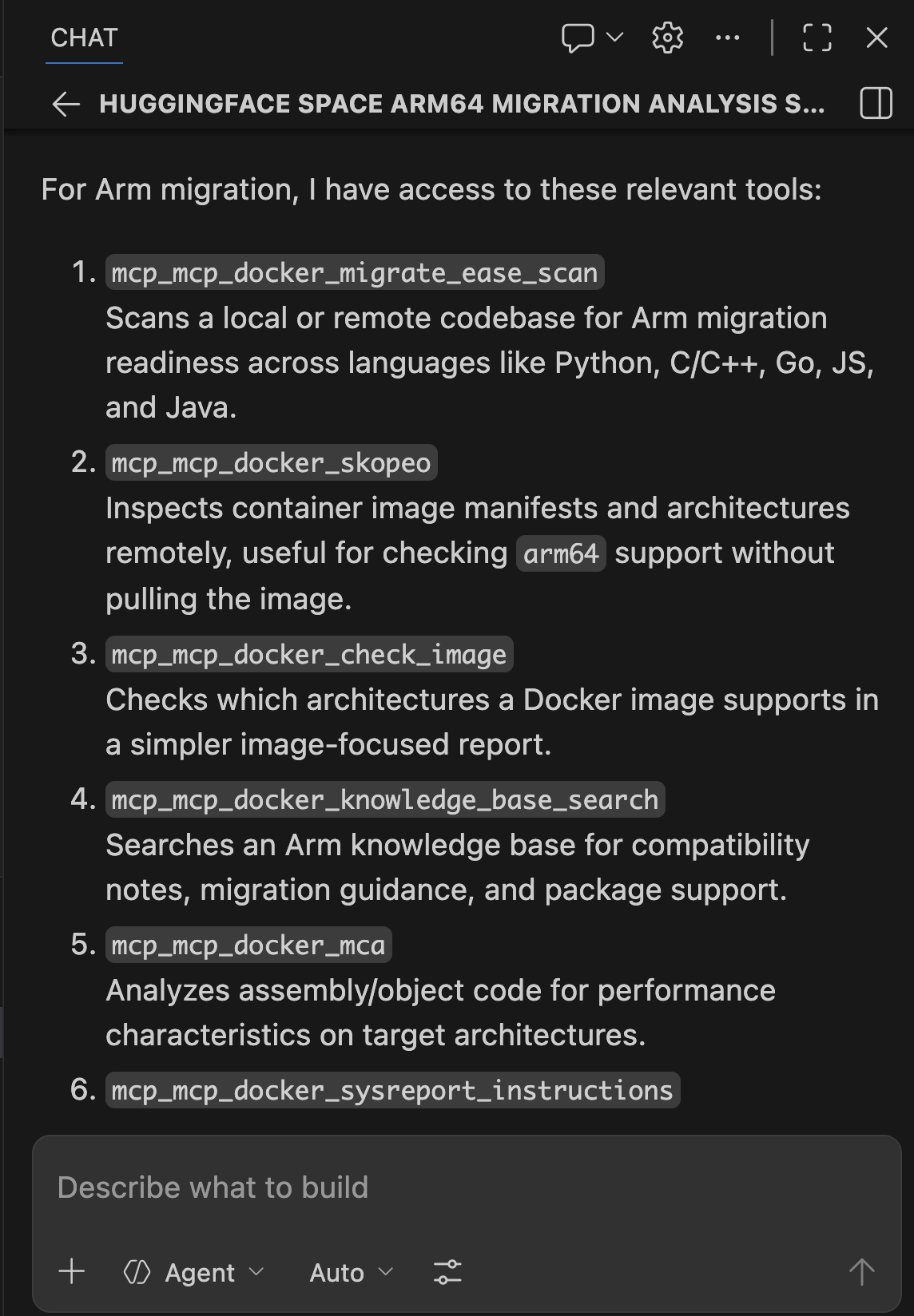
GitHub Copilot ChatをVS Codeで開いて質問してください:
What Arm migration and Hugging Face tools do you have access to?
You should see tools from all four servers listed. If you see them, your connection works. Let’s scan a Hugging Face Space.
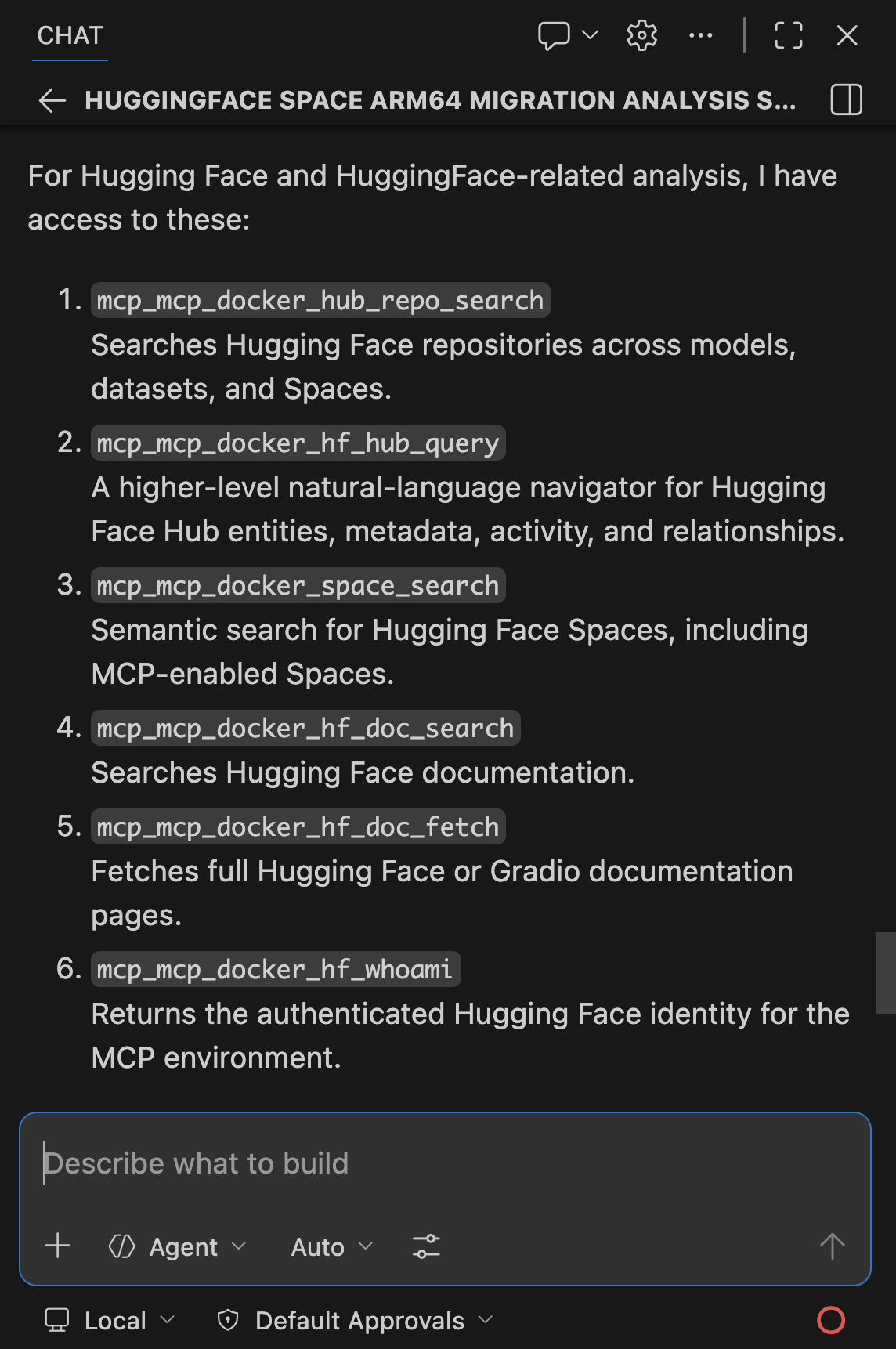
Caption: Playing around with GitHub Copilot
Real-World Demo: Scanning ACE-Step v1.5
Now that you’ve connected GitHub Copilot to Docker MCP Toolkit, let’s scan a real Hugging Face Space for Arm64 readiness and uncover the exact Arm64 blocker we hit when trying to run it locally.
- ターゲット: ACE-Step v1.5 – a 3.5B parameter music generation model
- Time to scan: 15 minutes
- Infrastructure cost: $0 (all tools run locally in Docker containers)
ワークフロー
Docker MCP Toolkit orchestrates the scan through a secure MCP Gateway that routes requests to specialized tools: the Arm MCP Server inspects images and scans code, Hugging Face MCP discovers the Space, GitHub MCP reads the repository, and Sequential Thinking synthesizes the verdict.
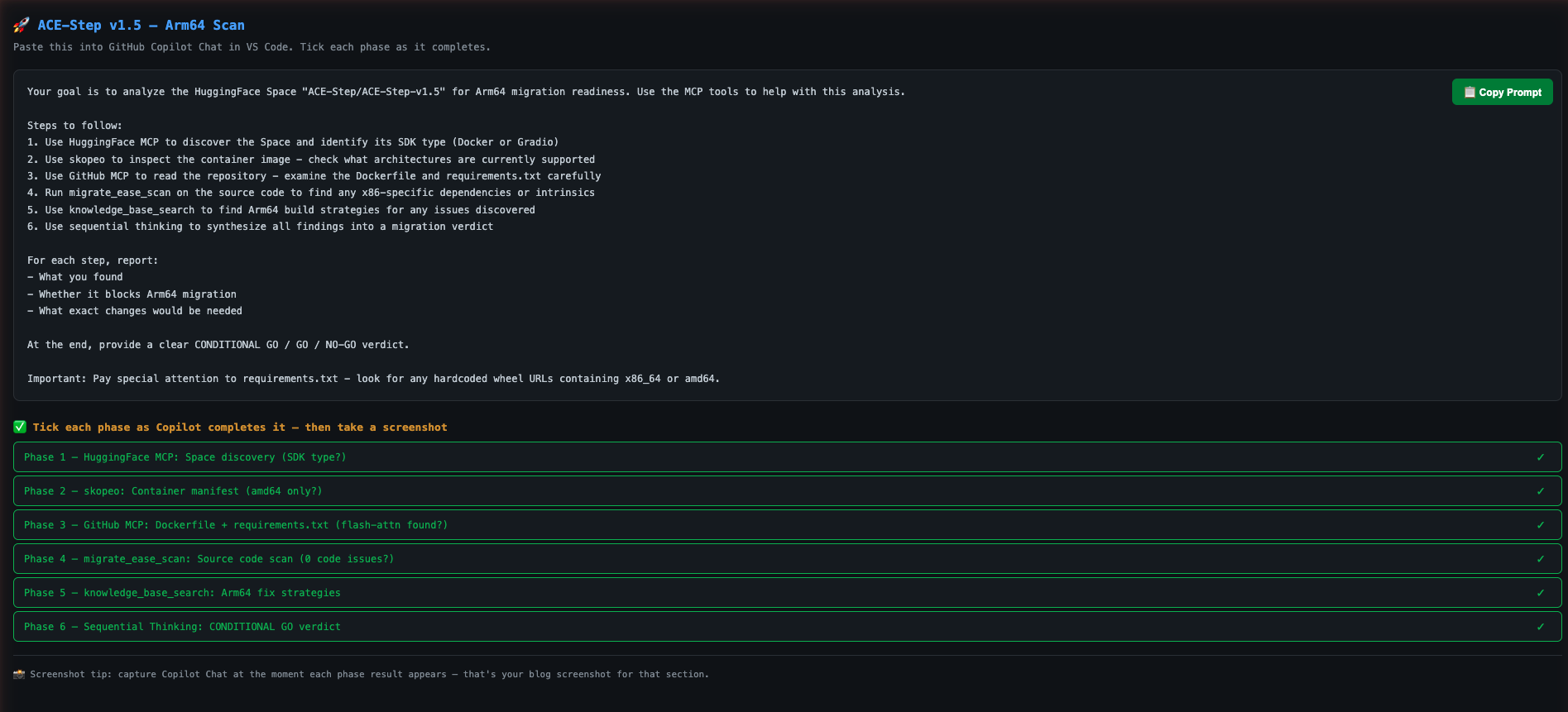
Step 1. Give GitHub Copilot Scan Instructions
VS Codeでプロジェクトを開きます。GitHub Copilot Chatで、このプロンプトを貼り付けてください:
Your goal is to analyze the Hugging Face Space "ACE-Step/ACE-Step-v1.5" for Arm64 migration readiness. Use the MCP tools to help with this analysis.

Steps to follow:
1. Use Hugging Face MCP to discover the Space and identify its SDK type (Docker or Gradio)
2. Use skopeo to inspect the container image - check what architectures are currently supported
3. Use GitHub MCP to read the repository - examine pyproject.toml, Dockerfile, and requirements
4. Run migrate_ease_scan on the source code to find any x86-specific dependencies or intrinsics
5. Use knowledge_base_search to find Arm64 build strategies for any issues discovered
6. Use sequential thinking to synthesize all findings into a migration verdict

At the end, provide a clear GO / NO-GO verdict with a summary of required changes.
ステップ 2。Watch Docker MCP Toolkit Execute
GitHub Copilot orchestrates the scan using Docker MCP Toolkit. Here’s what happens:
Phase 1: Space Discovery
GitHub Copilot starts by querying the Hugging Face MCP server to retrieve Space metadata.
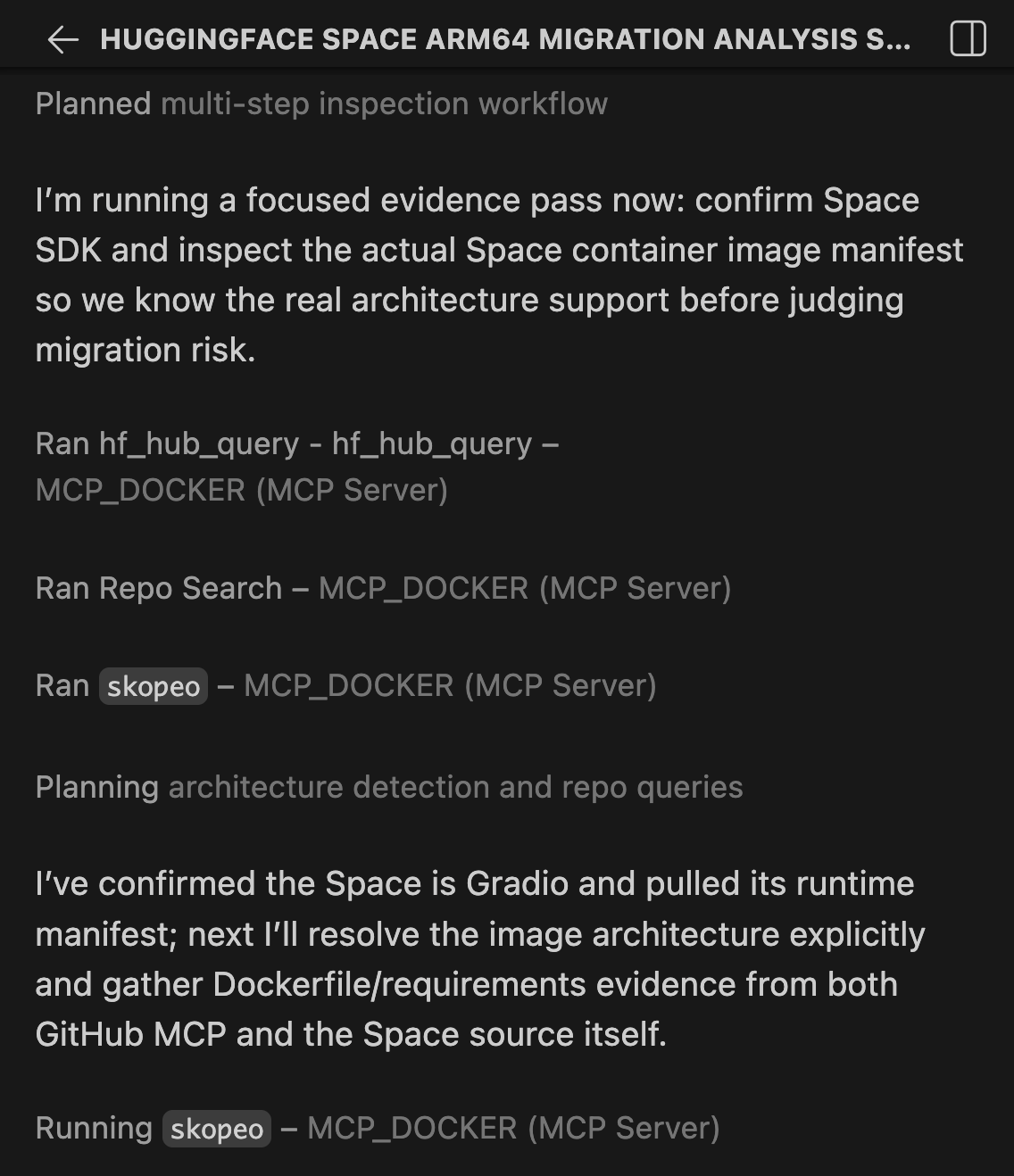
Caption: GitHub Copilot uses Hugging Face MCP to discover the Space and identify its SDK type.
The tool returns that ACE-Step v1.5 uses the Docker SDK – meaning Hugging Face serves it as a pre-built container image, not a Gradio app. This is critical: Docker SDK Spaces have Dockerfiles we can analyze and rebuild, while Gradio SDK Spaces are built by Hugging Face’s infrastructure we can’t control.
Phase 2: Container Image Inspection
Next, Copilot uses the Arm MCP Server’s skopeo tool to inspect the container image without downloading it.
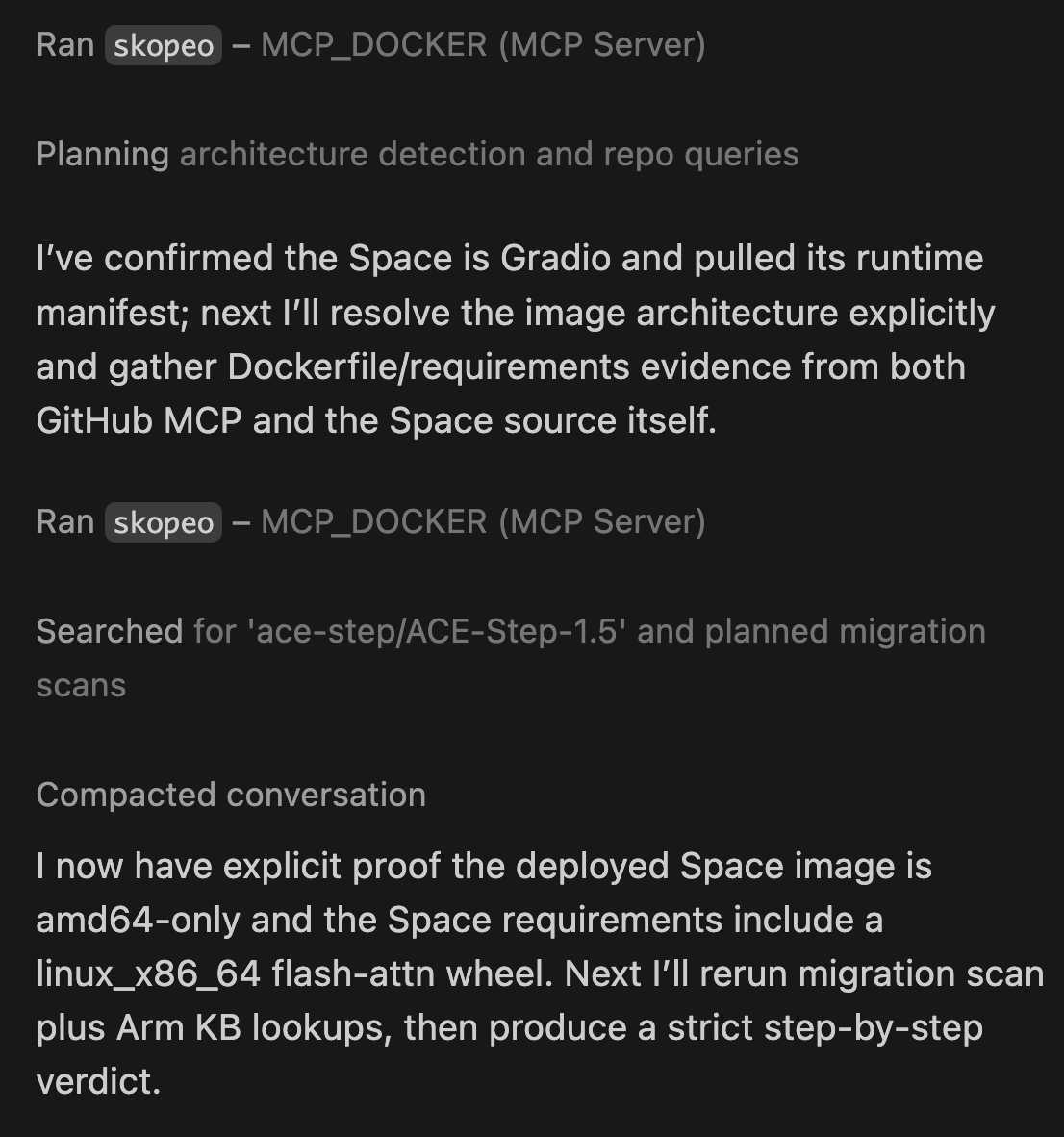
Caption: The skopeo tool reports that the container image has no Arm64 build available. The container won’t start on Arm hardware.
Result: the manifest includes only linux/amd64. No Arm64 build exists. This is the first concrete data point the container will fail on any Arm hardware. But this is not the full story.
Phase 3: Source Code Analysis
Copilot uses GitHub MCP to read the repository’s key files. Here is the actual Dockerfile from the Space:
FROM python:3.11-slim

ENV PYTHONDONTWRITEBYTECODE=1 \
    PYTHONUNBUFFERED=1 \
    DEBIAN_FRONTEND=noninteractive \
    TORCHAUDIO_USE_TORCHCODEC=0

RUN apt-get update && \
    apt-get install -y --no-install-recommends git libsndfile1 build-essential && \
    apt-get install -y ffmpeg libavcodec-dev libavformat-dev libavutil-dev libswresample-dev && \
    rm -rf /var/lib/apt/lists/*

RUN useradd -m -u 1000 user
RUN mkdir -p /data && chown user:user /data && chmod 755 /data

ENV HOME=/home/user \
    PATH=/home/user/.local/bin:$PATH \
    GRADIO_SERVER_NAME=0.0.0.0 \
    GRADIO_SERVER_PORT=7860

WORKDIR $HOME/app
COPY --chown=user:user requirements.txt .
COPY --chown=user:user acestep/third_parts/nano-vllm ./acestep/third_parts/nano-vllm
USER user

RUN pip install --no-cache-dir --user -r requirements.txt
RUN pip install --no-deps ./acestep/third_parts/nano-vllm

COPY --chown=user:user . .
EXPOSE 7860
CMD ["python", "app.py"]
The Dockerfile itself looks clean:
- python:3.11-slim already publishes multi-arch builds including arm64
- No -mavx2, no -march=x86-64 compiler flags
- build-essential, ffmpeg, libsndfile1 are all available in Debian’s arm64 repositories
But the real problem is in requirements.txt. This is what I hit when I tried to install ACE-Step locally:
# nano-vllm dependencies
triton>=3.0.0; sys_platform != 'win32'

flash-attn @ https://github.com/mjun0812/flash-attention-prebuild-wheels/releases/
  download/v0.7.12/flash_attn-2.8.3+cu128torch2.10-cp311-cp311-linux_x86_64.whl
  ; sys_platform == 'linux' and python_version == '3.11'
Two immediate blockers:
flash-attnis pinned to a hardcodedlinux_x86_64wheel URL. On an aarch64 system, pip downloads this wheel and immediately rejects it: “not a supported wheel on this platform.” This is the exact error I hit.triton>=3.0.0has no aarch64 wheel on PyPI for Linux. It will fail on Arm hardware.
Neither of these is a code problem. The Python source code is architecture-neutral. The fix is in the dependency declarations.
Phase 4: Architecture Compatibility Scan
Copilot runs the migrate_ease_scan tool with the Python scanner on the codebase.
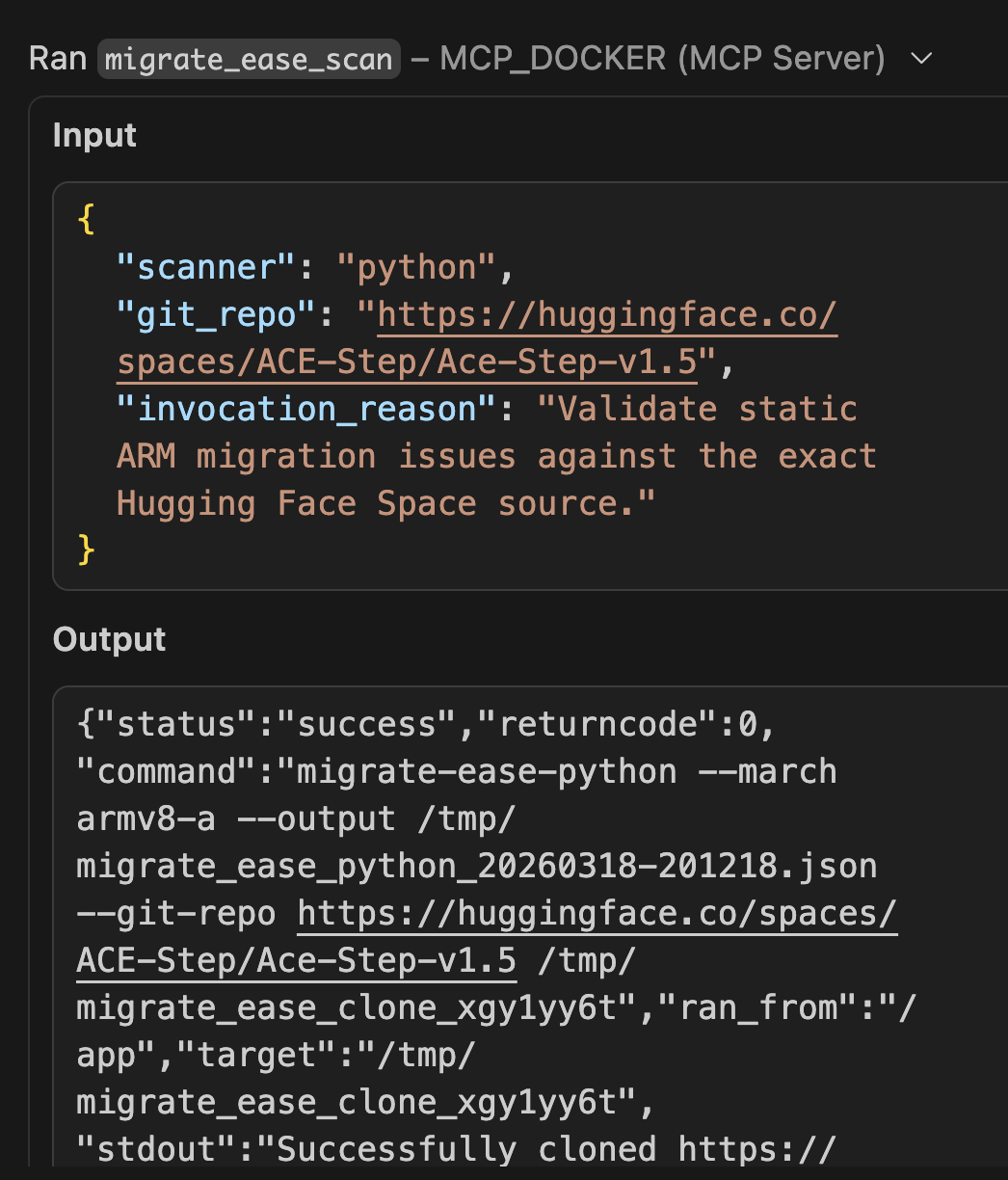
Caption: The migrate_ease_scan tool analyzes the Python source code and finds zero x86-specific dependencies. No intrinsics, no hardcoded paths, no architecture-locked libraries.
The application source code itself returns 0 architecture issues — no x86 intrinsics, no platform-specific system calls. But the scan also flags the dependency manifest. Two blockers in requirements.txt:
|
依存 |
問題 |
Arm64 Fix |
|---|---|---|
|
flash-attn (linux wheel) |
Hardcoded linux_x86_64 URL |
Use flash-attn 2.7+ via PyPI — publishes aarch64 wheels natively |
|
triton>=3.0.0 |
No aarch64 PyPI wheel for Linux |
Exclude on aarch64 or use triton-nightly aarch64 build |
Phase 5: Arm Knowledge Base Lookup
Copilot queries the Arm MCP Server’s knowledge base for solutions to the discovered issues.
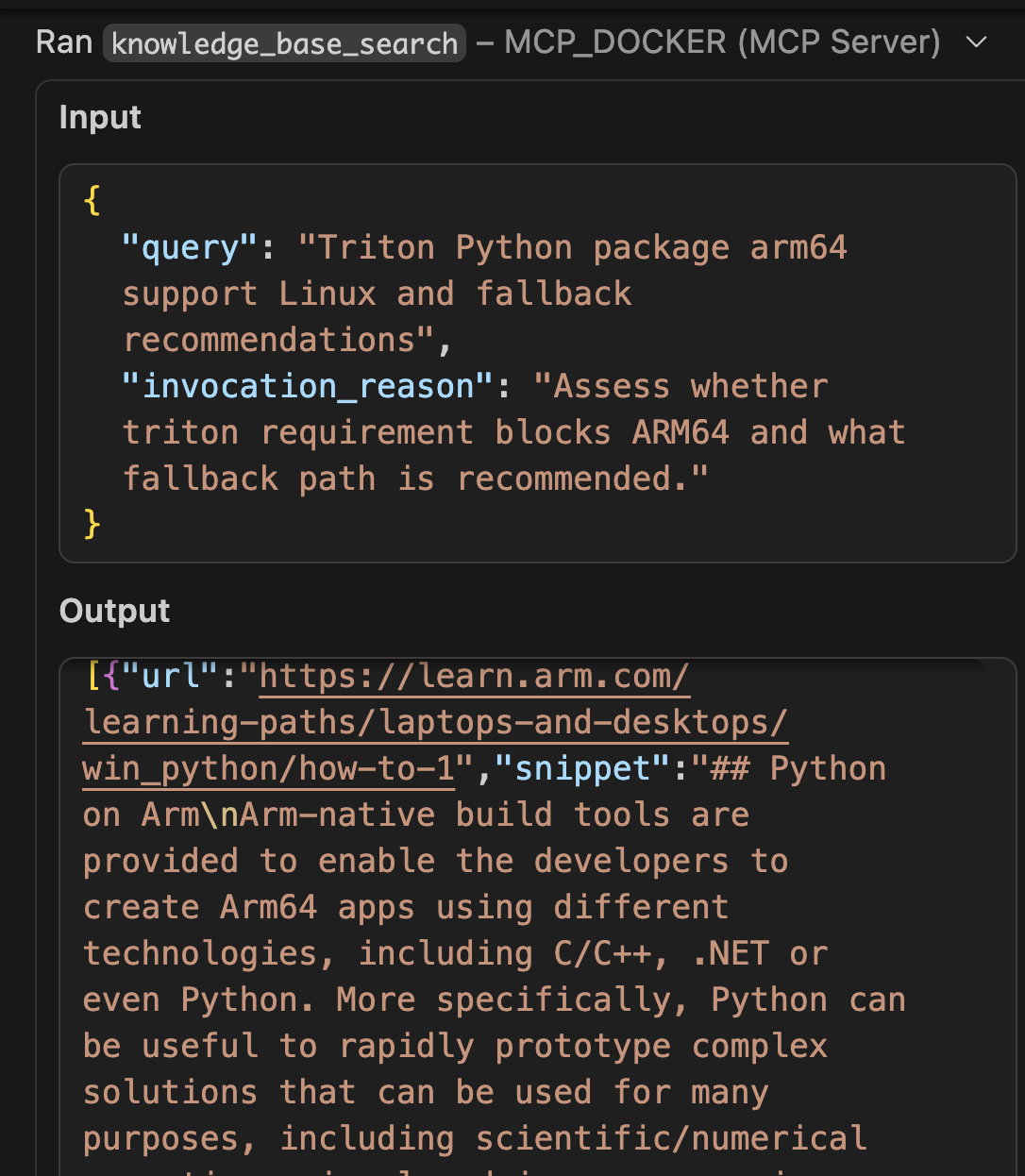
Caption: GitHub Copilot uses the knowledge_base_search tool to find Docker buildx multi-arch strategies from learn.arm.com.
The knowledge base returns documentation on:
- flash-attn aarch64 wheel availability from version 2.7+
- PyTorch Arm64 optimization guides for Graviton and Apple Silicon
- Best practices for CUDA 13.0 on aarch64 (Jetson Thor / DGX Spark)
- triton alternatives for CPU inference paths on Arm
Phase 6: Synthesis and Verdict
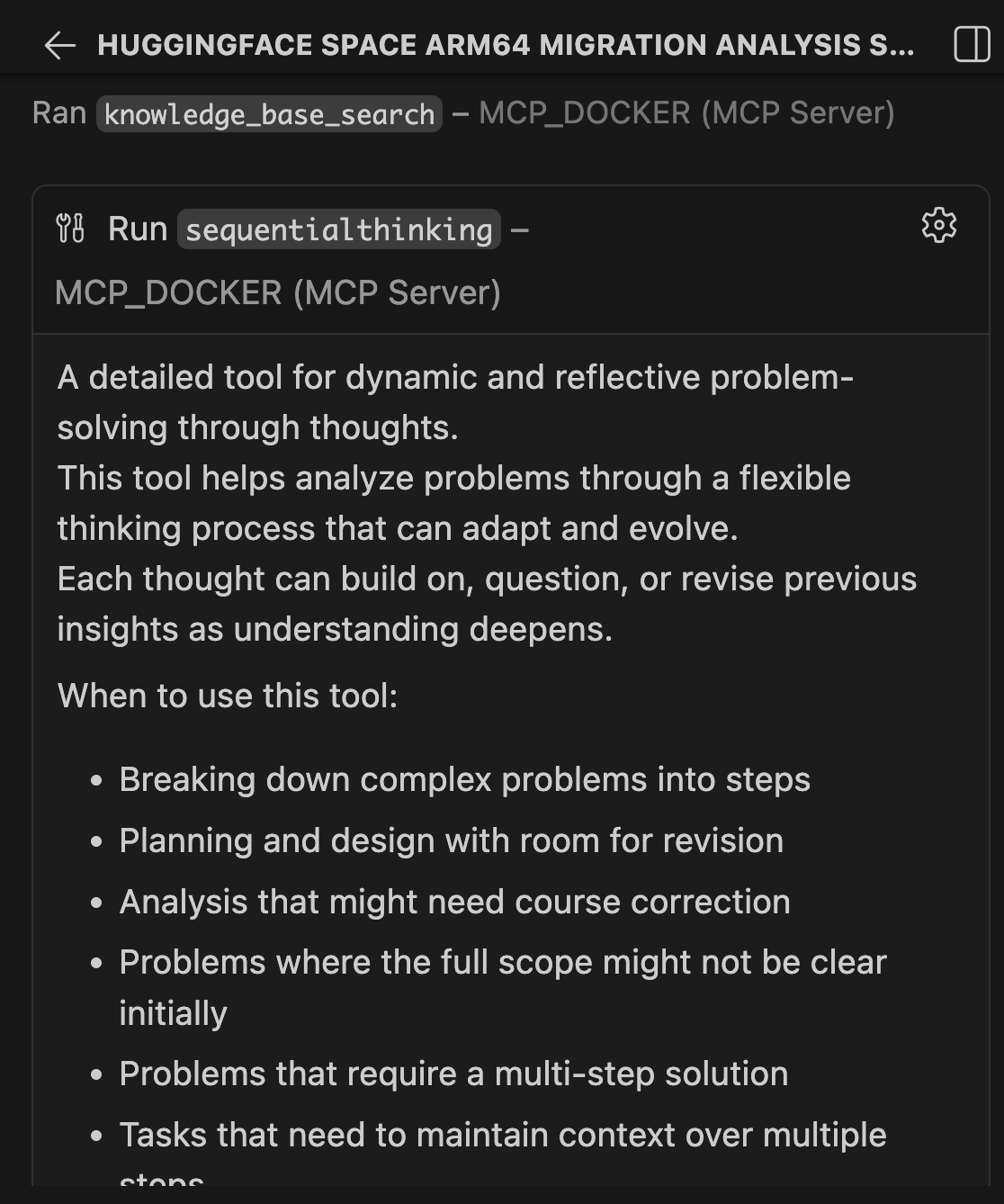
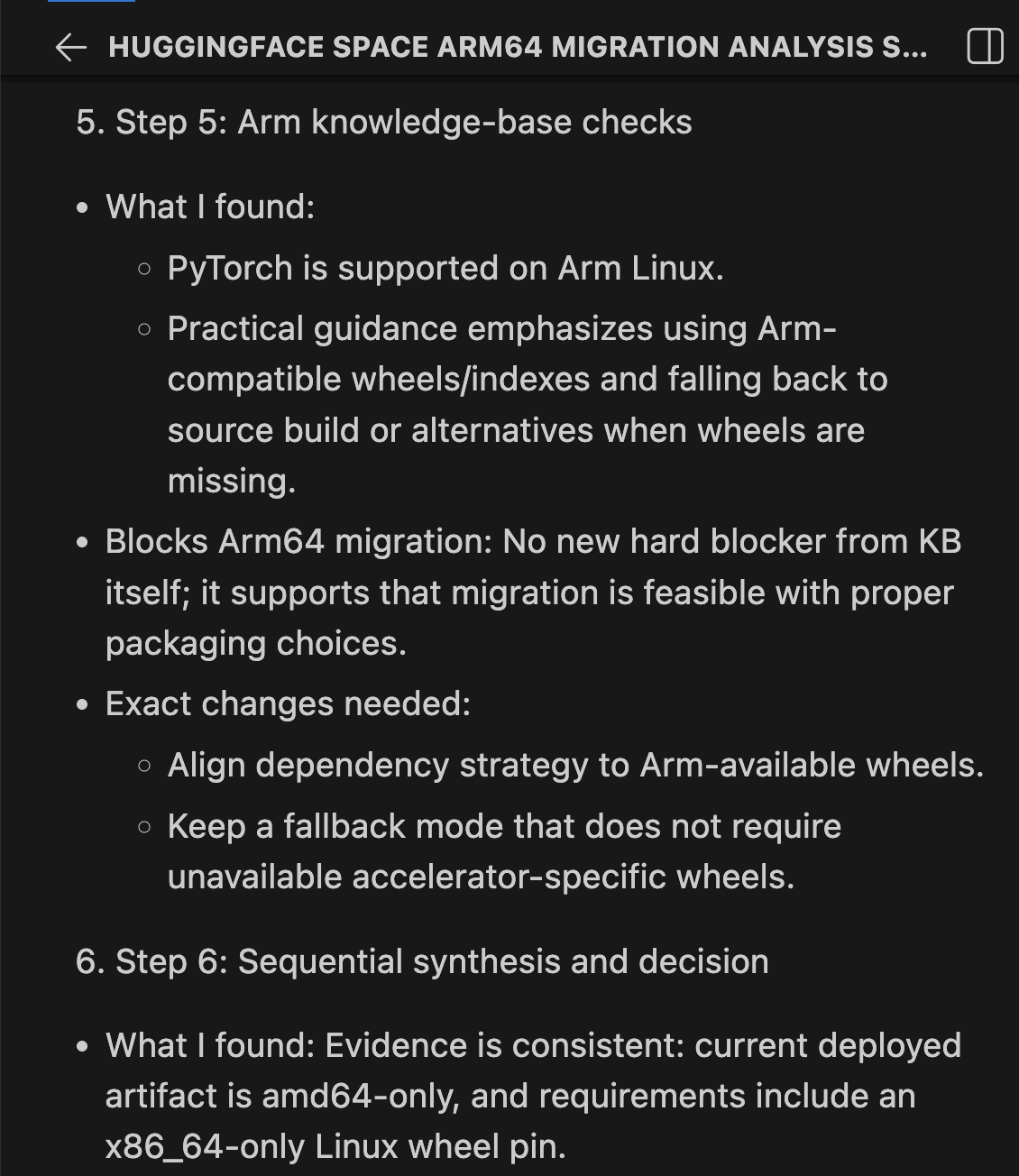
Sequential Thinking combines all findings into a structured verdict:
|
確認してください |
結果 |
Blocks? |
|---|---|---|
|
Container manifest |
amd64 only |
Yes, needs rebuild |
|
Base image python:3.11-slim |
Multi-arch (arm64 available) |
いいえ |
|
System packages (ffmpeg, libsndfile1) |
Available in Debian arm64 |
いいえ |
|
トーチ==2。9.1 |
aarch64 wheels published |
いいえ |
|
flash-attn linux wheel |
Hardcoded linux_x86_64 URL |
YES, add arm64 URL alongside |
|
triton>=3.0.0 |
aarch64 wheels available from 3.5.0+ |
No, resolves automatically |
|
Source code (migrate-ease) |
0 architecture issues |
いいえ |
|
Compiler flags in Dockerfile |
None x86-specific |
いいえ |
Verdict: CONDITIONAL GO. Zero code changes. Zero Dockerfile changes. One dependency fix is required.
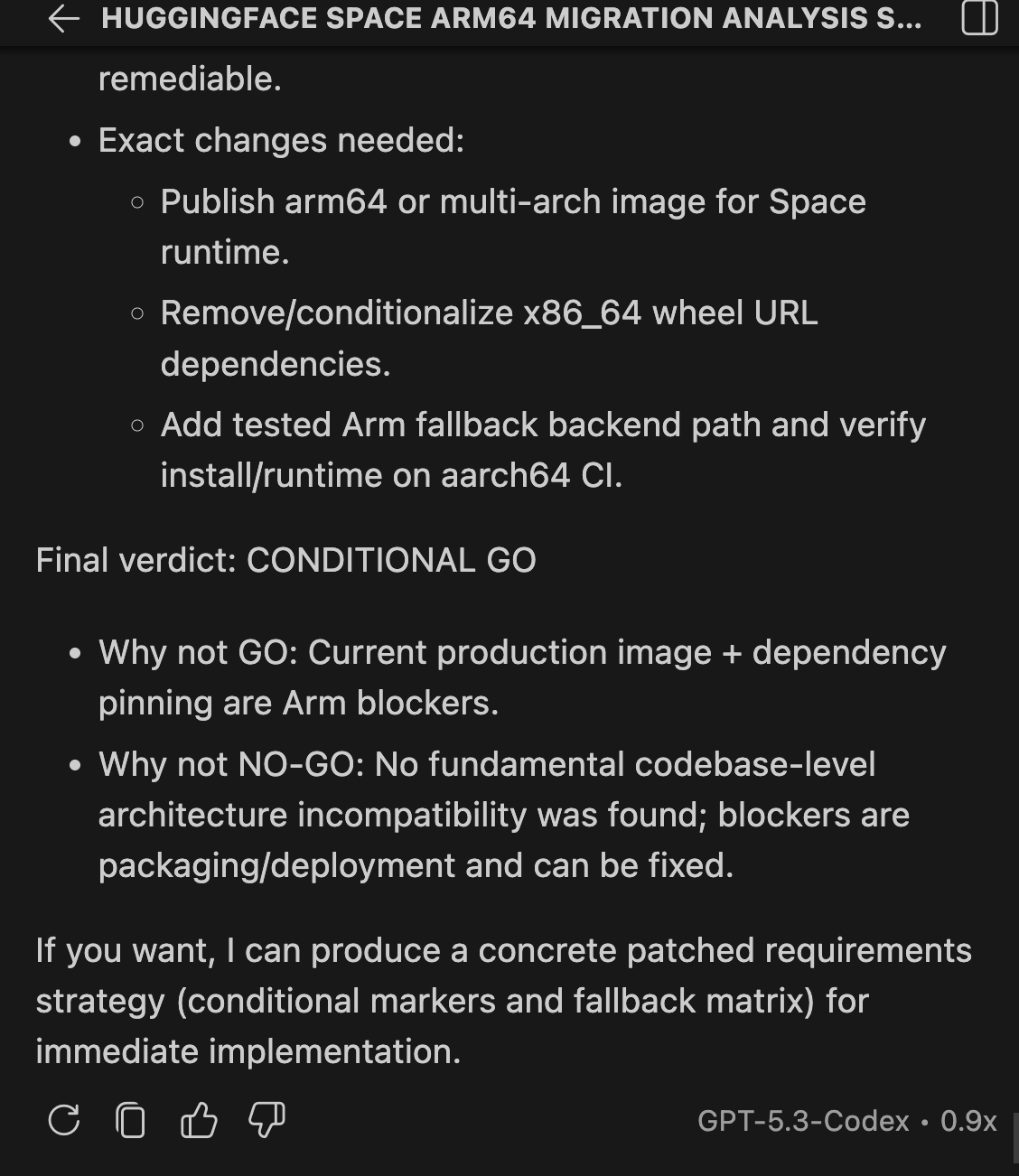
Here are the exact changes needed in requirements.txt:
# BEFORE — only x86_64

flash-attn @ https://github.com/mjun0812/flash-attention-prebuild-wheels/releases/download/v0.7.12/flash_attn-2.8.3+cu128torch2.10-cp311-cp311-linux_aarch64.whl ; sys_platform == 'linux' and python_version == '3.11' and platform_machine == 'aarch64'


# AFTER — add arm64 line alongside x86_64
flash-attn @ https://github.com/mjun0812/flash-attention-prebuild-wheels/releases/download/v0.7.12/flash_attn-2.8.3+cu128torch2.10-cp311-cp311-linux_aarch64.whl ; sys_platform == 'linux' and python_version == '3.11' and platform_machine == 'aarch64'
flash-attn @ https://github.com/mjun0812/flash-attention-prebuild-wheels/releases/download/v0.7.12/flash_attn-2.8.3+cu128torch2.10-cp311-cp311-linux_x86_64.whl ; sys_platform == 'linux' and python_version == '3.11' and platform_machine != 'aarch64'

# triton — no change needed, 3.5.0+ has aarch64 wheels, resolves automatically
triton>=3.0.0; sys_platform != 'win32'
After those two fixes, the build command is:
docker buildx build --platform linux/arm64 -t ace-step:arm64 .
That single command unlocks three deployment paths:
- NVIDIA Arm64 — Jetson Thor, DGX Spark (aarch64 + CUDA 13.0)
- Cloud Arm64 — AWS Graviton, Azure Cobalt, Google Axion (20-40% cost savings)
- Apple Silicon — M1-M4 Macs with MPS acceleration (local inference, $0 cloud cost)
Phase 7: Create the Pull Request
After completing the scan, Copilot uses GitHub MCP to propose the fix. Since the only blocker is the hardcoded linux_x86_64 wheel URL on line 32 of requirements.txt, the change is surgical: one line added, nothing removed.
The fix adds the equivalent linux_aarch64 wheel from the same release alongside the existing x86_64 entry, conditioned on platform_machine == 'aarch64':
# BEFORE — only x86_64, fails silently on Arm
flash-attn @ https://github.com/mjun0812/flash-attention-prebuild-wheels/releases/
  download/v0.7.12/flash_attn-2.8.3+cu128torch2.10-cp311-cp311-linux_x86_64.whl
  ; sys_platform == 'linux' and python_version == '3.11'

# AFTER — add arm64 line alongside, conditioned by platform_machine
flash-attn @ https://github.com/mjun0812/flash-attention-prebuild-wheels/releases/
  download/v0.7.12/flash_attn-2.8.3+cu128torch2.10-cp311-cp311-linux_x86_64.whl
  ; sys_platform == 'linux' and python_version == '3.11'
flash-attn @ https://github.com/mjun0812/flash-attention-prebuild-wheels/releases/
  download/v0.7.12/flash_attn-2.8.3+cu128torch2.10-cp311-cp311-linux_aarch64.whl
  ; sys_platform == 'linux' and python_version == '3.11' and platform_machine == 'aarch64'
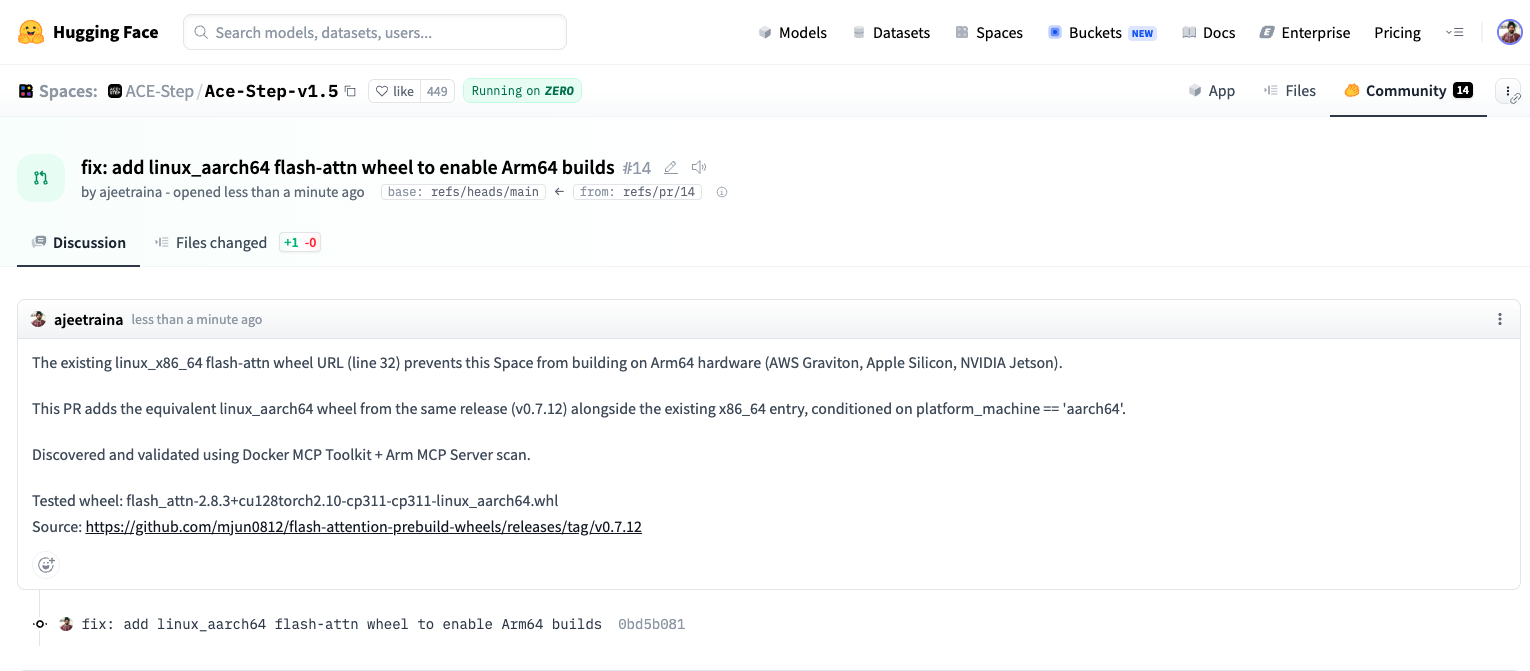
Caption: PR #14 on Hugging Face – Ready to merge
The key insight: the upstream maintainer already published the arm64 wheel in the same release. The fix wasn’t a rebuild or a code change – it was adding one line that references an artifact that already existed. The MCP chain found it in 15 minutes. Without it, a developer hitting this pip error would spend hours tracking it down.
PR: https://huggingface.co/spaces/ACE-Step/Ace-Step-v1.5/discussions/14
Without Arm MCP vs. With Arm MCP
Arm MCP ServerをDocker MCP Toolkitに追加した際の変更点を明確にしましょう。
- Without Arm MCP: You ask GitHub Copilot to check your Hugging Face Space for Arm64 compatibility. Copilot responds with general advice: “Check if your base image supports arm64”, “Look for x86-specific code”, “Try rebuilding with buildx”. You manually inspect Docker Hub, grep through the codebase, check each dependency on PyPI, and hit a pip install failure you cannot easily diagnose. The flash-attn URL issue alone can take an hour to track down.
- With Arm MCP + Docker MCP Toolkit: You ask the same question. Within minutes, it uses skopeo to verify the base image, runs migrate_ease_scan on your actual codebase, flags the hardcoded linux_x86_64 wheel URLs in requirements.txt, queries knowledge_base_search for the correct fix, and synthesizes a structured CONDITIONAL GO verdict with every check documented.
Real images get inspected. Real code gets scanned. Real dependency files get analyzed. The difference is Docker MCP Toolkit gives GitHub Copilot access to actual Arm migration tooling, not just general knowledge.
Manual Process vs. MCP Chain
手作業のプロセス:
- Clone the Hugging Face Space repository (10 minutes)
- Inspect the container manifest for architecture support (5 minutes)
- Read through pyproject.toml and requirements.txt (20 minutes)
- Check PyPI for Arm64 wheel availability across all dependencies (30 minutes)
- Analyze the Dockerfile for hardcoded architecture assumptions (10 minutes)
- Research CUDA/cuDNN Arm64 support for the required versions (20 minutes)
- Write up findings and recommended changes (15 minutes)
Total: 2-3 hours per Space
With Docker MCP Toolkit:
- Give GitHub Copilot the scan instructions (5 minutes)
- Review the migration report (5 minutes)
- Submit a PR with changes (5 minutes)
Total: 15 minutes per Space
What This Suggests at Scale
ACE-Step is a standard Python AI application: PyTorch, Gradio, pip dependencies, a slim Dockerfile. This pattern covers the majority of Docker SDK Spaces on Hugging Face.
The Arm64 wall for these apps is not always visible. The Dockerfile looks clean. The base image supports arm64. The Python code has no intrinsics. But buried in requirements.txt is a hardcoded wheel URL pointing at a linux_x86_64 binary, and nobody finds it until they actually try to run the container on Arm hardware.
That is the 80% problem: 80% of Hugging Face Docker Spaces have never been tested on Arm. Not because the code will not work. but because nobody checked. The MCP chain is a systematic check that takes 15 minutes instead of an afternoon of debugging pip errors.
That has real cost implications:
- Graviton inference runs 20-40% cheaper for the same workloads. Every amd64-only Space leaves that savings untouched.
- NVIDIA Physical AI (GR00T, LeRobot, Isaac) deploys on Jetson Thor. Developers find models on Hugging Face, but the containers fail to build on target hardware.
- Apple Silicon is the most common developer laptop. Local inference means faster iteration and no cloud bill.
Docker MCP Toolkitが開発に与える変化
Docker MCP Toolkitは、開発者が専門知識や能力とどのように関わるかを変えます。新しいツールを学んだり、依存関係をインストールしたり、認証情報を管理する代わりに、開発者はAIアシスタントを一度接続すれば、すぐにコンテナ化された専門知識にアクセスできます。
The benefits extend beyond Hugging Face scanning:
- Consistency — Same 7-tool chain produces the same structured analysis for any container
- Security — Each tool runs in an isolated Docker container, preventing tool interference
- Reproducibility — Scans behave identically across environments
- Composability — Add or swap tools as the ecosystem evolves
- Discoverability — Docker MCP Catalog makes finding the right server straightforward
最も重要なのは、開発者が既存のワークフローを維持していることです。VS Code。GitHub Copilot。行け。外部ツールやダッシュボードにコンテキスト切り替えもありません。
まとめ
You have just scanned a real Hugging Face Space for Arm64 readiness using Docker MCP Toolkit, the Arm MCP Server, and GitHub Copilot. What we found with ACE-Step v1.5 is representative of what you will find across Hugging Face: code that is architecture-neutral, a Dockerfile that is already clean, but a requirements.txt with hardcoded x86_64 wheel URLs that silently break Arm64 builds.
The MCP chain surfaces this in 15 minutes. Without it, you are staring at a pip error with no clear path to the cause.
Ready to try it? Open Docker Desktop and explore the MCP Catalog. Start with the Arm MCP Server, add GitHub,Sequential Thinking, and Hugging Face MCP. Point the chain at any Hugging Face Space you’re working with and see what comes back.
詳細情報
- Docker は初めてですか? Docker Desktop をダウンロードする
- MCPカタログを探る: コンテナ化されたセキュリティ強化されたMCPサーバーを発見
- MCP Toolkitの始め方: 公式文書
- Arm MCP Server: 開発者向けドキュメント
- Hugging Face MCP Server: Hub Documentation
- ACE-Step v1.5: Hugging Face Space
- Migration PR: GitHub Pull Request