
モデルコンテキストプロトコル(MCP)サーバーの管理用カスタムカタログおよびプロファイルの一般利用開始をお知らせできることを嬉しく思います。これら二つの補完的な機能は、チームがAIツールのパッケージ化、配布、管理方法を根本的に変えています。
カスタムMCPカタログは、組織が承認されたMCPサーバーのコレクションをキュレーションし配布することを可能にします。MCPプロファイルは、個々の開発者がプロジェクトやチーム間で簡単にMCPツールや設定を構築・実行・共有できるようにします。
この記事では、 従来のアプローチを基に、カスタムカタログを作成する方法を解説します。また、新しいプリミティブである Profilesも紹介します。これは、MCPサーバーのポータブルで名前付きのグループを定義できるものです。プロファイルは、今日のいくつかの実用的なユースケースを解決するよう設計されており、将来的に拡大するための基盤を提供します。
Dockerでカスタムカタログを作成する方法
組織がMCPを導入する中で、私たちは常に同じニーズを耳にします。つまり、チームは内部構築のサーバーを含む信頼できるMCPサーバーのリストをキュレーションする方法が必要だということです。
これらのニーズに対応するために、 カスタムカタログを構築しました。すべてのチームメンバーがオープンインターネット上でMCPサーバーを探す代わりに、組織は承認されたサーバーを定義したカタログを公開・配布できます。これにより、開発者は組織内の信頼できるMCPサーバーを一元的に発見し、利用できるようになります。
カスタムカタログは、DockerのMCPカタログからのサーバー、コミュニティソース、社内で開発されたカスタムMCPサーバーを参照できるため、柔軟性、制御、信頼を一つの体験にまとめることができます。カスタムカタログでその方法をお見せします。
ステップバイステップ:カスタムMCPカタログの作成と共有
この例では、Docker MCPカタログからサーバーを含み、CLIから自ら作成したMCPサーバーを含むカスタムカタログを作成します。次に、Docker Desktopを使ってカタログをインポートする方法をお見せします。
ここで示すすべての機能はCLIを通じて実行可能であり、主にユーザー中心の機能の一部はDocker Desktopで行使できます。
ここでは私の個人的なDocker Hub ID roberthouse224 をコマンドに使いますが、適切な場合は情報を使うように調整してください(例:イメージを押し出している)。
ステップ 1:カスタムMCPサーバーを作成し、Docker Hubにプッシュする
私たちはroll-dice(GitHubリポジトリ)というリファレンスサーバーを構築しました。これは通常のMCPサーバーで、stdio上で通信し、Dockerイメージとして構築可能です。イメージはすでに構築され、 Docker Hubにプッシュされています。
サーバーを記述するメタデータ(画像の所在場所を含む)を作成し、カタログ作成時に使うためにmcp-dice.yamlというファイルに保存できます。
name: roll-dice
title: Roll Dice
type: server
image: roberthouse224/mcp-dice@latest
description: An mcp server that can roll dice
ステップ 2:Docker MCPカタログのサーバーと、自分で構築したサーバーを含むカタログを作成する
これで、Docker MCPカタログと自分で作成したMCPサーバーからサーバーを含むカスタムカタログを作成できます。
docker mcp catalog create roberthouse224/our-catalog \
--title "Our Catalog" \
--server catalog://mcp/docker-mcp-catalog/playwright \
--server catalog://mcp/docker-mcp-catalog/github-official \
--server catalog://mcp/docker-mcp-catalog/context7 \
--server catalog://mcp/docker-mcp-catalog/atlassian \
--server catalog://mcp/docker-mcp-catalog/notion \
--server catalog://mcp/docker-mcp-catalog/markitdown \
--server file://./mcp-dice.yaml
ステップ 3:カスタムカタログ内のMCPサーバーの検証
今ではカタログをリストアップし、作成したカタログを見ることができますdocker mcp catalog list
カタログの内容も確認できますdocker mcp catalog show roberthouse224/our-catalog --format yaml
ステップ 4:カタログを共有する
現時点ではカスタムカタログはマシン上のみに保存されています。しかし、私たちが持っているのは、非常に強力なのは、信頼されたMCPサーバーを含む不変のOCIアーティファクトであり、簡単に共有できます。
この例では、カタログをコンテナレジストリにプッシュできます。この例ではDocker Hubを使っています。現在では、組織の名前空間にアクセスできる誰でもカタログにアクセスできます。
Docker MCP catalog push Roberthouse224/our-catalog
カスタムMCPカタログの使用
カスタムカタログが共有された今、同僚はDocker Desktop内からインポートすることも、CLIから docker mcp catalog pullを使ったものからインポートできます。
Docker Desktopから「カタログをインポート」を選択し、ダイアログでOCI参照を指定することでカタログをインポートします。
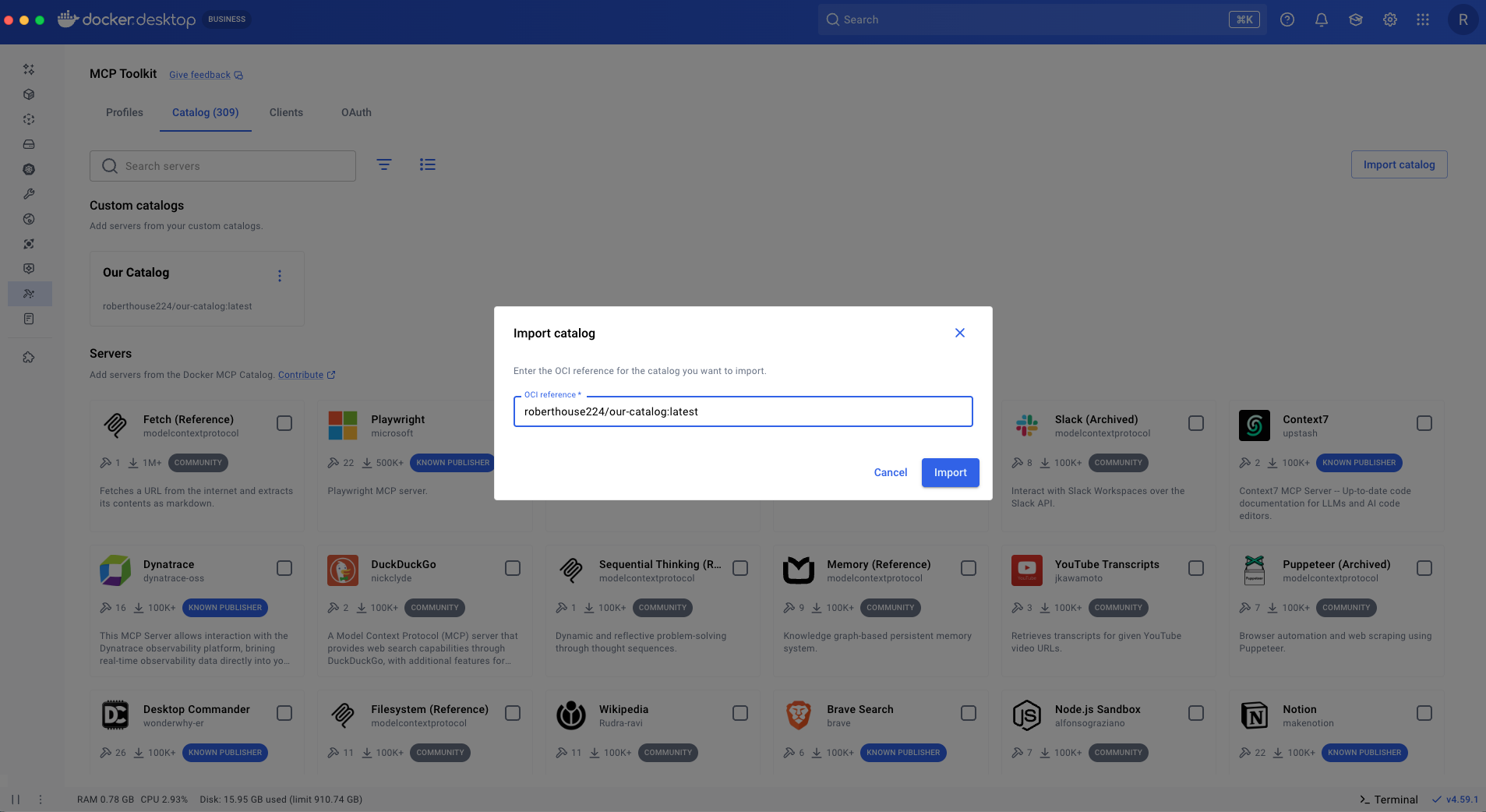
図 1:OCI参照からのカスタムカタログのインポート
カタログは現在閲覧可能です。カタログをダブルクリックすると、その中にあるすべてのサーバーが確認できます。「Roll Dice」と名付けたカスタムMCPサーバーに注目してください。
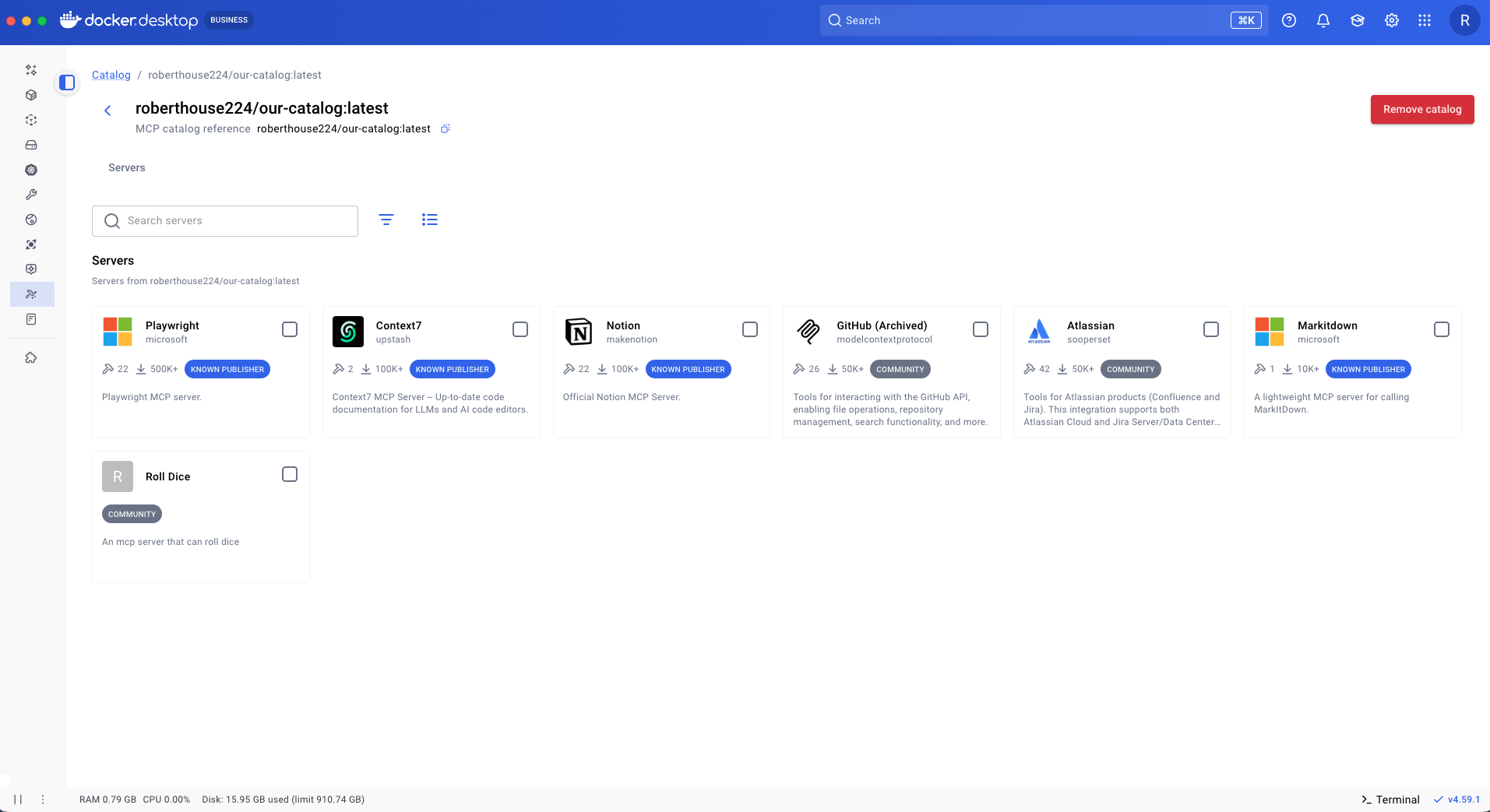
図 2:Docker Desktopアプリ内のカスタムMCPカタログで、新たに追加された「Roll Dice」サーバーも含まれています。
これをプライベートカタログにするには、コンテナイメージの管理と同様にリポジトリへのアクセスを管理するだけで、新しいインフラ管理やシステムを学ぶ必要はありません。
これはまさにジム・クラークが自身の投稿『 Private MCP Catalogs and the Path to Composable Enterprise AI』で説明していたことです。
このシンプルなパターンは、より複雑なユースケースをサポートするために拡張可能です。例えば、Docker Hubの代わりにプライベートコンテナレジストリを使うか、コンテナ化サーバーを運用するのではなく、自分でホストするStreamable HTTP経由でリモートMCPサーバーに接続するかもしれません。
信頼できるMCPサーバーの共有可能なカスタムカタログができた今、個人がワークフローに組み込んだカタログからMCPサーバーを効果的に活用する方法に焦点を移せます。
プロファイルを使ってMCPワークフローを作成・共有する
MCPプロファイルを使えば、開発者はワークフローを効率的に整理し、異なるユースケースに応じた別々のサーバーコレクションや設定を維持できます。プロファイルはチーム間で共有できるため、サーバーセットアップでの協力が可能になり、同じプロジェクトやコンテキスト内で作業するチームの一貫した設定が保証されます。
プロファイル間の切り替え
基本的に、プロファイルとはエージェントセッションに接続できるMCPサーバーの名前付きグループです。これにより、異なる作業方法に対して異なるプロファイルを定義しやすくなります。
では、実際に例を見てみましょう。
コーディング という名前 のプロファイルと、 計画という名前のプロファイルを作成します。カスタムカタログを閲覧し、欲しいMCPサーバーを選択します(例:Playwright、GitHub、Context7)を選んで、「Add to」ドロップダウンを選択し、「新しいプロフィール」を選びます。
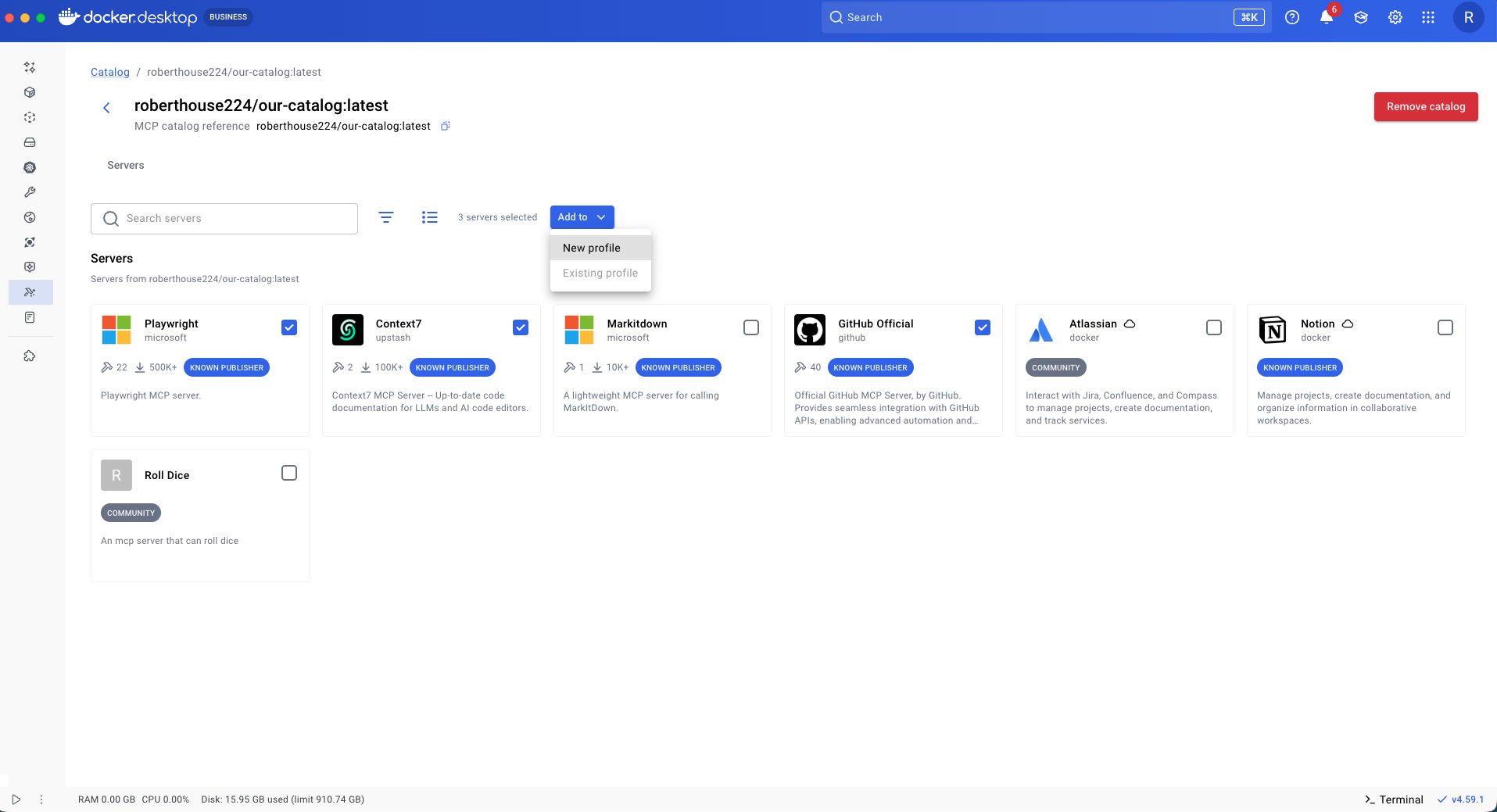
図 3:新しいプロファイルに追加するMCPサーバーの選択
プロフィールに名前を付け、接続したいクライアントを選択し、「作成」を選択します。
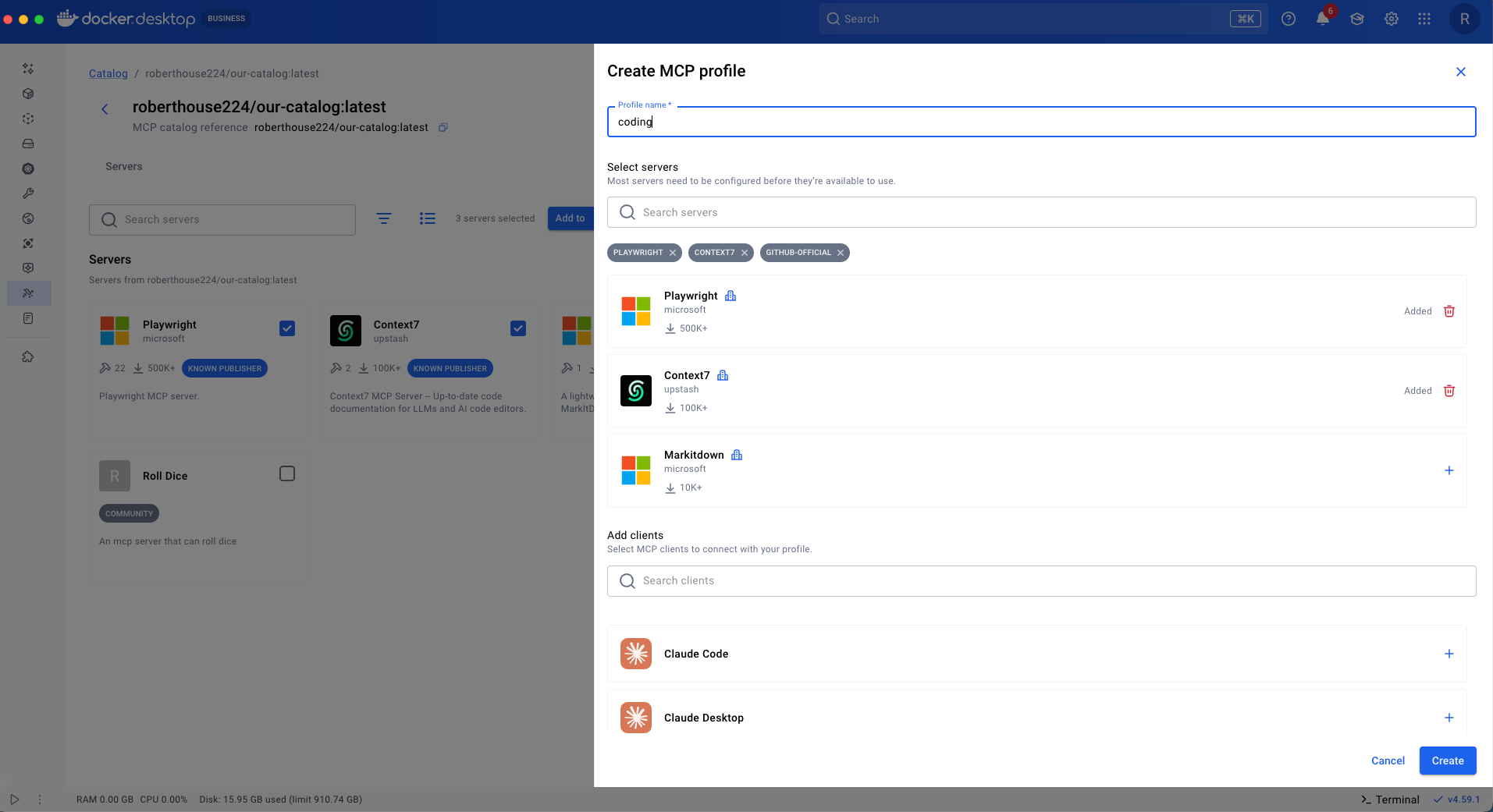
図 4:Docker Desktopで新しいMCPプロファイル「coding」を作成すること。
プロフィールタブから、作成したプロファイルが見えます。クライアントはつながっており、ツールもすぐに使える状態です。
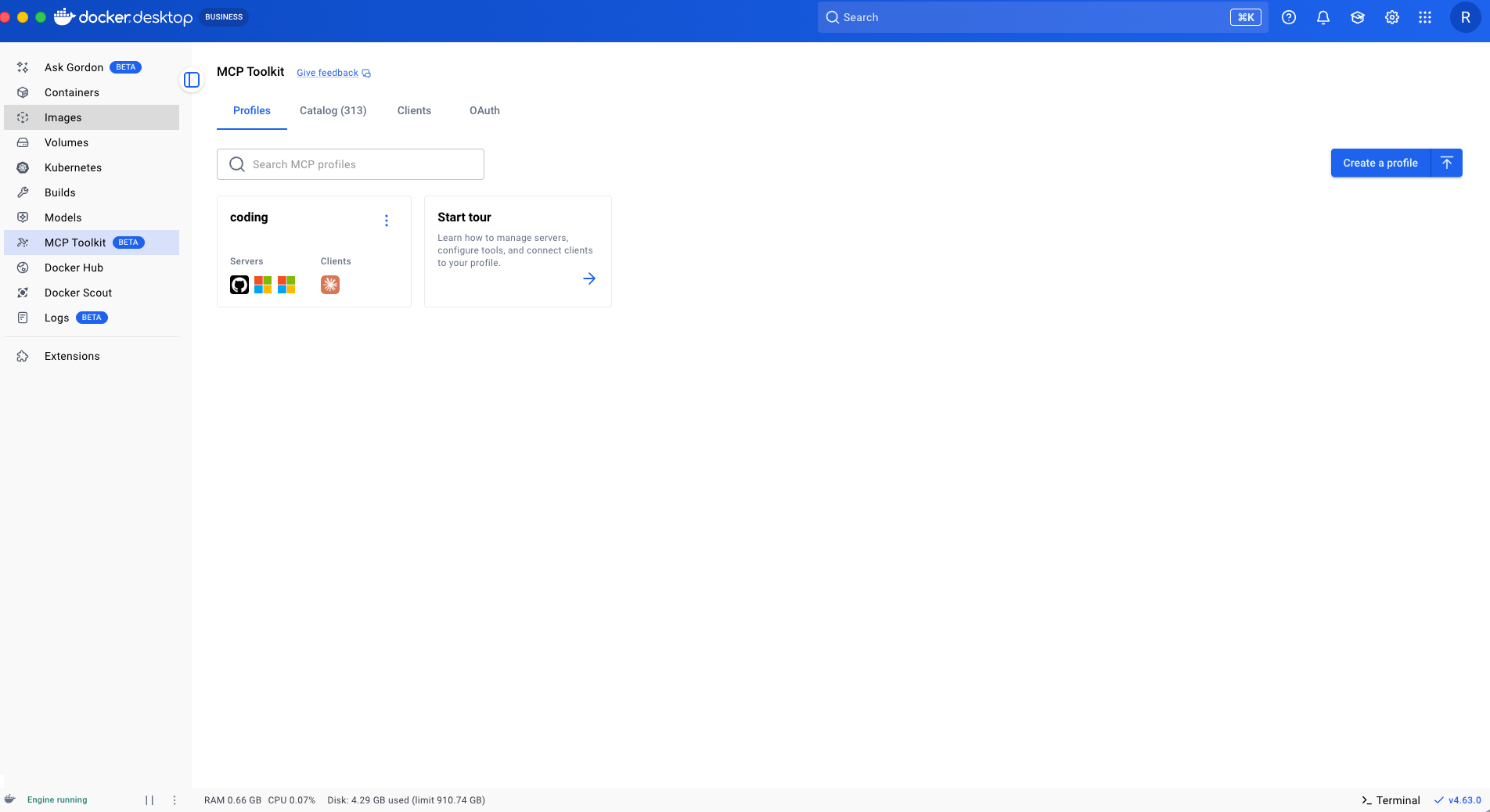
図 5:クライアントに接続されたプロファイルの例。
次に、計画に関連する サーバー(例 :Atlassian、Markitdown、Notionなど)。
「our-catalog」(まだいなければ)に戻り、計画に関連するサーバーを選択し、「Add to」から「New profile」>選択してください。プロフィールに名前をつけます(例:計画を立てる)。次に「作成」を選択してクライアントなしで計画プロファイルを作成します。クライアントの指定は任意です。
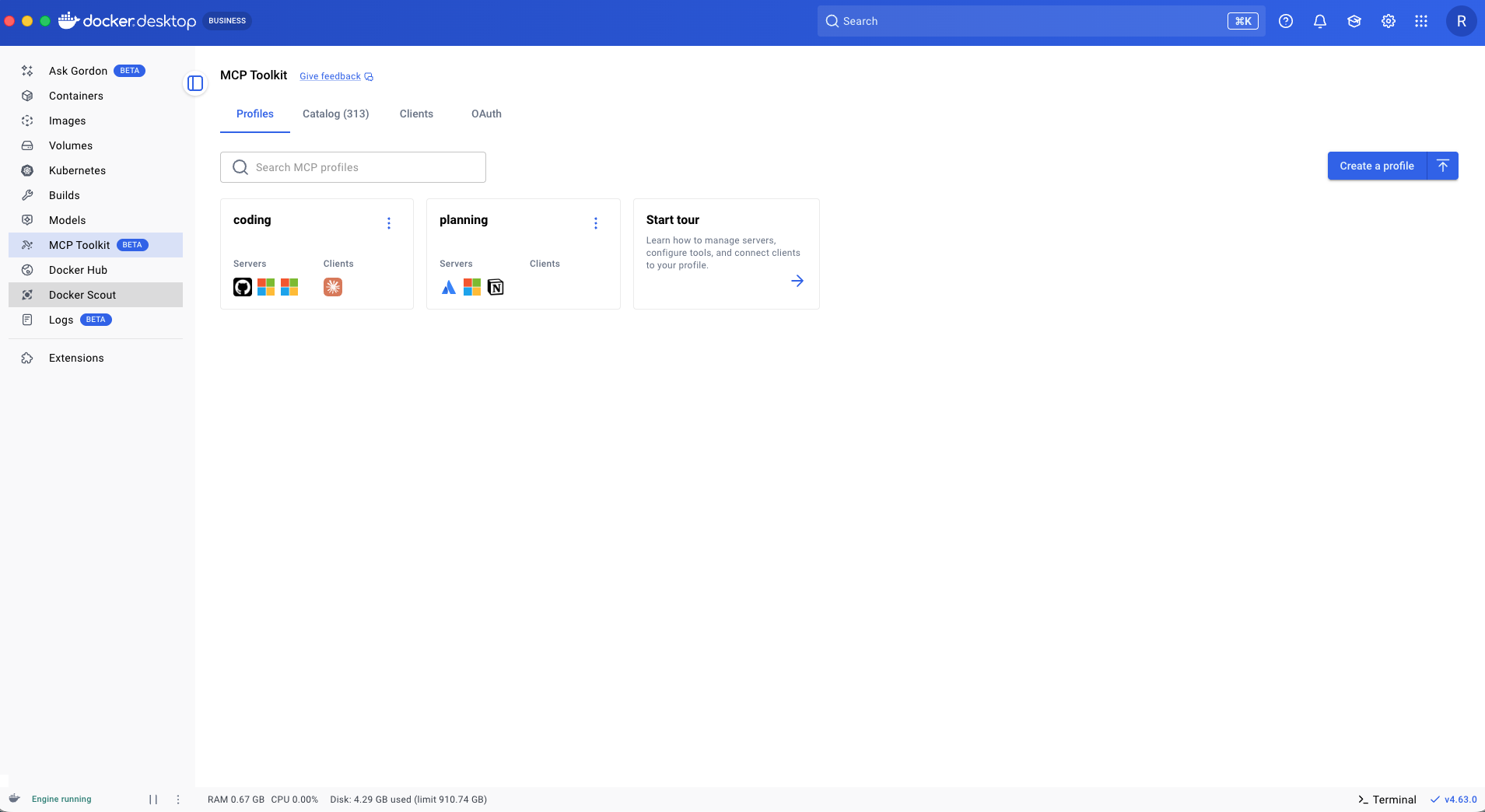
図 6:コーディングや計画用の別々のプロファイルを含む複数のプロファイルを作成する例
これで2つの作業モードを反映した2つのプロファイルができた。計画モードに切り替えるときは、プランニングプロファイルのツールだけを文脈に含めて使いたいのです。そのために、クライアントを計画プロファイルに簡単に再割り当てできます。
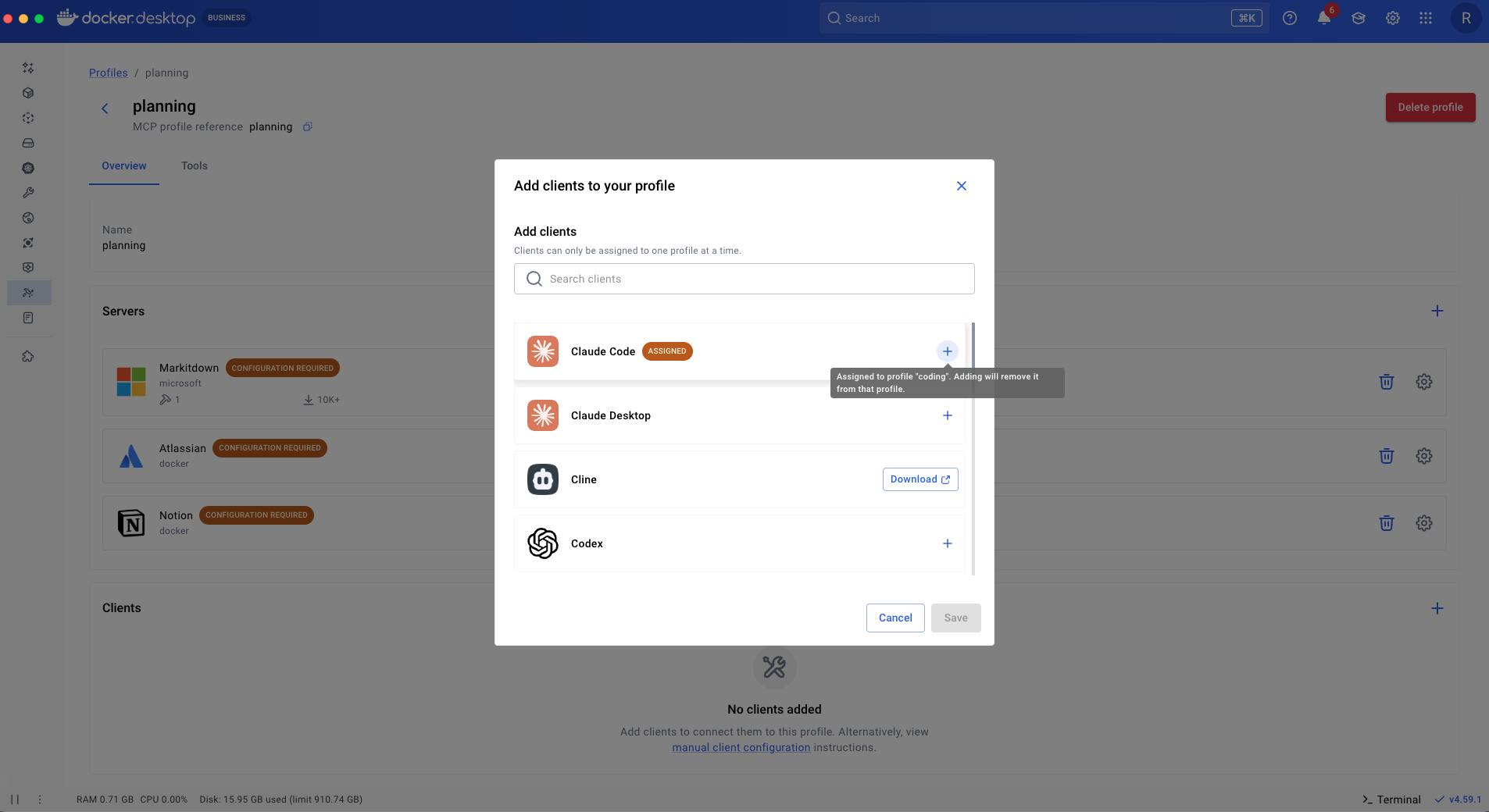
図 7:Claude Codeを計画プロファイルに再割り当て。
コーディングモードに戻すと、クライアントをコーディングプロファイルに戻すだけです。あなたの多様な作業方法を反映した複数のプロファイルを用意し、気軽に切り替えることができ、気になるツールだけを文脈の中で保持できます。
これはClaude Codeだけでなく、どのエージェントにも適用可能です。プロファイルは、MCPサーバーのセットアップを管理し、ベンダーロックインを避けるための真にポータブルな方法を提供します。
永続設定
プロファイルを使うことで、MCPサーバーの繰り返し設定を避けることができます。プロファイルはMCPサーバー構成のための永続性レイヤーを追加します。MCPサーバーが設定可能なオプションを公開した場合、プロファイルで一度定義し、必要に応じて再読み込みできるため、繰り返しの設定を避けられます。
この例では、Markitdownがアクセスできる経路を指定します。
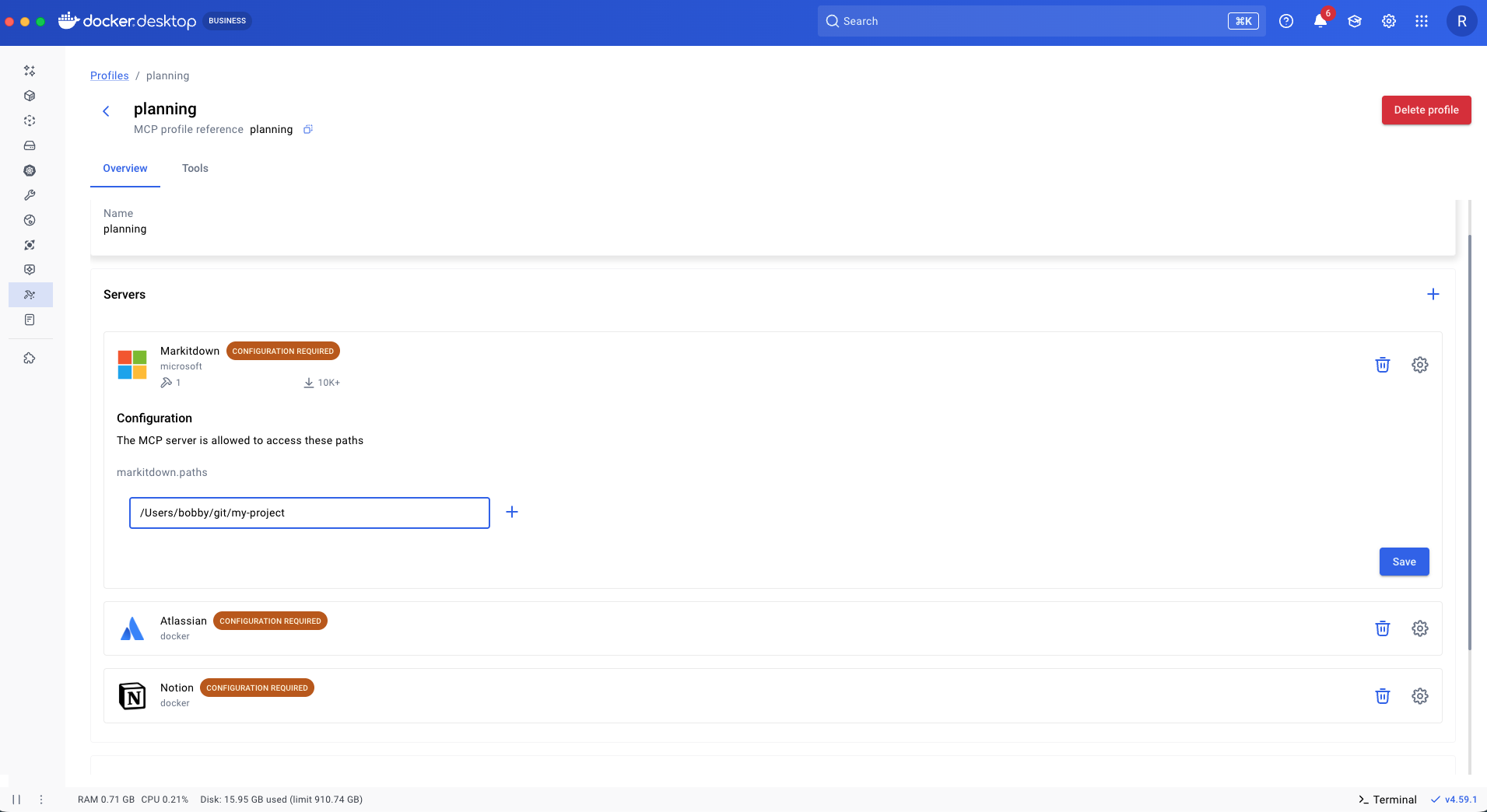
図 8:MCPプロファイルを使ってサーバー構成を保存して再利用する
使用しているMCPサーバーが多くのツールをエクスポートすると、コンテキストウィンドウは簡単に埋まってしまうことがあります。Profilesでは、どのツールを有効にするか指定でき、特定のタスクに必要なツールだけを使うようにします。
ここではGitHub MCPサーバーの get_me ツールを有効にし、他のツールはすべて無効にします。他のすべてのツールはエージェントセッションに表示されず、コンテキストウィンドウにも貢献しません。
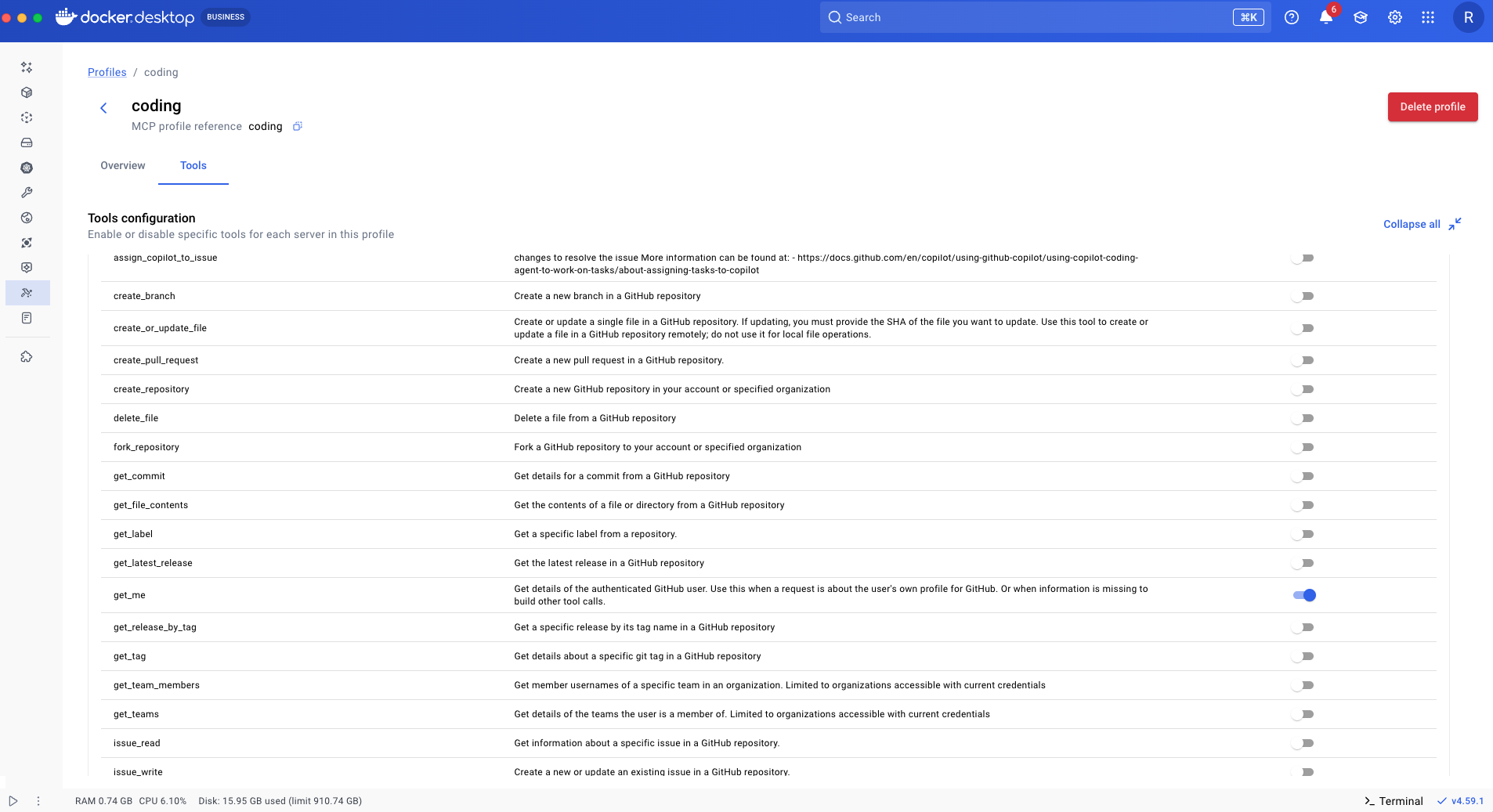
図 9:MCPプロファイルで必要なツールのみを有効にしてコンテキストウィンドウを最適化する
この保存された構成モデルは、社内で構築したMCPサーバーでははるかに強力になります。より豊かな設定オプションを公開することで、同じサーバーをプロジェクト間で再利用し、コンテキストごとに動作を再設定し、より予測可能な結果を達成できます。
プロフィール共有
プロジェクトに適したMCPサーバーや設定を特定することは、すべてのチームメンバーが繰り返す必要はありません。うまくいくセットアップを見つけたら、チームの他のメンバーと共有しましょう。
プロファイルを共有するには、カスタムカタログと同様にOCIアーティファクトとしてコンテナレジストリにプッシュできます。名前とOCIの推薦状を用意すればいいのです。
➜ ~ docker mcp profile push coding [your-namespace]/coding
誰かが引き下げるには、対応するプルコマンドを出すだけでいい。
➜ ~ docker mcp profile pull [your-namspace]/coding
上記の例はチーム内でプロファイルを共有することを示していますが、この概念はエージェントにも自然に及ぶことができます。例えばエージェントスキルはプロファイルを参照し、必要なMCPサーバーとその構成を依存関係として引き寄せることができます。
結論と今後の展望
MCPの普及が進む中で、課題はツールへのアクセスではなく、調整です。チームは、個々の働き方を制約せずに、信頼され支援されているものを標準化する方法が必要です。カスタムカタログとプロフィールはまさにその問題を解決するために設計されています。
カスタムカタログ:共有財団
カスタムカタログは、プラットフォームや管理チームが承認されたMCPサーバーを定義し、内部ツールと公開ツールをまとめて、それらを単一のポータブルな成果物として配布できるようにします。これにより明確さと一貫性が生まれ、発見や評価のコストを大幅に削減できます。
プロファイル:ワークフローを超強化します
プロファイルは、個々の開発者がコーディング、計画、研究など特定の文脈でMCPサーバーを組み立て、設定、再利用するための軽量な方法を提供します。プロファイルは設定を永続させ、重要なコンテキストを限定し、効果的なセットアップをチーム間で簡単に共有できるようにします。
これらのプリミティブは以下の通りに分かれます:
- 組織が推奨していること (カスタムカタログ経由)
- 人々の日々の働き方 (プロフィール経由)
この分離が健全なバランスを可能にします。プラットフォームチームは標準やガードレールを確立する「ゴールデンパス」を公開でき、開発者は自分たちのニーズに合ったプロファイルを適応・実験・作成する自由を保持できます。
その結果、 携帯性が高く、構成可能でスケーラブル なシステムが生まれ、MCPは組織全体で成長するにつれて導入しやすく、管理も安全で、より効果的になります。
次は何ですか?
カスタムカタログとプロファイルは、大規模にMCPを管理するための基盤であり、私たちはこれから始まったばかりです。次に、これらのプリミティブを拡張し、より強力なガバナンス、より良い再利用、より高度なエージェントワークフローをサポートすることに注力します。
- MCPの使用を承認されたカスタムカタログおよび信頼できるサーバーソースに制限するためのガバナンスおよびポリシー制御
- カタログとプロフィールの両方で発見性と共有が向上し、実績のあるセットアップをチーム間でより簡単に見つけて再利用できるようにしました
- プロファイルスコープの秘密と設定の拡張により、プロジェクトレベルの
mcp.jsonファイルよりも安全で柔軟な代替手段を提供します - プロファイルの明確なベストプラクティス、例えば動的MCPサーバー設定の保存による再利用や、エージェントスキルなどの新興ワークフロー最適化とペアリングすることが含まれます
カスタムカタログとプロフィールの始め方
もしDockerデスクトップ 4をお持ちなら。すでにカタログを使っている56 、当社のDocker MCPカタログは現在OCIアーティファクトとして配布されており、Docker Desktop 4からプロファイルもサポートされています。63。Docker DesktopのMCPツールキットを使って最初のプロファイルを作成してみてください。
詳しく見る
- カスタムカタログとプロフィールに関するドキュメントをぜひご覧いただき、すぐに始めましょう。
- 当社のウェブサイトで DockerのMCPカタログとツールキット をご覧いただけます。
- 実際にやる準備はできていますか? Docker DesktopやCLIを開き、MCPを使って開発ワークフローを効率化・自動化し始めましょう。