

ChatGPTは質問に答えたりコードを生成したりするのが得意です。しかし、できないのは次の通りです:コードを実行したり、実際のデータベースをクエリしたり、プロジェクトでGitHubリポジトリを作成したり、ウェブサイトからライブデータをスクレーピングしたり。まるで話すだけで行動しない優秀なアドバイザーがいるようなものです。
Docker MCP Toolkit はこの状況を完全に変更します。
実際の様子はこうです:ChatGPTにAmazon、Walmart、Best BuyのMacBook Airの価格を調べてもらいます。競合他社の価格が自分より安い場合、単に伝えるだけでなく、自動的にStripe製品の価格を調整し競争力を維持し、価格変更の決定をSQLiteに記録し、監査の記録をGitHubに送信します。すべて自然な会話を通じて。手動コーディングも不要です。スクリプトのコピー&ペーストは禁止。本物の実行だ。
「でも待って」と言うかもしれません。「ChatGPTにはすでにショッピングリサーチ機能があるのに。」真。しかし、ChatGPTのネイティブショッピングは価格しか検索できません。実行できるのはMCPだけです:支払いリンクの作成、請求書の作成、データベースへのデータ保存、GitHubへのプッシュ。それがアドバイザーと俳優の違いです。
このガイドの終わりには、競合他社の価格をオンデマンドで確認し、あなたの価格と比較し、競合他社があなたを安く引き下げているときには自動的にStripe商品価格を調整する競争再価格付けエージェントを作れるでしょう。
これらの要素がどのように組み合わさっているかは以下の通りです:
- ChatGPT はあなたの要望を理解し、何をすべきかを判断するという知能を提供します
- Docker MCPゲートウェイ は安全な橋渡しとして機能し、リクエストを適切なツールにルーティングします
- MCPサーバー は手役です。隔離されたDockerコンテナ内で実際のタスクを実行する
その結果は?ChatGPTはSQLデータベースのクエリ、GitHubリポジトリの管理、ウェブサイトのスクレイピング、支払い処理、テスト実行などが可能です。一方でDockerのセキュリティモデルはすべてを安全に管理します。
このガイドでは、Docker MCP Toolkitに接続してChatGPTに7台のMCPサーバーを追加する方法を学びます。必須のMCPサーバーをいくつか使います。ウェブスクレイピングにはFirecrawl、データ永続化にはSQLite、バージョン管理にはGitHub、支払い処理にはStripe Node.js、計算にはSandbox、複雑な推論にはSequential Thinking、ドキュメントにはContext7です。その後、上記のような競争的再価格付けエージェントを会話を通じて構築します。
キャプション:アジートが競争力のあるリプライシングエージェントの構築を実演するYouTube動画
モデルコンテキストプロトコル(MCP)とは何ですか?
セットアップに入る前に、MCP が実際に何であるかを明確にしましょう。
モデルコンテキストプロトコル(MCP )は、ChatGPTや Claude のようなAIエージェントがツール、API、サービスに接続する標準化された方法です。これによりChatGPTは会話を超え、データベースのクエリ、コンテナの展開、データセットの分析、GitHubリポジトリの管理など、現実世界の操作を行うことができます。
要するに、MCPはChatGPTの論理と開発者スタックの橋渡し役です。そしてDockerは?Dockerは安全を確保するためのガードレールを提供します。
なぜChatGPTでDocker MCP Toolkitを使うのか?
私はしばらくAIツールに取り組んできましたが、このDocker MCP連携が際立っているのは、実際にChatGPTを生産的にしているからです。
ほとんどのAI統合はおもちゃのように感じられます。制作中に壊れる印象的なデモです。Docker MCP Toolkitは異なります。ChatGPTがローカルマシンや本番システムに触れることなく実際のタスクを実行できる、安全でコンテナ化された環境を作り出します。
すべての行動は孤立した容器の中で行われます。各MCPサーバーは独自のセキュリティ境界内で動作します。終わるとコンテナは破壊されます。残留物も担保債務もなく、チーム全体で完全な再現性を実現しています。
ChatGPTがMCPなしでできることとできないこと
MCPを追加すると何が変わるのかはっきりさせましょう。
MCPなし
ChatGPTに、定期的に商品価格をスクレイピングしデータベースに保存するシステムを作らせます。ChatGPTはPythonコードで応答し、BeautifulSoupやSQLiteを使って 50 行を作ったりします。その後、コードをコピーし、依存関係をインストールし、データベーススキーマを作成し、スクリプトを手動で実行し、定期的に動作させたい場合はスケジューラを設定する必要があります。
はい、ChatGPTは会話を覚えていて、あなたの記憶を保存できます。しかし、その記憶はOpenAIのサーバー上に存在しており、あなたが管理するデータベースの中には存在しません。
MCPと共に
ChatGPTにも同じ質問をします。数秒以内にFirecrawl MCPを呼び出して、実際にウェブサイトをスクレーピングします。SQLite MCPを呼び出して、マシン上でデータベースを作成しデータを保存します。GitHub MCPを呼び出してレポートをリポジトリに保存します。全体のワークフローは1分以内で実行されます。
実際のデータはインフラ上の実際のデータベースに保存されます。実際のコミットはGitHubリポジトリに表示されます。ChatGPTを閉じて、明日戻ってきて「価格トレンドを見せてください」と聞いてください。ChatGPTはあなたのSQLiteデータベースをクエリし、結果を即座に返します。なぜなら、データはChatGPTの会話メモリではなく、あなたが所有し管理するデータベースに存在しているからです。
データはシステム内に永続し、いつでもクエリできる状態です。手動スクリプトの実行は不要です。
なぜこれがChatGPTのネイティブショッピングと異なるのか
ChatGPTは最近、価格を追跡し推薦できる ショッピングリサーチ機能を リリースしました。できることとできないことは以下の通りです:
ChatGPTショッピングリサーチができること:
- 小売業者間の価格追跡
- 価格履歴を会話の記憶に覚えておいてください
- 比較やおすすめを提供してください
ChatGPTショッピングリサーチができないこと:
- Stripeで商品価格を自動的に更新
- 競合他社の変化に基づいてリプライシングロジックを実行します
- 価格データをデータベースに保存してください(OpenAIのサーバーではなく)
- 監査トレイルをGitHubリポジトリにプッシュしてください
- 自動競合対応ワークフローの作成
Docker MCP Toolkitを使えば、ChatGPTは競争力のある価格設定実行システムとなります。価格のチェックを依頼し、競合他社があなたを安く引き下げていると、単に知らせるだけでなく、実際に行動します。競合他社に同等か上回るためのStripe価格の更新、意思決定のログ記録、監査記録のGitHubへのプッシュなどです。データはOpenAIのサーバーではなく、あなたのインフラに保存されています。
Docker MCP ToolkitでChatGPTの設定
前提 条件
始める前に、以下のことを確認してください:
- 最小 8 GBのRAMが理想的には 16GBのマシン
- Docker Desktop のインストール
- ChatGPT Plus、Pro、Business、またはEnterpriseアカウント
- ngrokアカウント(無料版で動作)– ゲートウェイを公開するためのもの
ステップ 1。ChatGPT開発者モードを有効にする
- ChatGPTにアクセスし て新しいアカウントを作成してください。
- ChatGPTページ左上のプロフィールアイコンをクリックし、「設定」を選択してください。「Apps and Connectors」を選択し、ページ末尾までスクロールして「詳細設定」を選択してください。
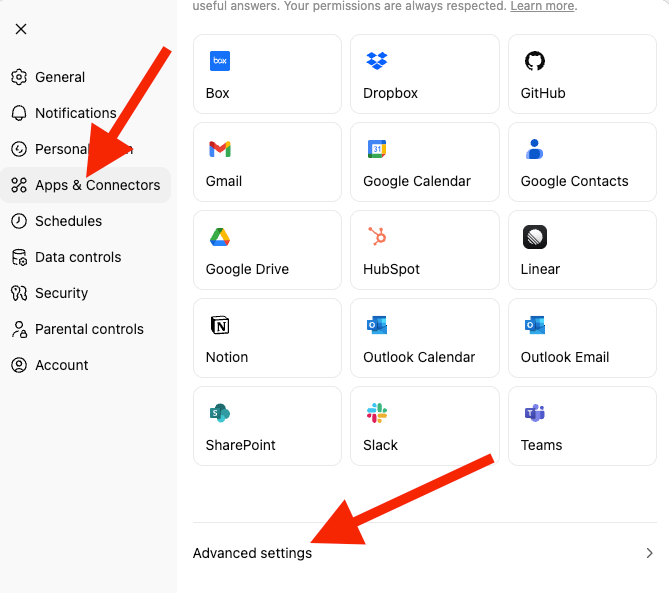
Settings → Apps & Connectors → Advanced → Developer Mode (ON)
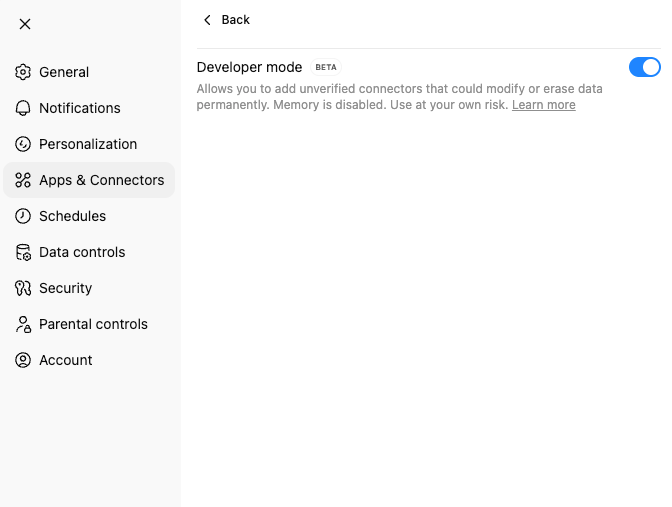
ChatGPT開発者モードは 、すべてのツールに対して、読み書き操作を含む完全なモデルコンテキストプロトコル(MCP)クライアントサポートを提供します。この機能は2025年9月第1週に発表され、AIと開発者の統合における重要な節目となりました。ChatGPTは書き込み作業—リポジトリの作成、データベースの更新、ファイルの変更—すべて安全のための適切な確認モードを用いて実行できます。
主な能力:
- MCPツールの完全な読み書きサポート
- カスタムコネクタの作成
- OAuthおよび認証サポート
- 書き込み操作の明示的確認
- Plus、Pro、Business、Enterprise、Eduプランで利用可能です
ステップ 2。MCPゲートウェイの作成
これにより、ChatGPTが接続するMCPゲートウェイコンテナが作成され、起動されます。
docker mcp server init --template=chatgpt-app-basic test-chatgpt-app

Successfully initialized MCP server project in test-chatgpt-app (template: chatgpt-app-basic)
Next steps:
  cd test-chatgpt-app
  docker build -t test-chatgpt-app:latest .
ステップ 3。すべてのプロジェクトファイルをリストアップしてください
ls -la
total 64
drwxr-xr-x@   9 ajeetsraina  staff   288 16 Nov 16:53 .
drwxr-x---+ 311 ajeetsraina  staff  9952 16 Nov 16:54 ..
-rw-r--r--@   1 ajeetsraina  staff   165 16 Nov 16:53 catalog.yaml
-rw-r--r--@   1 ajeetsraina  staff   371 16 Nov 16:53 compose.yaml
-rw-r--r--@   1 ajeetsraina  staff   480 16 Nov 16:53 Dockerfile
-rw-r--r--@   1 ajeetsraina  staff    88 16 Nov 16:53 go.mod
-rw-r--r--@   1 ajeetsraina  staff  2576 16 Nov 16:53 main.go
-rw-r--r--@   1 ajeetsraina  staff  2254 16 Nov 16:53 README.md
-rw-r--r--@   1 ajeetsraina  staff  6234 16 Nov 16:53 ui.html
ステップ 4。Composeファイルを確認してください
services:
  gateway:
    image: docker/mcp-gateway                # Official Docker MCP Gateway image
    command:
      - --servers=test-chatgpt-app           # Name of the MCP server to expose
      - --catalog=/mcp/catalog.yaml          # Path to server catalog configuration
      - --transport=streaming                # Use streaming transport for real-time responses
      - --port=8811                           # Port the gateway listens on
    environment:
      - DOCKER_MCP_IN_CONTAINER=1            # Tells gateway it's running inside a container
    volumes:
      - /var/run/docker.sock:/var/run/docker.sock  # Allows gateway to spawn sibling containers
      - ./catalog.yaml:/mcp/catalog.yaml           # Mount local catalog into container
    ports:
      - "8811:8811"                           # Expose gateway port to host
ステップ 5。コンポジションサービスの起動
docker compose up -d
[+] Running 2/2
 ✔ Network test-chatgpt-app_default      Created                                            0.0s
 ✔ Container test-chatgpt-app-gateway-1  Started
docker ps | grep test-chatgpt-app
eb22b958e09c   docker/mcp-gateway   "/docker-mcp gateway…"   21 seconds ago   Up 20 seconds   0.0.0.0:8811->8811/tcp, [::]:8811->8811/tcp   test-chatgpt-app-gateway-1
ステップ 6。MCPセッションの確認
curl http://localhost:8811/mcp
GET requires an active session
ステップ 7。ングロックと共にエクスポーズ
ngrokをインストールし てローカルゲートウェイを公開してください。認証トークンを取得するには、ngrokアカウントに登録する必要があります。
brew install ngrok
ngrok config add-authtoken <your_token_id>
ngrok http 8811
公開URLに注目してください( https://91288b24dc98.ngrok-free.appなど)。このターミナルを開けておけ。
ステップ 8。ChatGPTをつなげてください
ChatGPTでは Settings → Apps & Connectors → Createに行きます。
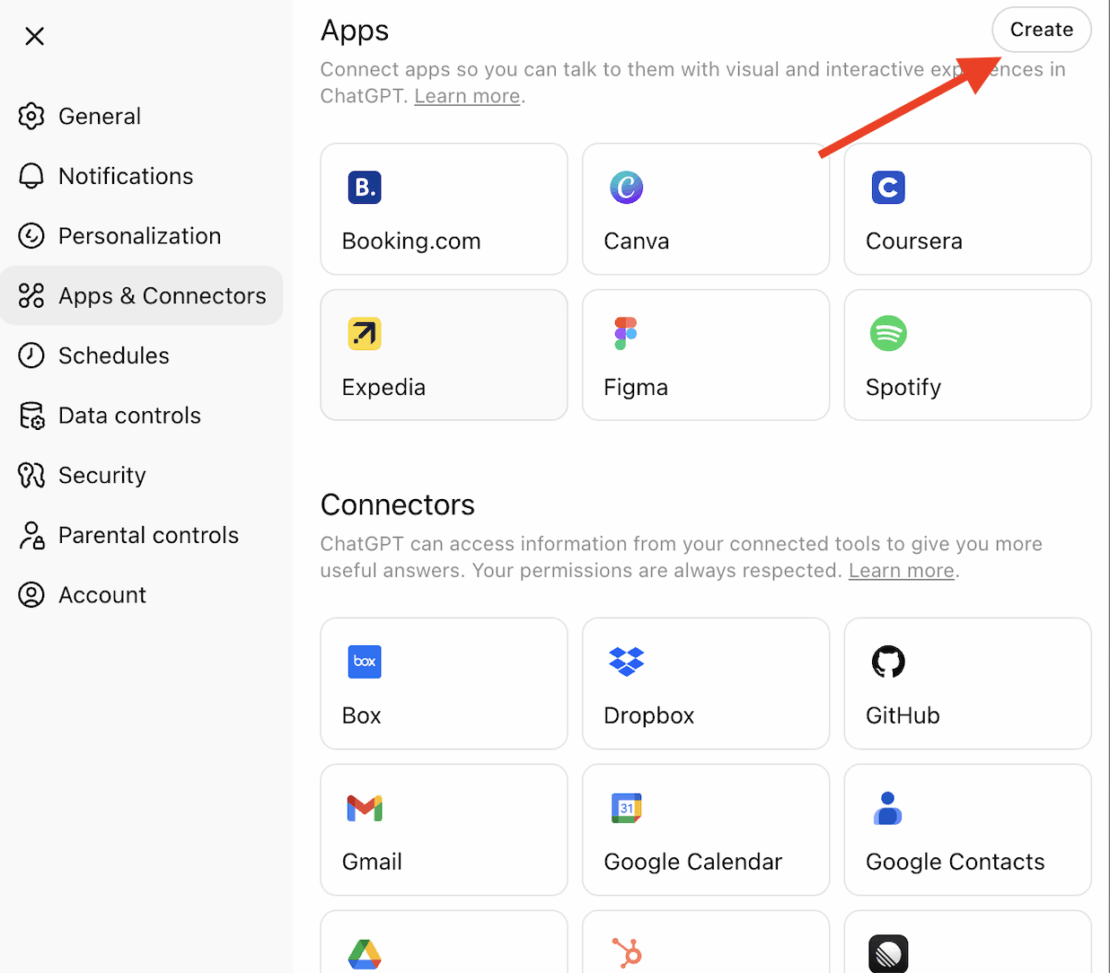
ステップ 9。コネクターを作成:
Settings → Apps & Connectors → Create
- Name: Test MCP Server
- Description: Testing Docker MCP Toolkit integration
- Connector URL: https://[YOUR_NGROK_URL]/mcp
- Authentication: None
- Click "Create"
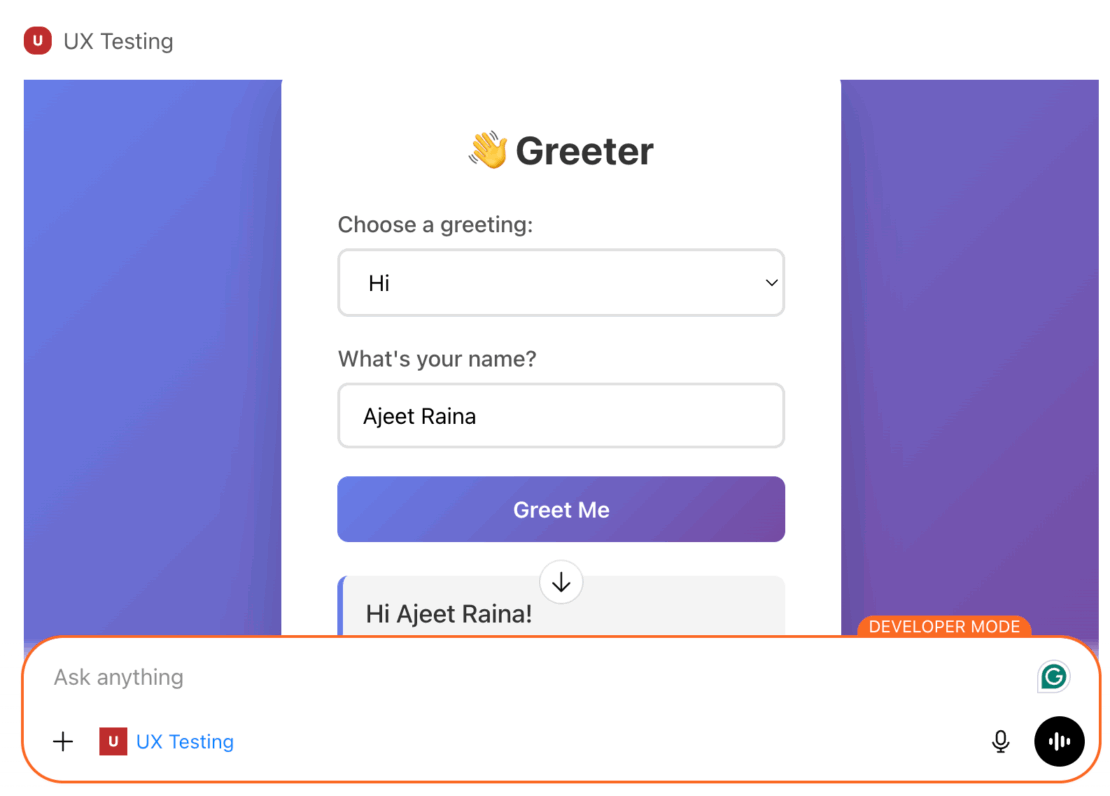
ChatGPTに挨拶ツールを呼んでもらって試してみてください。応答があれば接続は正常です。見た目はこんな感じです:
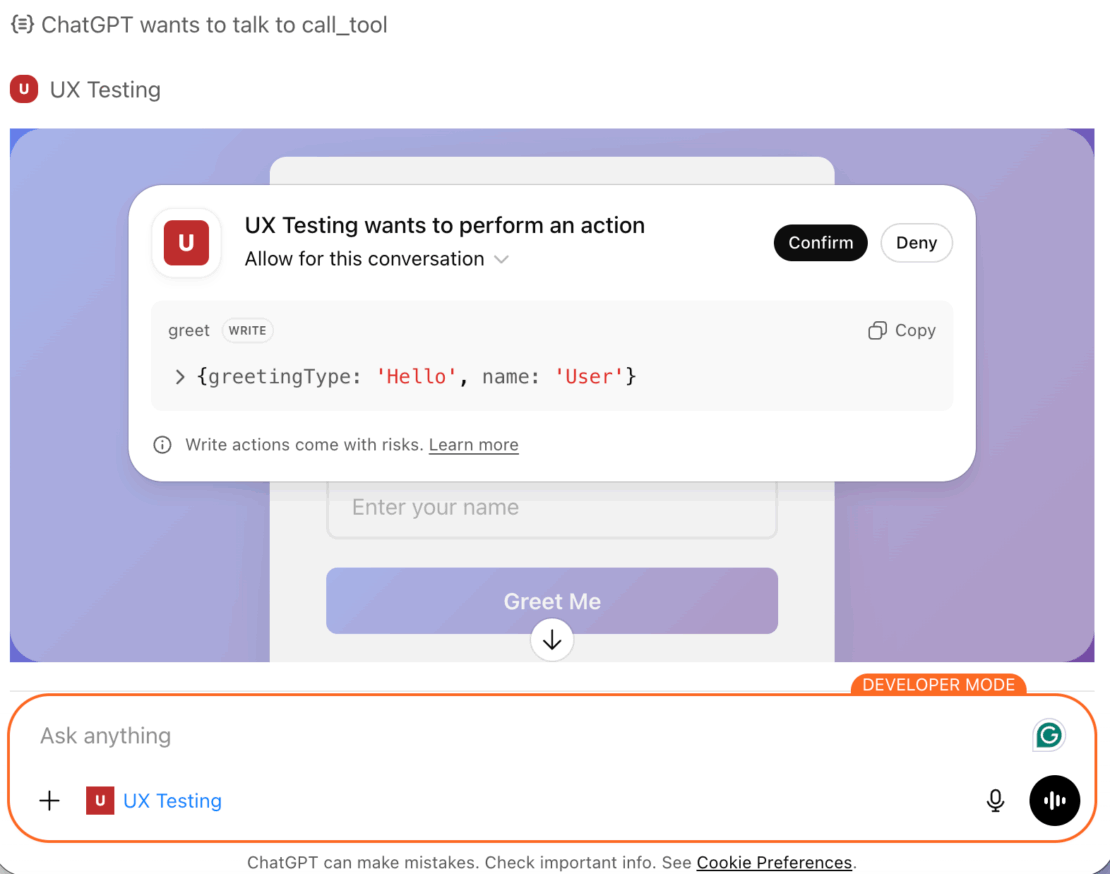
実世界のデモ:競争再価格付けエージェント
ChatGPTをDocker MCP Toolkitに接続した今、MCP だけ ができることを示す何かを作りましょう。これはChatGPTのネイティブショッピング機能では再現できないことです。
競合他社の価格をオンデマンドでチェックし、競合他社が価格を下げている場合は自動的にStripe製品価格を調整し競争力を維持し、価格変更の決定をSQLiteに記録し、監査記録をGitHubにプッシュします。
組み立て時間: 15 4分
月額費用: フリーストライプ(テストモード)+ $1。50-$15(ファイアクロールAPI)
インフラ: $0 (SQLiteは無料)
課題
Eコマース企業は常にジレンマに直面しています:
- 複数の小売店間で手動で価格を確認するのは時間がかかり、エラーも起こりやすいです
- 競合他社の価格を比較し、最適な再価格設定を算出するには複数のツールが必要です
- 支払いインフラ全体で価格変更を実行するにはコンテキストスイッチングが必要です
- 過去のトレンドデータがスプレッドシートに散在しています
- 戦略的洞察には手動の分析と解釈が必要です
結果として、チャンスの逃し、反応の遅れ、そしてより良い価格の競合他社に販売を奪われること。
解決策:オンデマンドの競争再価格付けエージェント
Docker MCP Toolkitは、ChatGPTをアドバイザーから実際に実行できる自律的なエージェントへと変貌させます。このアーキテクチャは、あなたのリクエストを安全なMCPゲートウェイを通じてルーティングし、その専用ツールをオーケストレーションします。Firecrawlはライブ価格をスクレイピングし、Stripeは支払いリンクや請求書を作成し、SQLiteはインフラ上のデータを保存し、GitHubは監査の追跡を管理します。各ツールは独立したDockerコンテナ上で動作し、安全で再現可能、そしてあなたの管理下にあります。
使用する 7 MCPサーバー
|
サーバー |
目的 |
なぜ重要なのか |
|---|---|---|
|
ファイアクロール |
ウェブスクレイピング |
どのウェブサイトからもライブ価格を抽出 |
|
SQLite |
データ永続性 |
店舗 30+ 価格履歴日数 |
|
縞 |
支払い管理 |
競合他社に匹敵するか上回るか、商品価格を更新しましょう |
|
ティッカー |
バージョン管理 |
すべての報告に対する監査記録 |
|
シーケンシャル・シンキング |
複雑な推論 |
多段階戦略分析 |
|
コンテキスト7 |
ドキュメンテーション |
コード生成のための最新のライブラリドキュメント |
|
Node.js サンドボックス |
計算 |
隔離容器における統計解析 |
完全なMCPワークフロー( 3 分以内に実行)
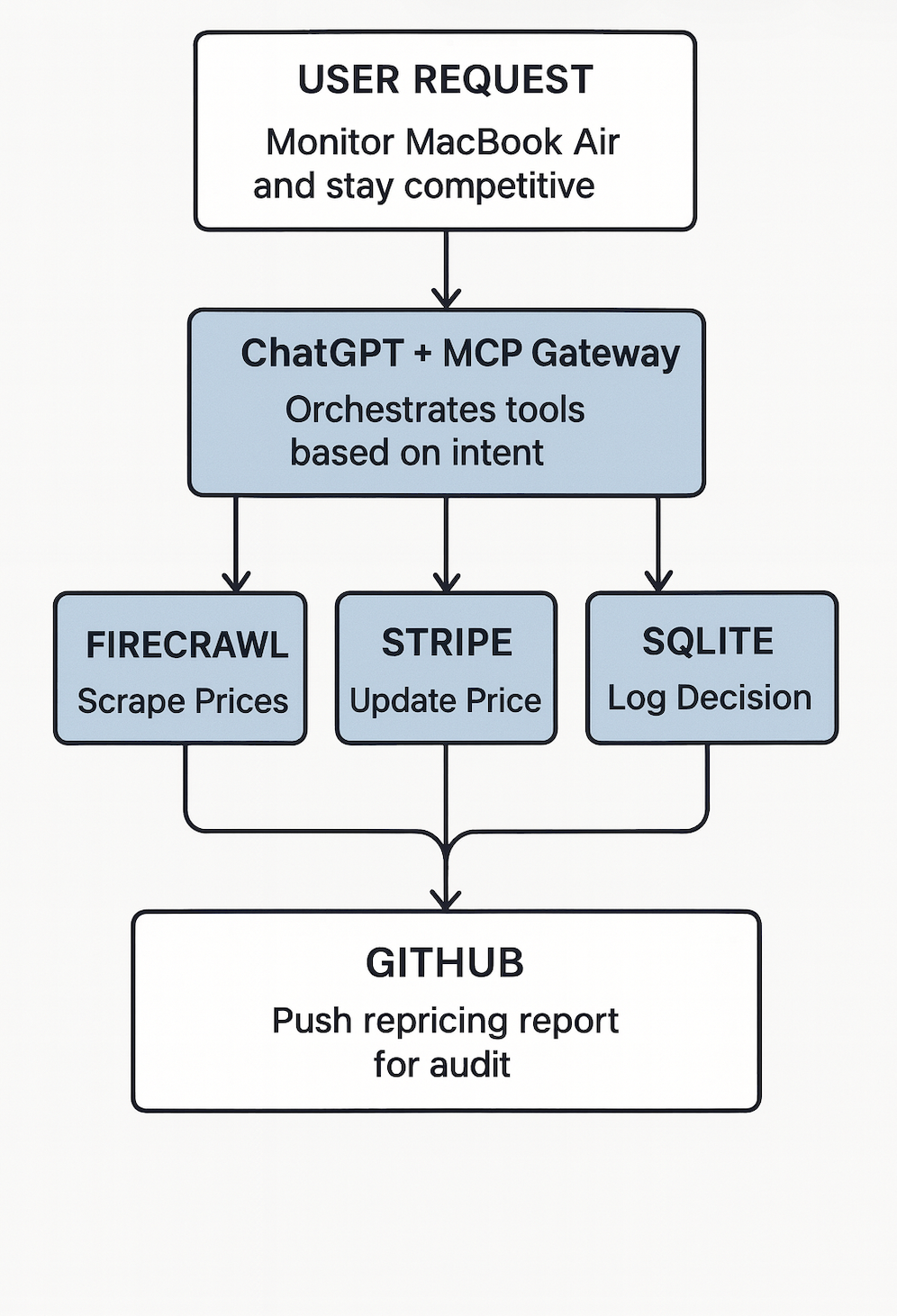
ステップ 1。削って収納(30 秒)
- エージェントがAmazon、Walmart、Best Buyからライブ価格を抽出しています
- 現在のStripe製品価格と比較
ステップ 2:価格と比較して(15 秒)
- Best Buyは509ドルに下がります。99—あなたのドル549を下げて。99
- エージェントは最適な再価格戦略を計算します
- 新たな競争力のある価格帯を決定する
ステップ 3:リプライシングを実行する(30 秒)
- Stripe製品を新しい競争力のある価格で更新しましょう
- SQLiteへの価格変更決定をログにし、完全な監査記録を残します
- 価格変更レポートをGitHubにプッシュ
ステップ 4:競争力を保つ(即時)
- あなたの製品は競争力のある価格で提供されました
- システム内の完全な監査記録を残す
- 傾向分析に備えた過去のデータ
デモセットアップ:Docker MCP Toolkitを有効にする
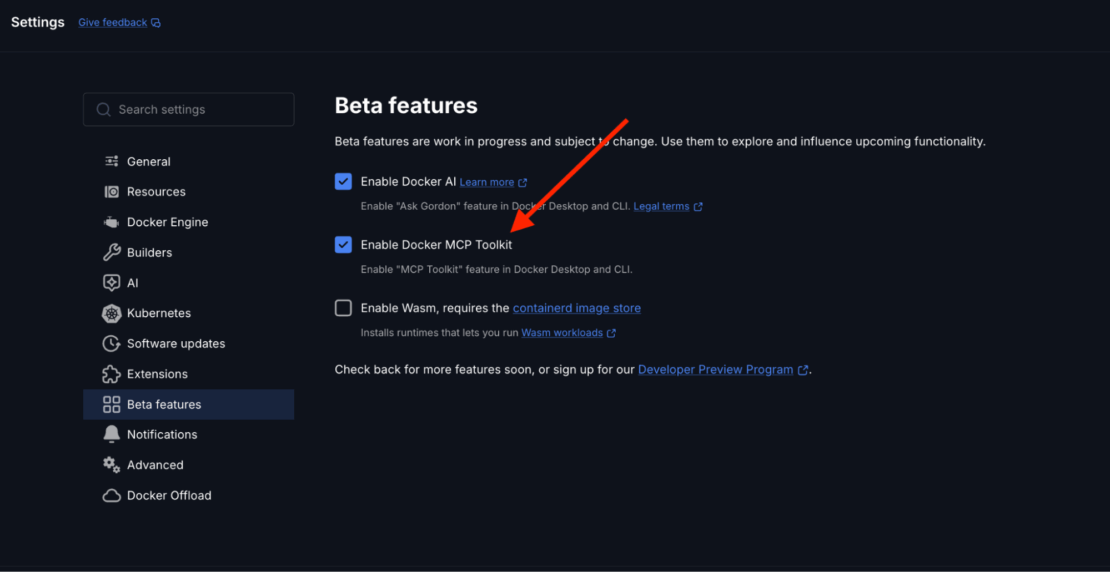
Docker Desktop を開き、[設定] メニューから MCP Toolkit を有効にします。
以下を可能にする方法:
- Docker Desktop を開く
- ベータ機能→設定へ
- Toggle Docker MCP Toolkit ON
- 「応募」をクリックします
Docker Desktopのサイドバーで「MCP Toolkit」をクリックし、「カタログ」を選択して利用可能なサーバーを探索してください。
このデモンストレーションでは、7台のMCPサーバーを使用します。
- SQLite – 高度な分析、テキストおよびベクトル検索、地理空間機能、インテリジェントワークフロー自動化を備えたRDBMS
- Stripe – 自動再価格ワークフローにおいて、競合他社に匹敵するか上回る価格を更新します
- GitHub – バージョン管理とデプロイメントを担当します
- ファイアクロール – ウェブスクレイピングとコンテンツ抽出
- Node.js サンドボックス – テストを実行し、依存関係をインストールし、コードを検証(隔離コンテナ内で)行う
- シーケンシャルシンキング – 失敗したテストのデバッグとコードの最適化
- コンテキスト7 – LLM および AI コード エディター向けのコード ドキュメントを提供します
それぞれを段階的に設定していきます。
1。SQLite MCPサーバーの設定
SQLite MCPサーバーは外部データベースの設定を必要としません。25組み込みツールを通じてデータベースの作成とクエリを管理します。
SQLite MCPサーバーの設定には、以下の手順に従ってください:
- Open Docker Desktop → MCP Toolkit → Catalog にアクセスする
- 「SQLite」を検索してください
- クリック+追加
- 設定は不要で、MCPサーバーの開始ボタンを押すだけです
docker mcp server ls
# Should show sqlite-mcp-server as enabled
それです。ChatGPTは今やデータベースやテーブルを作成し、会話を通じてクエリを実行できるようになりました。
2。Stripe MCPサーバーの設定
Stripe MCPサーバーはChatGPTに支払いインフラへの完全なアクセス権を与え、商品リストの作成、価格管理、カタログの更新などを通じて競争力を保ちます。
Stripe API Keyを入手してください
- dashboard.stripe.com に行って
- APIキー→開発者へナビゲーション
- 秘密の鍵をコピーする:
- サンドボックスやテストには
sk_test_...を使います sk_live_...を生産に使用
Docker Desktopで設定
- Open Docker Desktop → MCP Toolkit → Catalog
- 「Stripe」で検索してください
- [+ 追加] をクリックします。
- [ 構成 ] タブに移動します
- APIキーを追加:
- 畑:
stripe.api_key - 価値:あなたのStripeの秘密鍵
- 「保存してサーバー開始」をクリックします
またはCLI経由で:
docker mcp secret set STRIPE.API_KEY="sk_test_your_key_here"
docker mcp server enable stripe
3。GitHub公式MCPサーバーの設定
GitHub MCPサーバーはChatGPTがリポジトリを作成したり、問題を管理したり、プルリクエストをレビューしたりすることを可能にします。
オプション 1:OAuth認証(推奨)
OAuthは最も簡単で安全な方法です:
- MCP Toolkit → Catalog で、「GitHub Official」を検索します。
- [+ 追加] をクリックします。
- Docker Desktop の [OAuth ] タブに移動します
- GitHub エントリを見つける
- 「承認」をクリックします。
- ブラウザーで GitHub の承認ページが開きます
- GitHubの 「Authorize Docker」 をクリックします。
- Docker Desktop にリダイレクトされます
- カタログタブに戻る、GitHub Official を見つける
- [サーバーの開始] をクリックします。
利: 手動でトークンを作成する必要はありません。認証はGitHubの安全なOAuthフローを通じて自動トークン更新によって行われます。
オプション 2:パーソナルアクセストークン
手動制御を希望する場合、または特定のスコープが必要な場合:
ステップ 1: GitHub Personal Access Token を作成する
- https://github.com に行ってサインインしてください
- プロフィール写真→設定をクリックしてください
- 左側のサイドバーの 「開発者設定」 までスクロールします
- 「個人用アクセストークン」→「トークン(クラシック)」をクリックします。
- 「新しいトークンの生成」→「新しいトークンの生成(クラシック)」をクリックします。
- 名前を挙げてください:「 Docker MCP ChatGPT」
- スコープを選択します。
repo(リポジトリのフルコントロール)workflow(GitHub Actions ワークフローの更新)read:org(組織データを読む)- 「トークンの生成」をクリックします
- トークンをすぐにコピーします (二度と表示されません!
ステップ 2: Docker Desktop で構成する
MCP Toolkit → Catalog で、 GitHub Officialを見つけてください:
- [ + 追加 ] をクリックします (まだ追加していない場合)
- [ 構成 ] タブに移動します
- 認証方法として 「個人用アクセストークン」 を選択します
- トークンを貼り付ける
- [サーバーの開始] をクリックします。
またはCLI経由で:
docker mcp secret set GITHUB.PERSONAL_ACCESS_TOKEN="github_pat_YOUR_TOKEN_HERE"
GitHub接続の確認
docker mcp server ls

# Should show github as enabled
4。Firecrawl MCPサーバーの設定
Firecrawl MCPサーバーはChatGPTに強力なウェブスクレイピングおよび検索機能を提供します。
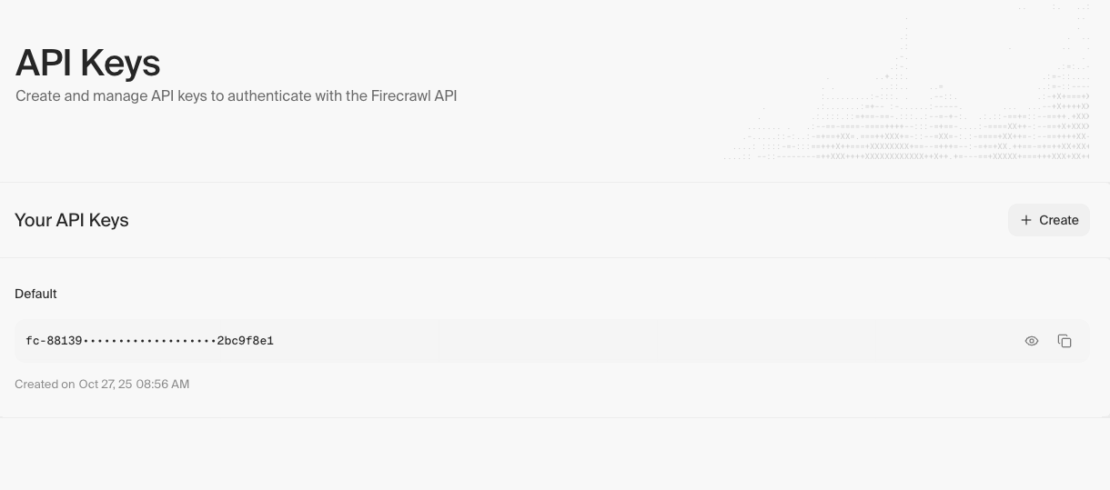
Firecrawl APIキーを入手してください
- https://www.firecrawl.dev に行って
- アカウント作成(またはサインイン)
- サイドバーの APIキー へ移動してください
- 「Create New API Key」をクリックしてください
- APIキーをコピーしてください
Docker Desktopで設定
- Docker Desktop → MCP Toolkit → Catalogを開きます
- 「Firecrawl」で検索
- ファイ アクロール は結果で見つけられます
- [+ 追加] をクリックします。
- [ 構成 ] タブに移動します
- APIキーを追加:
- 畑:
firecrawl.api_key - 価値:Firecrawl APIキー
- その他の項目は空欄のままにしてください
- [サーバーの保存と追加] をクリックします。
またはCLI経由で:
docker mcp secret set FIRECRAWL.API_KEY="fc-your-api-key-here"
docker mcp server enable firecrawl
何が手に入るか
6+ ファイアクロールツール(以下を含む):
firecrawl_scrape– 単一のURLからコンテンツをスクレイピングするfirecrawl_crawl– ウェブサイト全体をクロールし、コンテンツを抽出するfirecrawl_map– サイト内のすべてのインデックスURLを発見firecrawl_search– ウェブ検索とコンテンツ抽出firecrawl_extract– LLM機能を用いた構造化データの抽出firecrawl_check_crawl_status– クロールジョブの状況を確認する
5。サンドボックスMCPサーバー Node.js設定
Node.jsサンドボックスにより、ChatGPTは独立したDockerコンテナ内でJavaScriptを実行できます。
手記: このサーバーは、コンテナをスポーンするためにDocker-out-of-Docker(DooD)を使用しているため、特別な設定が必要です。
アーキテクチャを理解する
Node.js Sandboxは、 Docker-out-of-Docker(DooD) パターンをマウント /var/run/docker.sock実装しています。これにより、サンドボックスコンテナはDockerデーモンにアクセスでき、コード実行のために一時的な兄弟コンテナを生成できます。
ChatGPTがJavaScriptの実行を要求する場合:
- サンドボックスコンテナはDocker APIコールを行います
- 一時的なNode.jsコンテナ(リソース制限付き)を作成します。
- コードを完全に隔離して実行します
- 結果
- コンテナを自動で取り除きます
セキュリティ注意: Dockerソケットアクセスは特権エスカレーションのベクトル(実質的にルートレベルのホストアクセスを付与する)です。これは地域開発には許容されますが、生産用途には慎重な検討が必要です。
Docker Desktop経由で追加
- MCPツールキット → カタログ
- 「Node.js Sandbox」で検索してください。
- [+ 追加] をクリックします。
残念ながら、Node.js Sandboxは手動設定が必要 で、DockerデスクトップUIだけでは完全にはできません。ChatGPTのコネクタ設定を直接設定する必要があります。
出力ディレクトリの準備
サンドボックス出力用のディレクトリを作成します:
# macOS/Linux
mkdir -p ~/Desktop/sandbox-output

# Windows
mkdir %USERPROFILE%\Desktop\sandbox-output
Dockerファイル共有の設定
このディレクトリがDockerにアクセスできることを確認してください:
- Docker Desktop → 設定 → リソース → ファイル共有
~/Desktop/sandbox-output(またはWindows版のもの)を追加してください- 「適用して再スタート」をクリックします
6。シーケンシャルシンキングMCPサーバーの設定
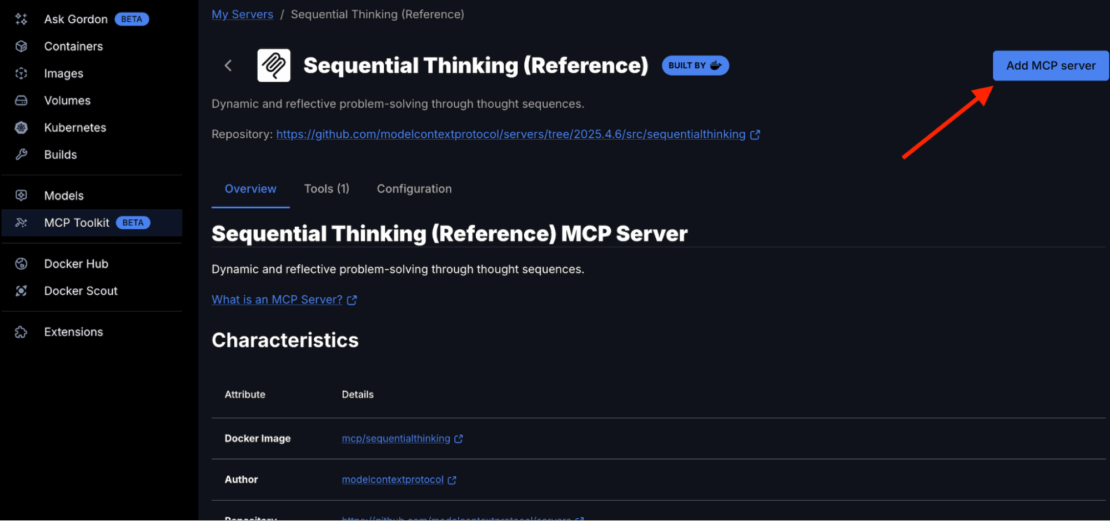
Sequential Thinking MCPサーバーは、思考シーケンスを通じてChatGPTに動的かつ内省的な問題解決を可能にします。Sequential Thinking MCPサーバーの追加は簡単で、APIキーは不要です。カタログで「Sequential Thinking」を検索して、MCPサーバーリストに入力してください。
Docker Desktopの場合:
- Docker Desktop → MCP Toolkit → Catalogを開きます
- 「シーケンシャルシンキング」で検索する
- 結果からシー ケンシャル思考 を見つける
- 「MCPサーバーの追加」をクリックして、設定なしで追加します
Sequential Thinking MCPサーバーは、Docker MCP Toolkitの「My Servers」の下に表示されるはずです。
あなたが得るもの:
- 以下を含む単一のシーケンシャル思考ツール :
sequentialthinking– 思考を通じて動的かつ内省的な問題解決のための詳細なツール。このツールは、柔軟な思考プロセスを通じて問題を分析し、適応・進化することができます。それぞれの思考は、理解が深まるにつれて、これまでの洞察を築き上げたり、疑問を投げかけたり、修正したりすることができます。
7。MCPサーバー7 コンテキストを設定する
Context7 MCPにより、ChatGPTはLLMやAIコードエディタ向けの最新かつ最新のコードドキュメントにアクセスできます。MCPサーバー7 コンテキストを追加するのは簡単です。APIキーは必要ありません。カタログでコンテキスト7 を検索して、MCPサーバーリストに追加してもらえます。
Docker Desktopの場合:
- Docker Desktop → MCP Toolkit → Catalogを開きます
- 「Context7」を検索します。
- 結果でコンテキスト7を見つける
- 「MCPサーバーの追加」をクリックして、設定なしで追加します
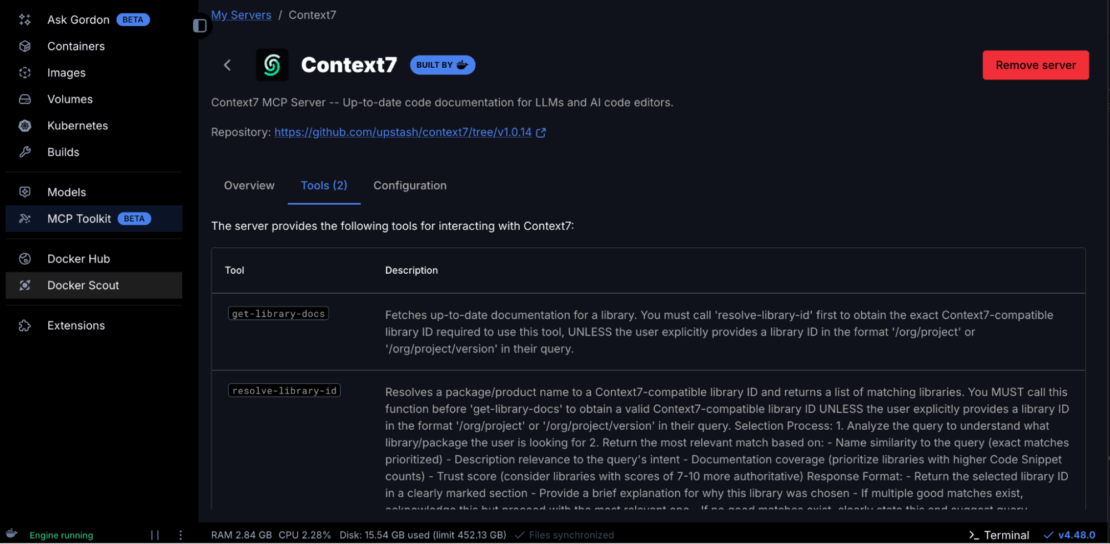
コンテキスト7 MCPサーバーが、Docker MCP Toolkitの「マイサーバー」に表示されるようになりました
あなたが得るもの:
- 2 以下を含むコンテキスト7ツール:
get-library-docs– 図書館の最新ドキュメントを取得する。resolve-library-id– パッケージ/製品名をコンテキスト7互換ライブラリIDに解決し、対応するライブラリのリストを返します。
すべてのMCPサーバーが利用可能で稼働しているか確認してください。
docker mcp server ls

MCP Servers (7 enabled)

NAME                   OAUTH        SECRETS      CONFIG       DESCRIPTION
------------------------------------------------------------------------------------------------
context7               -            -            -            Context7 MCP Server -- Up-to-da...
fetch                  -            -            -            Fetches a URL from the internet...
firecrawl              -            ✓ done       partial    Official Firecrawl MCP Server...
github-official        ✓ done       ✓ done       -            Official GitHub MCP Server, by ...
node-code-sandbox      -            -            -            A Node.js–based Model Context P...
sequentialthinking     -            -            -            Dynamic and reflective problem-...
sqlite-mcp-server      -            -            -            The SQLite MCP Server transform...
stripe                 -            ✓ done       -            Interact with Stripe services o...

Tip: To use these servers, connect to a client (IE: claude/cursor) with docker mcp client connect <client-name>
ChatGPTアプリとコネクタの設定
以下のcomposeファイルを使用して、ChatGPTがDocker MCPカタログ内のすべてのツールを発見できるようにします。
services:
  gateway:
    image: docker/mcp-gateway
    command:
      - --catalog=/root/.docker/mcp/catalogs/docker-mcp.yaml
      - --servers=context7,firecrawl,github-official,node-code-sandbox,sequentialthinking,sqlite-mcp-server,stripe
      - --transport=streaming
      - --port=8811
    environment:
      - DOCKER_MCP_IN_CONTAINER=1
    volumes:
      - /var/run/docker.sock:/var/run/docker.sock
      - ~/.docker/mcp:/root/.docker/mcp:ro
    ports:
      - "8811:8811"
今ではChatGPT開発者モードですべてのMCPツールを閲覧できるはずです。
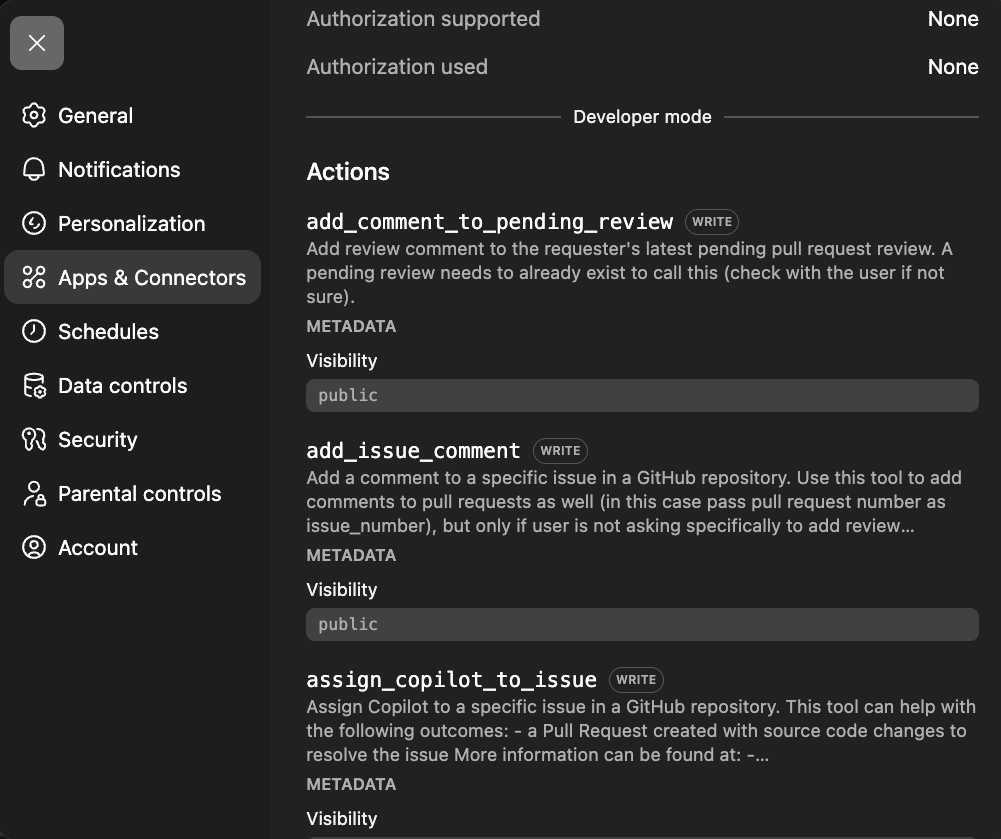
試してみよう
今、ChatGPTに知性を与えます。このシステムのプロンプトをコピーしてChatGPTの会話に貼り付けてください:
You are a Competitive Repricing Agent that monitors competitor prices, automatically adjusts your Stripe product prices, and provides strategic recommendations using 7 MCP servers: Firecrawl (web scraping), SQLite (database), Stripe (price management), GitHub (reports), Node.js Sandbox (calculations), Context7 (documentation), and Sequential Thinking (complex reasoning).

DATABASE SCHEMA

Products table: id (primary key), sku (unique), name, category, brand, stripe_product_id, stripe_price_id, current_price, created_at
Price_history table: id (primary key), product_id, competitor, price, original_price, discount_percent, in_stock, url, scraped_at
Price_alerts table: id (primary key), product_id, competitor, alert_type, old_price, new_price, change_percent, created_at
Repricing_log table: id, product_name, competitor_triggered, competitor_price, old_stripe_price, new_stripe_price, repricing_strategy, stripe_price_id, triggered_at, status

Indexes: idx_price_history_product on (product_id, scraped_at DESC), idx_price_history_competitor on (competitor)

WORKFLOW

On-demand check: Scrape (Firecrawl) → Store (SQLite) → Analyze (Node.js) → Report (GitHub)
Competitive repricing: Scrape (Firecrawl) → Compare to your price → Update (Stripe) → Log (SQLite) → Report (GitHub)

STRIPE REPRICING WORKFLOW

When competitor price drops below your current price:
1. list_products - Find your existing Stripe product
2. list_prices - Get current price for the product
3. create_price - Create new price to match/beat competitor (prices are immutable in Stripe)
4. update_product - Set the new price as default
5. Log the repricing decision to SQLite

Price strategies:
- "match": Set price equal to lowest competitor
- "undercut": Set price 1-2% below lowest competitor
- "margin_floor": Never go below your minimum margin threshold

Use Context7 when: Writing scripts with new libraries, creating visualizations, building custom scrapers, or needing latest API docs

Use Sequential Thinking when: Making complex pricing strategy decisions, planning repricing rules, investigating market anomalies, or creating strategic recommendations requiring deep analysis

EXTRACTION SCHEMAS

Amazon: title, price, list_price, rating, reviews, availability
Walmart: name, current_price, was_price, availability
Best Buy: product_name, sale_price, regular_price, availability

RESPONSE FORMAT

Price Monitoring: Products scraped, competitors covered, your price vs competitors
Repricing Triggers: Which competitor triggered, price difference, strategy applied
Price Updated: New Stripe price ID, old vs new price, margin impact
Audit Trail: GitHub commit SHA, SQLite log entry, timestamp

TOOL ORCHESTRATION PATTERNS

Simple price check: Firecrawl → SQLite → Response
Trend analysis: SQLite → Node.js → Response
Strategy analysis: SQLite → Sequential Thinking → Response
Competitive repricing: Firecrawl → Compare → Stripe → SQLite → GitHub
Custom tool development: Context7 → Node.js → GitHub
Full intelligence report: Firecrawl → SQLite → Node.js → Sequential Thinking → GitHub

KEY USAGE PATTERNS

Use Stripe for: Listing products, listing prices, creating new prices, updating product default prices

Use Sequential Thinking for: Pricing strategy decisions (match, undercut, or hold), market anomaly investigations (why did competitor prices spike), multi-factor repricing recommendations

Use Context7 for: Getting documentation before coding, learning new libraries on-the-fly, ensuring code uses latest API conventions

Use Node.js for: Statistical calculations (moving averages, standard deviation, volatility), chart generation, margin calculations

BEST PRACTICES

Space web scraping requests 2 seconds apart to respect rate limits
Calculate price difference as (your_price - competitor_price)
Trigger repricing when competitor drops below your current price
Log all repricing decisions to SQLite with Stripe IDs for audit trail
Push pricing reports to GitHub for compliance
Always use Context7 before writing code with unfamiliar libraries
Respect margin floors—never reprice below minimum acceptable margin

COMMAND RECOGNITION PATTERNS

"Check X prices and stay competitive" → Full repricing pipeline: scrape → compare → if competitor lower: Stripe update + SQLite + GitHub
"Match competitor price for X" → Stripe: list_products → list_prices → create_price (matching)
"Undercut competitors on X" → Stripe: create_price (1-2% below lowest)
"Show price history" → SQLite query → format results
"Analyze pricing strategy for X" → Sequential Thinking analysis
"Why did competitor prices change" → Query data → Sequential Thinking investigation

CORE PRINCIPLE

When competitors change prices, don't just report—ACT. Update your Stripe prices to stay competitive, log decisions to SQLite, push audit records to GitHub. Transform competitor intelligence into automated repricing. All data stays on YOUR infrastructure.
お題はこちらです:
Set up a competitive repricing agent:
1. I sell MacBook Air M3 on my store - current Stripe price is $549.99
2. Monitor competitor prices on Amazon, Walmart, Best Buy
3. When ANY competitor drops below my price:
   - Automatically update my Stripe product price to match or beat them
   - Use "undercut" strategy (price 1% below lowest competitor)
   - Log the repricing decision to SQLite
   - Push pricing change report to GitHub

Check prices now and reprice if needed.
ChatGPTは次の対応をします。すべてのMCPサーバーを単一のワークフローでオーケストレーション 7 します:
競争再価格付けエージェント – 実行完了
3分以内に、ChatGPTはすべてのMCPサーバー7市場分析をオーケストレーションし、自動的に商品価格を変更しました。
再価格設定の開始と実行:
|
メトリック |
以前は |
後 |
|---|---|---|
|
あなたの代償 |
$549。99 |
$504。99 |
|
価格変動 |
– |
-$45。00 (-8.2%) |
|
市場ポジション |
3rd(Best Buyの背後) |
#1 最低の |
競合他社の価格スキャン結果:
|
こうりぎょうしゃ |
料金 |
対。あなたの新しい代償 |
|---|---|---|
|
あなたのストア |
$504。99 |
市場リーダー |
|
ベストバイ |
$509。99 |
+$5。00 ( 1%上回る |
|
ウォルマート |
$669。00 |
+$164。01 もっと高く |
|
アマゾン |
$699。00 |
+$194。01 もっと高く |
エージェントの行動(6 ステップ):
- SQLite3 をインストールし、 4 テーブル付きのデータベーススキーマを作成しました
- Stripe製品(prod_TZaK0ARRJ5OJJ8)を初期の$549で作成しました。99価格
- Amazon、Best Buy、WalmartからFirecrawl経由で競合他社のライブ価格をスクレイピングしました
- Sequential Thinkingで価格戦略を分析した — Best Buyが$509で検出されました。99 あなたの価格より低く
- 実行された価格変更 — 新しいStripe価格を$504で作成しました。99 (price_1ScRCVI9l1vmUkzn0hTnrLmW)
- 監査レポートをGitHubにプッシュしました(コミット「64a488aa')
すべてのデータはあなたのインフラに保存されており、OpenAIのサーバーには保存されません。
再度価格を確認するには、ChatGPTに「競合他社の価格をMacBook Air M3 調べてみる」と頼むだけで、自動的にスクラッチ、比較、再価格設定を行います。このチェックは毎日、週次、または競争情報が欲しいときに実行してください
完全なデモを探る
GitHubで完全な再価格レポートと監査履歴をご覧ください: https://github.com/ajeetraina/competitive-repricing-agent-mcp
真の自動化が欲しいですか?このデモでは、会話によってトリガーされたオンデマンド再価格設定が示されています。完全自動化の定期チェックには、数時間ごとにOpenAI APIを呼び出して同じワークフローをトリガーするシンプルなスケジューラーを構築すれば、ハンズフリーの競争インテリジェンスシステムに変えることができます。デフォルトのヒューストン段落テキスト
まとめ
ChatGPTをDocker MCP Toolkitに接続し、複数のMCPサーバーを設定しただけです。かつては複数のツール間のコンテキスト切り替えや手動クエリ作成、何時間ものデバッグが必要だったことが、今ではDockerコンテナ内で安全に実行される自然な会話によって実現しています。
これがAI支援開発の新たなパラダイムです。ChatGPTはもはや単に質問に答えるだけではありません。データベースのクエリ、リポジトリの管理、データのスクレイピング、コードの実行など、Dockerがすべてを安全かつ封じ込めた状態に保ちます。
試してみる準備はできていますか? Docker Desktopを開き 、MCPカタログを探索してください。まずはSQLiteから始めて、GitHubを追加し、Firecrawlを試してみて。各サーバーは新たな機能をアンロックします。
開発の未来は、自分でコードを全部書くことではありません。それは、あなたのスタック全体を安全かつ再現可能に、そして思考の速さでタスクを実行できるAIパートナーを持つことです。
詳細情報
- Docker は初めてですか? Docker Desktop をダウンロードする
- MCPカタログを探る: コンテナ化されたセキュリティ強化されたMCPサーバーを発見
- MCP Toolkitの始め方: 公式文書