

なぜ「保護リポジトリ」なのか?
現代のチームは公開コンテナイメージに依存していますが、ほとんどの環境では何をいつ取得するかを監査可能な単一のコントロールポイントがありません。これにより、しばしば3つの運用上の課題が生じます。
- チームやパイプラインを横断して漂う、一貫性のない、または即席のベース画像。
- タグが変わらないのに上流コンテンツが変わらない場合の新しいCVEへの曝露。
- レート制限、スロットリング、プル中断による信頼性の低いワークフロー。
保護リポジトリは、公開ソースと内部システムの境界で画像を評価することでこれらの課題に対応し、ビルドプロセスに利用可能な信頼できるコンテンツのみを確保します。
上流ルーティングは Nexus Repository のDockerプロキシを通じてDocker Hubに認証し、承認されたレイヤーをキャッシュし、セキュリティと信頼性のチェックポイントを作成します。リポジトリファイアウォールは 、画像レイヤーとそのコンポーネントを設定されたポリシーに照らして検査し、その結果に基づき許可、隔離、ブロックなどの適切な操作を強制します。これにより、チームがベース画像の標準的かつ信頼できるエントリーを得られます。承認されたコンテンツはキャッシュされ、その後のプルを加速させ、マルウェアや高重大度の脆弱性は開発者の環境に到達する前にブロックされます。
このワークフローを 、Docker Official Images や Docker Hardened Images などの厳選されたソースと組み合わせることで、組織全体の安定した検証済みの基準が得られます。
Docker Hub認証(PAT/OAT)のクイックセットアップ
Nexus Dockerプロキシを設定する前に、Docker Hubへの認証アクセスを設定してください。認証により匿名プルレートの制限を防ぎ、共有システムが個人の開発者認証に依存しないようにします。Docker Hub は2種類のアクセストークンをサポートしており、プロキシやCI/CDシステムには組織アクセストークン(OAT)が推奨されています。
適切なトークンタイプを選びましょう
パーソナルアクセストークン(PAT): 認証が個別アカウントに紐づいている場合、例えばローカル開発や小規模なチームなどはPATを使いましょう。
- シングルユーザーアカウントに紐づく
- ユーザーが二要素認証を有効にする際のCLIログインに必要です
- 共有インフラにはおすすめできません
組織アクセストークン(OAT) (推奨): 複数のユーザーやチームに対応するシステムで認証が必要な場合、OATを使用してください。
- 個人ではなく組織と関連付ける
- CI/CDシステム、ビルドインフラストラクチャ、Nexus Dockerプロキシに適しています
- SSOおよび 2FAの強制と互換性があります
- 細かい権限と取り消しをサポートします
- Docker Hubチームまたはビジネスプランが必要です
アクセストークンを作成する
パーソナルアクセストークン(PAT)を作成するには:
- Docker Hubのアカウント設定を開きます(右上にハブアバターを鳴らします)。
- 「個人アクセストークン」を選択してください。
- 「新しいトークンを生成する」をクリックしてください。
- トークン名、有効期限、アクセス権限を定義します。
- 「生成」を選択し、値がすぐに保存されます。再確認することはできません。
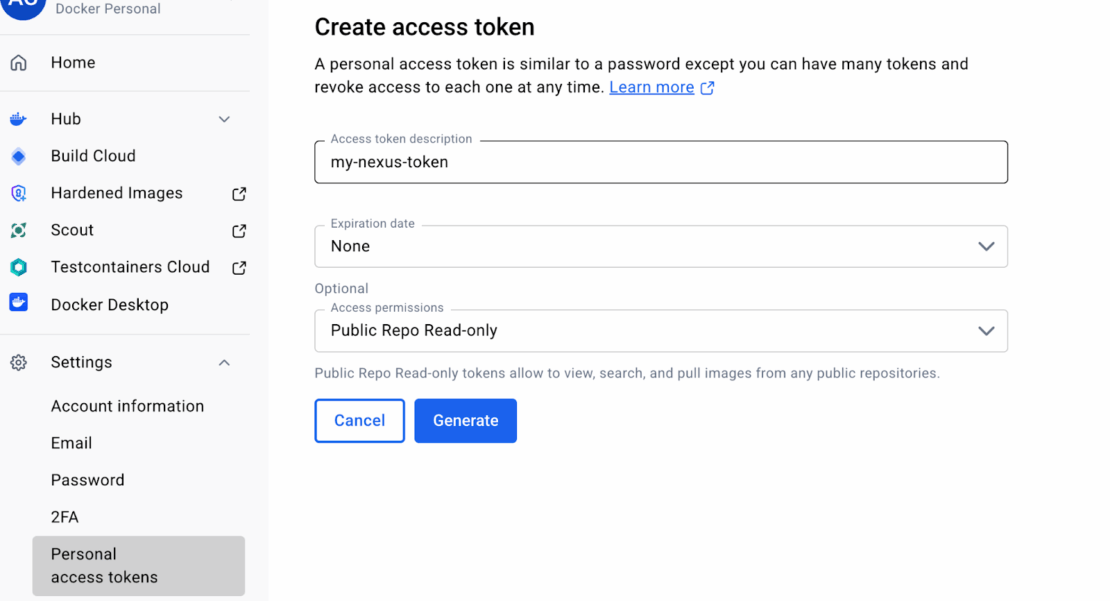
組織アクセストークン(OAT)を作成するには:
- Docker Homeにサインインし、あなたの組織を選択してください。
- 管理コンソールを選択し、次にアクセストークンを選択します。
- 「アクセストークンを生成」を選択します。
- リポジトリのドロップダウンを展開し、必要な権限のみを割り当てます。通常はプロキシやCIシステムでは読み取り/プルです。
- 「トークン生成」を選択します。画面に表示されるトークンをコピーして保存してください。画面を抜けるとトークンは回収できません。
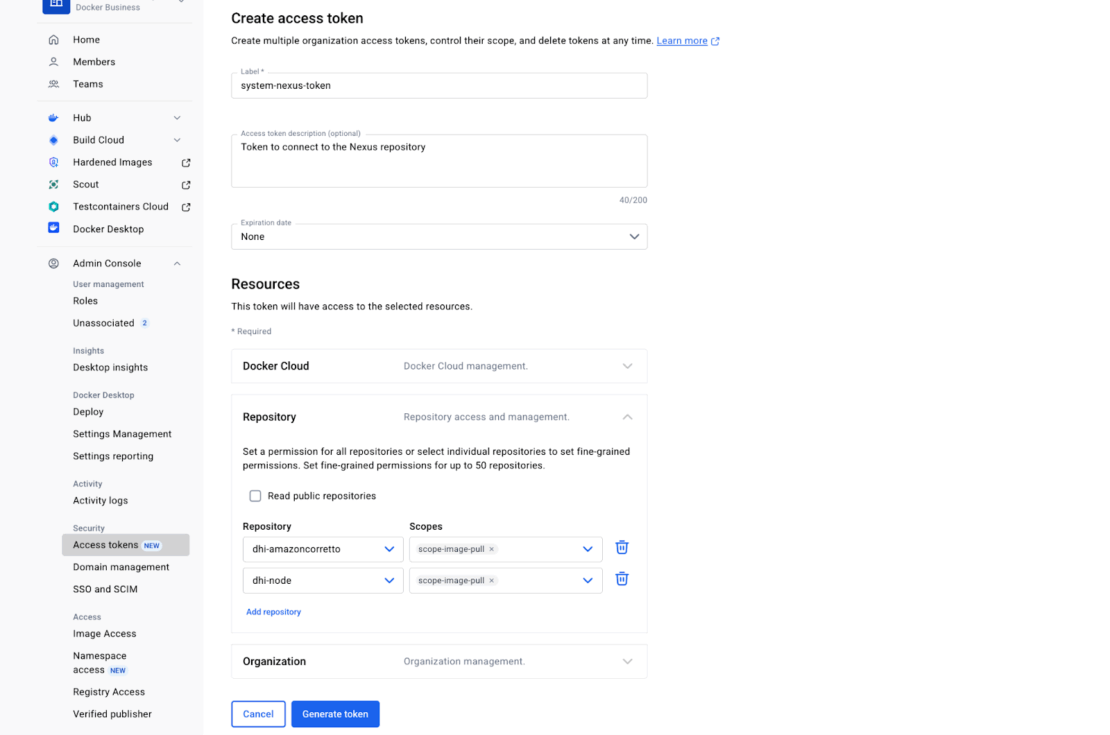
推奨される実践
- 最小限必要な権限にトークンを割り当てる
- トークンは定期的にローテーションしてください
- トークンが暴露された場合は直ちに取り消してください
- 最終使用時のタイムスタンプを監視し、予想される使用パターンを確認してください
ステップバイステップ:Docker Hubプロキシを作成する
認証設定の次のステップは、Nexusを組織のDocker Hubプロキシにして 保護リポジトリ を稼働させることです。Nexus Repository内のDockerプロキシリポジトリは、開発者やCIのために上流プルを行い、レイヤーをローカルにキャッシュしてより高速かつ信頼性の高いビルドを実現し、アクセスと監査の跡を集中管理してチームが一か所から認証情報やイメージ使用を管理できるように、単一のポリシー強制レジストリエンドポイントを提供します。
プロキシを作成するには:
- 管理者として、 設定 ビュー(歯車アイコン)に移動します。
- リポジトリを開き、リポジトリを作成を選択します。
- リポジトリタイプとして docker(プロキシ) を選択してください。
- 以下の設定を設定してください:
- リモートストレージ: https://registry-1.docker.io
- Docker V1 API: 有効化
- インデックスタイプ: 「Docker Hubを使用」を選択してください
- 環境に応じてBlobストアとネットワーク設定を調整します
- リポジトリを保存して設定を最終決定します。
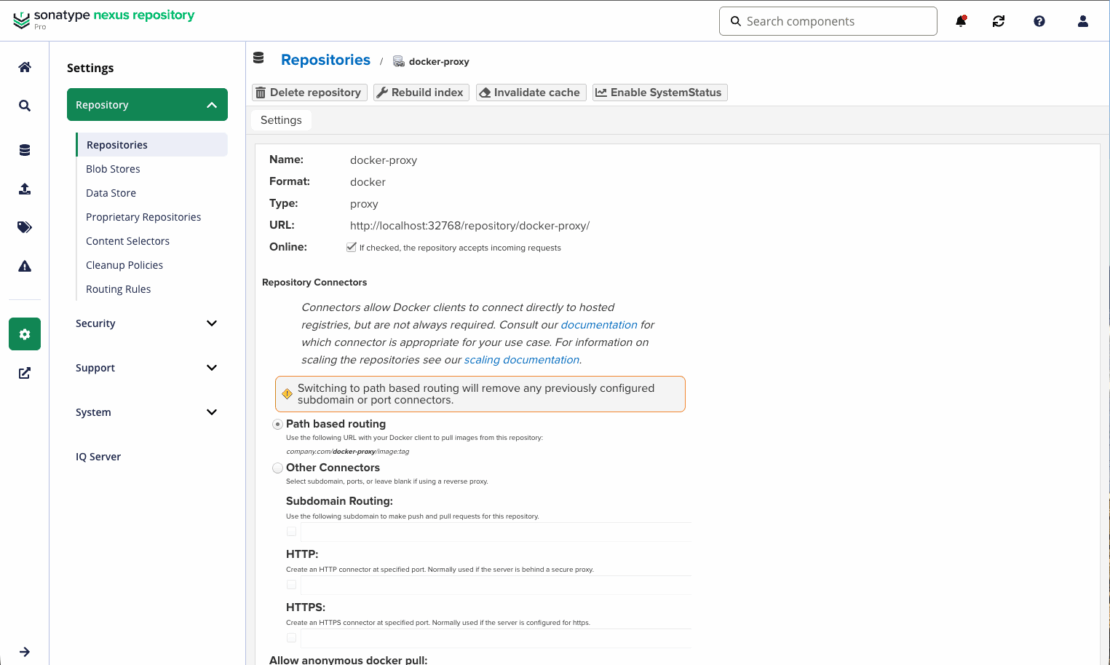
クリーンなプルエンドポイントを提供する
開発者のワークフローをシンプルにするために、プロキシを安定した組織全体のホストネームに公開してください。これによりカスタムポートやチームごとの設定を避け、プロキシはDocker Hubの直接プルの透明なドロップイン代替となります。
一般的な例は以下の通りです:
docker-proxy.company.com
hub.company.internal
リバースプロキシまたはイングレスコントローラを使って、このホスト名をNexusプロキシリポジトリにルーティングします。
接続性の検証
プロキシが公開されたら、正しく応答し、Docker Hubに認証できるか確認してください。
ラン:
docker login docker-proxy.company.com
docker pull docker-proxy.company.com/dhi/node:24
プルが成功すれば、プロキシが正しく動作し、上流の接続が正常であり、認証されたアクセスが確保されていることが確認されます。
コンテナ用のリポジトリファイアウォールをオンにしてください
Dockerプロキシが設置されたら、リポジトリファイアウォールを有効にして、画像が内部システムに届く前に検査されます。リポジトリファイアウォールはダウンロード時にポリシーを強制し、レジストリエッジでマルウェアや高重大度の脆弱性を阻止し、新たに明らかになった問題の波及範囲を減らし、エンジニアリングチームの修復作業を削減します。
プロキシリポジトリのファイアウォールを有効にするには:
- 管理者として、設定ビュー(歯車アイコン)に移動します。
- システムメニューの 「Capabilities 」へ移動してください。
- Dockerプロキシリポジトリに「ファイアウォール監査および隔離」機能を作成してください。
- 新規違反コンポーネントを隔離し、リスクの導入を防ぐためにポリシーを設定しましょう。
- 開発チームにこの変更を知らせ、期待値を設定しましょう。
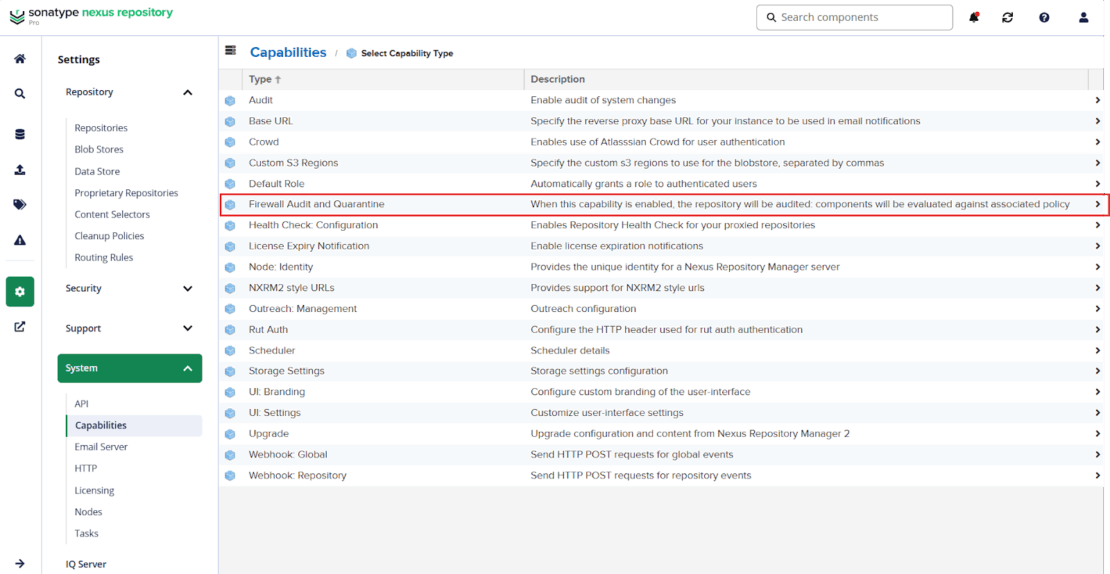
「検疫」と「監査」の理解
リポジトリファイアウォールは、要求された各画像を評価します:
- 検疫– ポリシーに違反する画像はブロックされ、隔離されます。それらは開発者やCIシステムには届きません。ユーザーは故障の原因を示す明確なフィードバックを受け取ります。
- 監査 – ポリシーをクリアした画像は通常通り配信されキャッシュされます。これによりパフォーマンスが向上し、プロキシは信頼できるベースイメージの一貫性のあるソースとなります。
リポジトリファイアウォールを有効にすると、即時のダウンロード時保護と、自信を持って運用するためのテレメトリが得られます。まずは保守的な方針(マルウェアやCVSS≥ 8の隔離)から始め、違反やキャッシュヒット率を監視し、実際のテレメトリに基づいて閾値を調整し、誤検知が解決されチームがワークフローに慣れてきたら、より厳格なブロック執行に移行しましょう。
ブロックされたプルがどんなものか
Repository Firewallを有効にし、ベースラインポリシーを設定した後、これらのチェックに失敗したプルはレジストリエッジで拒否され、イメージレイヤーはダウンロードされません。デフォルトではNexusはポリシーや脆弱性の詳細を漏らさないため、説明のない 404 を返しますが、短く内部に向けた失敗メッセージを表示することは可能です。
例えば、ファイアウォールが有効でCVSSの閾値ポリシーが正しく設定されている場合、次のプルは 404 メッセージとともに失敗します。
docker pull docker-proxy.company.com/library/node:20
これにより、以下のことが確認されます:
- リクエストはプロキシを通過しています。
- リポジトリファイアウォールが画像メタデータを検査しています。
- ポリシー違反は画像レイヤーがダウンロードされる前にブロックされます。
ファイアウォールUIでプロキシリポジトリを開き、記録された違反を確認できます。詳細には検出されたCVE、重大度情報、拒否を引き起こしたポリシーなどが含まれます。これにより管理者は可視化され、執行が期待通りに機能していることが確認されます。
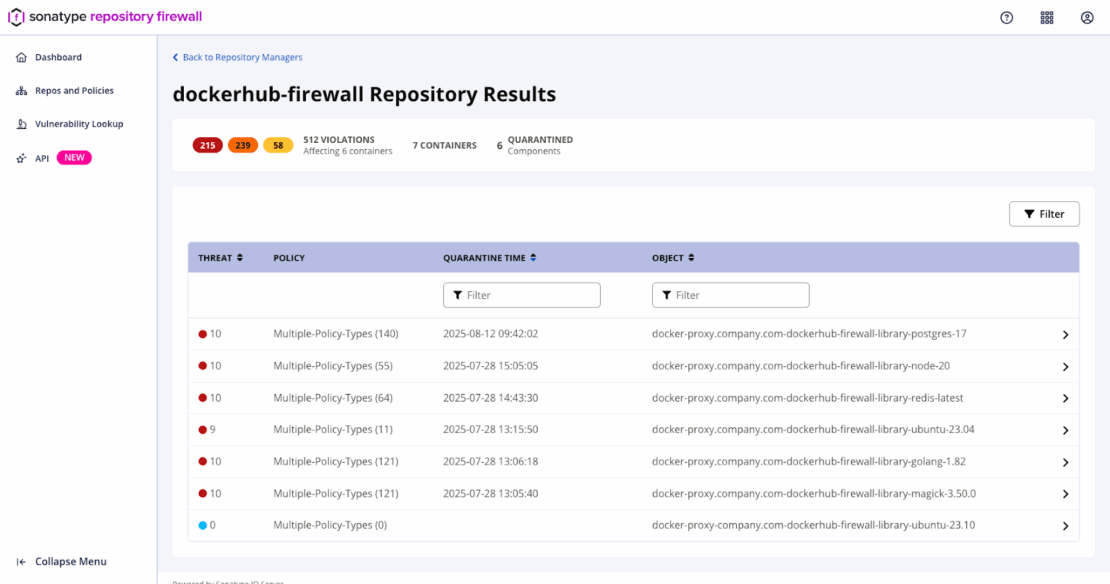
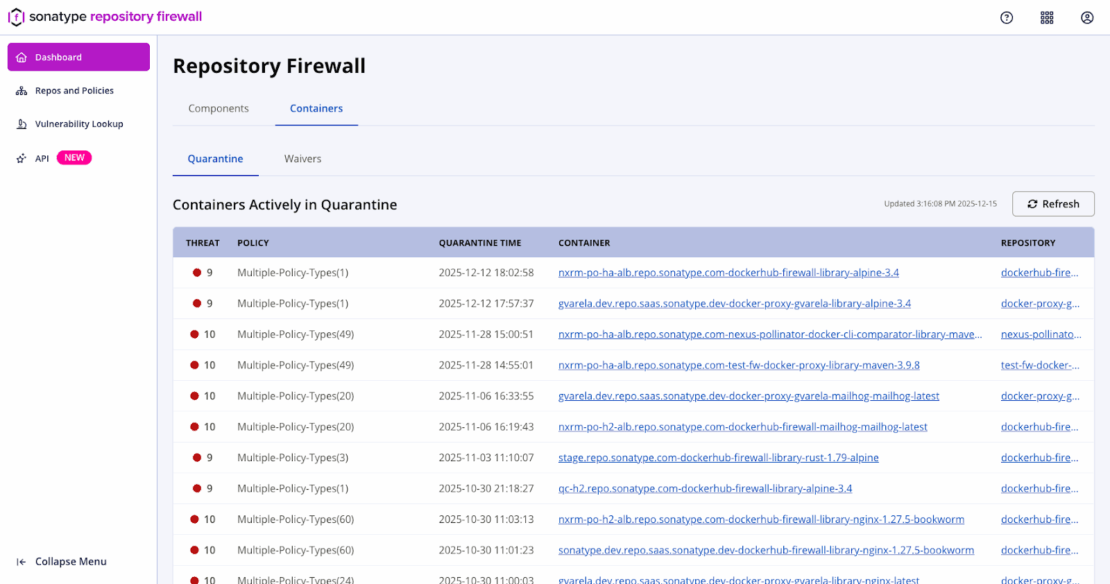
さらに、隔離コンテナダッシュボードにはリポジトリファイアウォールがブロックしたすべての画像が一覧化され、トリガーポリシーと深刻度が示されているため、チームは完全なコンテキストでトリアージできます。管理者はこのビューを使って証拠を確認し、浄化ノートを追加し、検疫中の品目を解放または削除します。マルウェアはデフォルトで隔離されますが、他の違反はプロキシ段階でルールが失敗に設定された場合にのみ隔離されます。
前進:承認された基地を選び、成功する
ポリシー強制が検証されたら、次のステップは組織のセキュリティルールに準拠したベースイメージを取得することです。これは、承認され信頼されたコンテンツを使用した場合の通常の開発者体験を示しています。
プロキシを通じて準拠タグをプルします:
docker pull docker-proxy.company.com/dhi/node:24
このリクエストはリポジトリファイアウォールのチェックを通過し、イメージは正常に引き出されます。プロキシは各レイヤーをローカルにキャッシュし、将来のプルをより速くし、上流のレート制限やレジストリの利用可能性に影響されないようにします。
プルを繰り返すと、2回目のリクエストはキャッシュから直接提供されるため明らかに速くなります。これは開発者が期待すべき日常的なワークフローを示しています:信頼できる画像、予測可能なパフォーマンス、そして中断の少ないこと。
始めましょう:Dockerプルの保護
Sonatypeで保護されたDockerプロキシは、開発者にイメージプル用のポリシー準拠のレジストリエンドポイントを提供します。レイヤーは速度のためにキャッシュされ、ポリシー違反は実行可能なガイダンスとともに浮上し、チームはすでに依存しているのと同じDockerのCLIワークフローで検証済みのベースイメージを扱います。Docker Hardened Imagesのような信頼できるソースと組み合わせることで、開発者の摩擦を最小限に抑えつつ予測可能なベースラインを提供できます。
このパターンを試してみる準備はできましたか?以下のページをご覧ください: