
We’re excited to announce that the remote Atlassian Rovo MCP server is now available in Docker’s MCP Catalog and Toolkit, making it easier than ever to connect AI assistants to Jira and Confluence. With just a few clicks, technical teams can use their favorite AI agents to create and update Jira issues, epics, and Confluence pages without complex setup or manual integrations.
In this post, we’ll show you how to get started with the Atlassian remote MCP server in minutes and how to use it to automate everyday workflows for product and engineering teams.
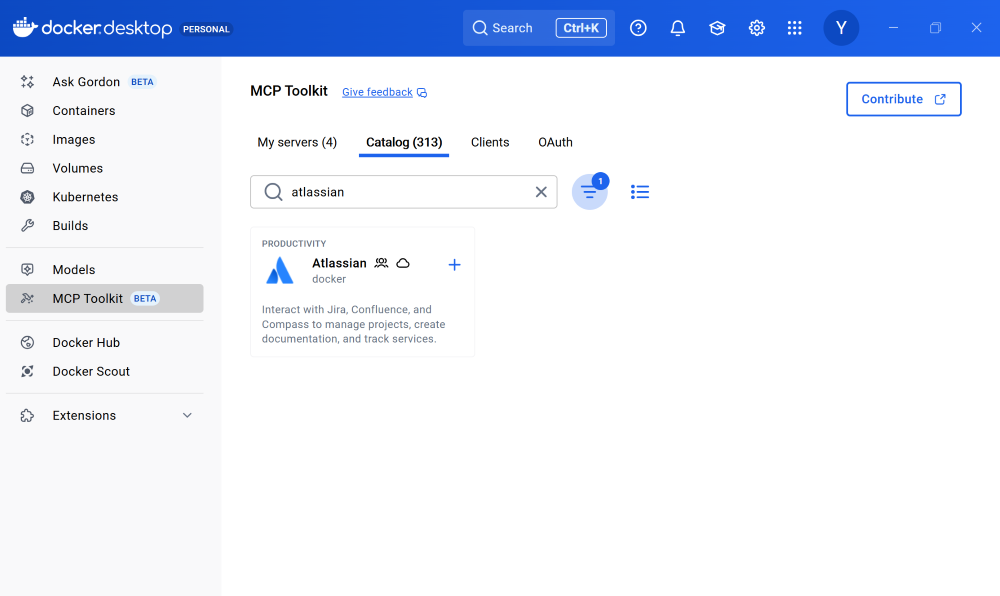
Figure 1: Discover over 300+ MCP servers including the remote Atlassian MCP server in Docker MCP Catalog.
What is the Atlassian Rovo MCP Server?
Like many teams, we rely heavily on Atlassian tools, especially Jira to plan, track, and ship product and engineering work. The Atlassian Rovo MCP server enables AI assistants and agents to interact directly with Jira and Confluence, closing the gap between where work happens and how teams want to use AI.
With the Atlassian Rovo MCP server, you can:
- Create and update Jira issues and epics
- Generate and edit Confluence pages
- Use your preferred AI assistant or agent to automate everyday workflows
Traditionally, setting up and configuring MCP servers can be time-consuming and complex. Docker removes that friction, making it easy to get up and running securely in minutes.
Enable the Atlassian Rovo MCP Server with One Click
Docker’s MCP Catalog is a curated collection of 300+ MCP servers, including both local and remote options. It provides a reliable starting point for developers building with MCP so you don’t have to wire everything together yourself.
Prerequisites
- Before you begin, make sure you have:
- A machine with 8GB RAM minimum, ideally 16GB
- Install Docker Desktop
To get started with the Atlassian remote MCP server:
- Open Docker Desktop and click on the MCP Toolkit tab.
- Navigate to Docker MCP Catalog
- Search for the Atlassian Rovo MCP server.
- Select the remote version with cloud icon
- Enable it with a single click
That’s it. No manual installs. No dependency wrangling.
Why use the Atlassian Rovo MCP server with Docker
Demo by Cecilia Liu: Set up the Atlassian Rovo MCP server with Docker with just a few clicks and use it to generate Jira epics with Claude Desktop
Seamless Authentication with Built-in OAuth
The Atlassian Rovo MCP server uses Docker’s built-in OAuth, so authorization is seamless. Docker securely manages your credentials and allows you to reuse them across multiple MCP clients. You authenticate once, and you’re good to go.
Behind the scenes, this frictionless experience is powered by the MCP Toolkit, which handles environment setup and dependency management for you.
Works with Your Favorite AI Agent
Once the Atlassian Rovo MCP server is enabled, you can connect it to any MCP-compatible client.
For popular clients like Claude Desktop, Claude Code, Codex, or Gemini CLI, connecting is just one click. Just click Connect, restart Claude Desktop, and now we’re ready to go.
From there, we can ask Claude to:
- Write a short PRD about MCP
- Turn that PRD into Jira epics and stories
- Review the generated epics and confirm they’re correct
And just like that, Jira is updated.
One Setup, Any MCP Client
Sometimes AI assistants have hiccups. Maybe you hit a daily usage limit in one tool. That’s not a blocker here.
Because the Atlassian Rovo MCP server is connected through the Docker MCP Toolkit, the setup is completely client-agnostic. Switching to another assistant like Gemini CLI or Cursor is as simple as clicking Connect. No need for reconfiguration or additional setup!
Now we can ask any connected AI assistant such as Gemini CLI to, for example, check all new unassigned Jira tickets. It just works.
Coming Soon: Share Atlassian-Based Workflows Across Teams
We’re working on new enhancements that will make Atlassian-powered workflows even more powerful and easy to share. Soon, you’ll be able to package complete workflows that combine MCP servers, clients, and configurations. Imagine a workflow that turns customer feedback into Jira tickets using Atlassian and Confluence, then shares that entire setup instantly with your team or across projects. That’s where we’re headed.
Frequently Asked Questions (FAQ)
What is the Atlassian Rovo MCP server?
The Atlassian MCP Rovo server enables AI assistants and agents to securely interact with Jira and Confluence. It allows AI tools to create and update Jira issues and epics, generate and edit Confluence pages, and automate everyday workflows for product and engineering teams.
How do I use the Atlassian Rovo MCP server with Docker?
You can enable the Atlassian Rovo MCP server directly from Docker Desktop or CLI. Simply open the MCP Toolkit tab, search for the Atlassian MCP server, select the remote version, and enable it with one click. Connect to any MCP-compatible client. For popular tools like Claude Code, Codex, and Gemini, setup is even easier with one-click integration.
Why use Docker to run the Atlassian Rovo MCP server?
Using Docker to run the Atlassian Rovo MCP server removes the complexity of setup, authentication, and client integration. Docker provides one-click enablement through the MCP Catalog, built-in OAuth for secure credential management, and a client-agnostic MCP Toolkit that lets teams connect any AI assistant or agent without reconfiguration so you can focus on automating Jira and Confluence workflows instead of managing infrastructure.
Less Setup. Less Context Switching. More Work Shipped.
That’s how easy it is to set up and use the Atlassian Rovo MCP server with Docker. By combining the MCP Catalog and Toolkit, Docker removes the friction from connecting AI agents to the tools teams already rely on.
Learn more
- Get started with MCP Catalog and Toolkit
- Explore the Docker MCP Catalog: Discover containerized, security-hardened MCP servers
- Read more about the Docker MCP Toolkit: Official Documentation